目次
How to Import Palworld Save Data
1. Prerequisites
Please log in to the game panel. For instructions on how to log in to the game panel, please see here This procedure describes the steps to import save data from another company’s server or home server to our PALWORLD game server.2. Revision History
- 1.0:
- Date Created: 2024/1
- Update Content: Initial version created
- Created by: BESTNET-GSERVER
3. Table of Contents
- 1. Prerequisites
- 2. Revision History
- 3. Table of Contents
- 4. Creating a Backup
- 5. Uploading World Files
- 6. Editing GameUserSettings.ini
- 7. Additional Notes and Cautions
- 8. Server Restart
4. Creating a Backup
Please create a backup before proceeding with the operation. Backups can be easily created from the game panel and can be restored with a single click. Please refer to the following: Backup creation procedure is here5. Uploading World Files
※For customers who were operating on a Windows home server, the files should be in the following location.※ %userprofile%\AppData\Local\Pal\Saved\SaveGamesPlease upload the world file to the following location: /home/container/Pal/Saved/SaveGames/0 Also, please confirm that the world name and save data are identical.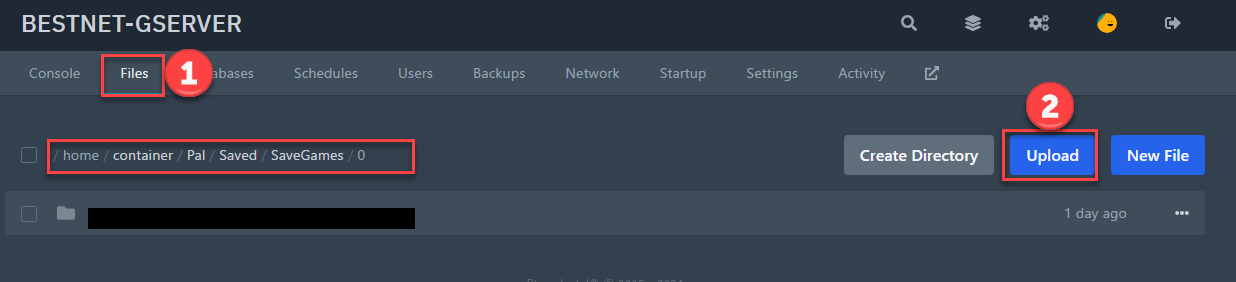
6. Editing GameUserSettings.ini
Please edit ‘GameUserSettings.ini’. This file is located at: /home/container/Pal/Saved/Config/LinuxServer The part that needs to be edited is the value of ‘DedicatedServerName=’ on line 7. Edit this value so that it points to the uploaded world file.7. Additional Notes and Cautions
When importing data created in a local environment such as a home server, there is information indicating a bug where the creator’s character ID is created with an abnormal value. If you encounter this bug, the import to the server will fail, and you will need to create a new character.If you have advanced knowledge, please refer to the following community: You will likely be able to resolve it on your own. (https://github.com/xNul/palworld-host-save-fix)8. Server Restart
Once the upload is complete, please restart the server.If you have any other questions, please submit a ticket.