---
title: マインクラフトサーバーでファイル タブを使用する方法
url: "https://gss.bestnetllc.co.jp/docs/%e3%83%9e%e3%82%a4%e3%83%b3%e3%82%af%e3%83%a9%e3%83%95%e3%83%88%e3%82%b5%e3%83%bc%e3%83%90%e3%83%bc%e3%81%a7%e3%83%95%e3%82%a1%e3%82%a4%e3%83%ab-%e3%82%bf%e3%83%96%e3%82%92%e4%bd%bf%e7%94%a8%e3%81%99/"
updated: "2025-02-24"
category: Minecraft
---

# マインクラフトサーバーでファイル タブを使用する方法

**注記** 500MBを超えるアップロードが必要な場合は、SFTPクライアントの使用を検討してください。

## **ファイルタブを見つける方法**

### **STEP1.**[ゲームパネル](https://gsv.bestnetllc.co.jp/)にログインします。

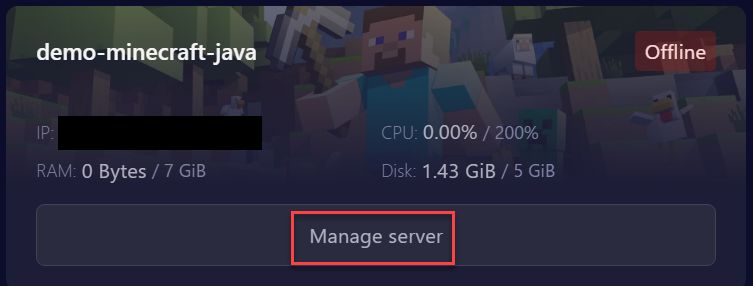
### **STEP2.****マイサーバー**の下で、**Minecraftサーバー**を選択します。
 [![](https://gss.bestnetllc.co.jp/wp-content/uploads/2025/02/マイサーバー.webp)](https://gss.bestnetllc.co.jp/wp-content/uploads/2025/02/マイサーバー.webp)

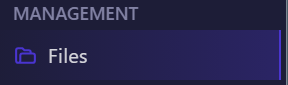
### **STEP3.左側メニューから[Files]を選択します。**
 [![](https://gss.bestnetllc.co.jp/wp-content/uploads/2025/01/Files②.png)](https://gss.bestnetllc.co.jp/wp-content/uploads/2025/01/Files②.png)

---

## **ファイルのアップロード方法**

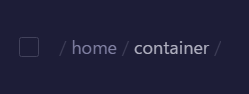
### **STEP1.**目的のディレクトリに**移動します。**
 [![](https://gss.bestnetllc.co.jp/wp-content/uploads/2025/02/コンテナー.png)](https://gss.bestnetllc.co.jp/wp-content/uploads/2025/02/コンテナー.png)

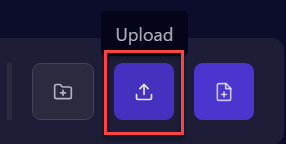
### **STEP2.右上の****[Upload]**をクリックし、アップロードするファイル**を選択します。**
 [![](https://gss.bestnetllc.co.jp/wp-content/uploads/2025/02/アップロード.png)](https://gss.bestnetllc.co.jp/wp-content/uploads/2025/02/アップロード.png)

### **STEP3.**ファイルを直接**ドラッグ アンドドロップしてアップロードします。**

---

## **フォルダーを作成する方法**

### **STEP1.**目的のディレクトリに**移動します。**
 [![](https://gss.bestnetllc.co.jp/wp-content/uploads/2025/02/コンテナー.png)](https://gss.bestnetllc.co.jp/wp-content/uploads/2025/02/コンテナー.png)

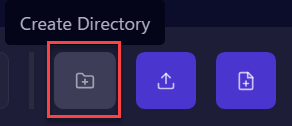
### **STEP2.****[Create-Directory] を**選択します。
 [![](https://gss.bestnetllc.co.jp/wp-content/uploads/2025/01/Create-Directory.png)](https://gss.bestnetllc.co.jp/wp-content/uploads/2025/01/Create-Directory.png)

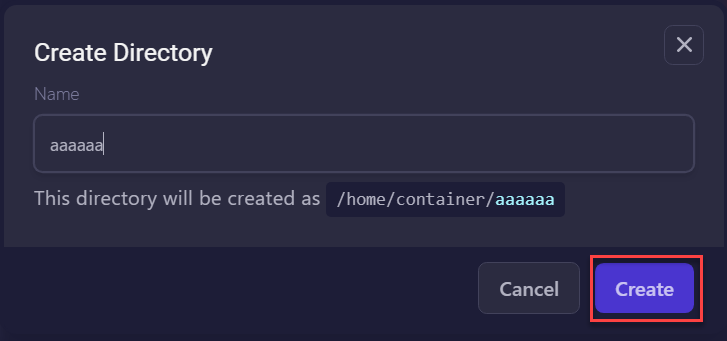
### **STEP3.**新しいフォルダー**に名前を付け、右下の[Create****]**をクリックします。
 [![](https://gss.bestnetllc.co.jp/wp-content/uploads/2025/02/Create-Directory.webp)](https://gss.bestnetllc.co.jp/wp-content/uploads/2025/02/Create-Directory.webp)

---

## **ファイルを作成する方法**

### **STEP1.**目的のディレクトリに**移動します。**
 [![](https://gss.bestnetllc.co.jp/wp-content/uploads/2025/02/コンテナー.png)](https://gss.bestnetllc.co.jp/wp-content/uploads/2025/02/コンテナー.png)

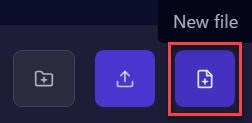
### **STEP2.[New file]を選択します。
 [![](https://gss.bestnetllc.co.jp/wp-content/uploads/2025/01/New-File.png)](https://gss.bestnetllc.co.jp/wp-content/uploads/2025/01/New-File.png)**

### **STEP3.****編集**後、**[Create File]**ボタンを押します。
 [![](https://gss.bestnetllc.co.jp/wp-content/uploads/2025/02/作成.webp)](https://gss.bestnetllc.co.jp/wp-content/uploads/2025/02/作成.webp)

### **STEP4.**新しいファイル**に名前を付け、 ****[作成]**をクリックします。
 [![](https://gss.bestnetllc.co.jp/wp-content/uploads/2025/02/Create　作成.webp)](https://gss.bestnetllc.co.jp/wp-content/uploads/2025/02/Create　作成.webp)

---

## **ファイルとフォルダの名前を変更する方法**

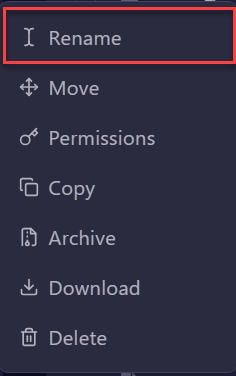
### **STEP1.**目的のファイルまたはフォルダ**を右クリックし、 ****[Rename]**を選択します。
 [![](https://gss.bestnetllc.co.jp/wp-content/uploads/2025/02/名前変更.webp)](https://gss.bestnetllc.co.jp/wp-content/uploads/2025/02/名前変更.webp)

### **STEP2.**希望する新しい名前**を入力し、 ****[Rename]**をクリックします。
 [![](https://gss.bestnetllc.co.jp/wp-content/uploads/2025/02/名前の変更.webp)](https://gss.bestnetllc.co.jp/wp-content/uploads/2025/02/名前の変更.webp)

---

## **ファイルを新しいディレクトリに移動する方法**

### **STEP1.**目的のファイルまたはフォルダの横にあるチェックボックス**をオンにします。**
 [![](https://gss.bestnetllc.co.jp/wp-content/uploads/2025/02/移動.webp)](https://gss.bestnetllc.co.jp/wp-content/uploads/2025/02/移動.webp)

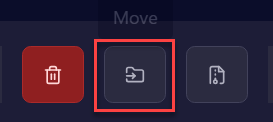
### **STEP2.**右上の**[Move]**を選択します。
 [![](https://gss.bestnetllc.co.jp/wp-content/uploads/2025/02/Move.webp)](https://gss.bestnetllc.co.jp/wp-content/uploads/2025/02/Move.webp)

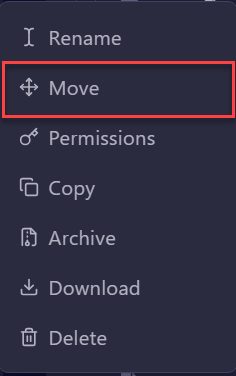
### **STEP3.**または、目的のファイルまたはフォルダを**右クリックし、 ****[移動]**を選択します。
 [![](https://gss.bestnetllc.co.jp/wp-content/uploads/2025/02/Move②.webp)](https://gss.bestnetllc.co.jp/wp-content/uploads/2025/02/Move②.webp)

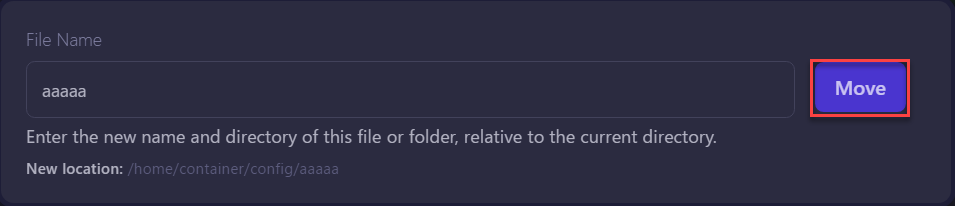
### **STEP4.現在のディレクトリを基準としたファイル名またはフォルダ名の前に****ディレクトリの宛先**を入力し、**[Move]**をクリックします。
 [![](https://gss.bestnetllc.co.jp/wp-content/uploads/2025/02/移動②.webp)](https://gss.bestnetllc.co.jp/wp-content/uploads/2025/02/移動②.webp)

---

## **ファイルを削除する方法**

### **STEP1.**目的のファイルまたはフォルダの横にあるチェックボックス**をオンにします。**
 [![](https://gss.bestnetllc.co.jp/wp-content/uploads/2025/02/移動.webp)](https://gss.bestnetllc.co.jp/wp-content/uploads/2025/02/移動.webp)

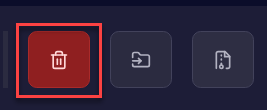
### **STEP2.ゴミ箱マークをクリックして削除します。
 [![](https://gss.bestnetllc.co.jp/wp-content/uploads/2025/02/ゴミ箱.png)](https://gss.bestnetllc.co.jp/wp-content/uploads/2025/02/ゴミ箱.png)**

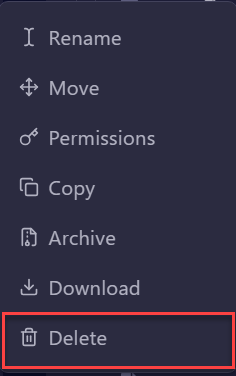
### **STEP3.**または、目的のファイルまたはフォルダ**を右クリックし****[Delete]**を選択します。
 [![](https://gss.bestnetllc.co.jp/wp-content/uploads/2025/02/削除②.webp)](https://gss.bestnetllc.co.jp/wp-content/uploads/2025/02/削除②.webp)

---

## **圧縮されたフォルダーを解凍/抽出する方法**

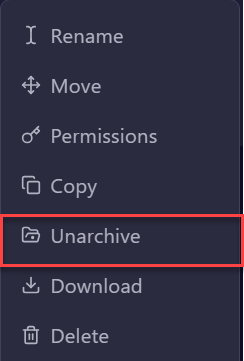
### **STEP1.**目的のフォルダーを**右クリックし、 ****[Unarchive]**を選択します。
 [![](https://gss.bestnetllc.co.jp/wp-content/uploads/2025/02/Unarchive.png)](https://gss.bestnetllc.co.jp/wp-content/uploads/2025/02/Unarchive.png)

---

## **単一のファイルをダウンロードする方法**

### **STEP1.**目的のファイルまたはフォルダー**を右クリックし、 ****[Download]**を選択します。
 [![](https://gss.bestnetllc.co.jp/wp-content/uploads/2025/02/だうｎ.png)](https://gss.bestnetllc.co.jp/wp-content/uploads/2025/02/だうｎ.png)

---

## **複数のファイルをダウンロードする方法**

### **STEP1.**ダウンロードするファイルの横にあるチェックボックス**をオンにします。**
 [![](https://gss.bestnetllc.co.jp/wp-content/uploads/2025/02/複数.webp)](https://gss.bestnetllc.co.jp/wp-content/uploads/2025/02/複数.webp)

### **STEP2.右クリックし、 [Download]を選択します。**
 [![](https://gss.bestnetllc.co.jp/wp-content/uploads/2025/02/だうｎ.png)](https://gss.bestnetllc.co.jp/wp-content/uploads/2025/02/だうｎ.png)