
Contents
| Note | If you need to upload more than 500 MB, consider using an SFTP client. |
How to find the Files tab
STEP1. Log in to the game panel.
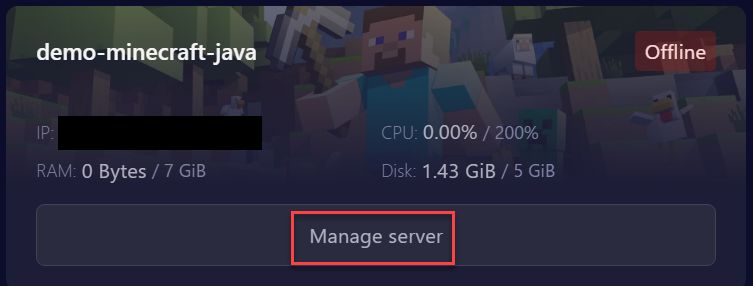
STEP2. Under My Servers, select your Minecraft server.
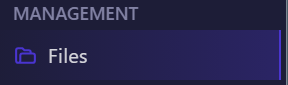
STEP3. Select [Files] from the left menu.
How to upload files
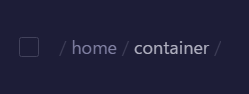
STEP1. Navigate to the target directory.
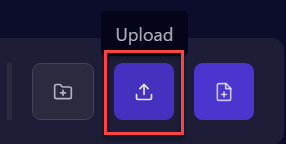
STEP2. Click [Upload] at the top-right and select the file to upload.
STEP3. Or drag and drop the file directly to upload it.
How to create a folder
STEP1. Navigate to the target directory.
STEP2. Select [Create-Directory].
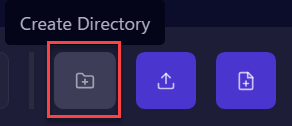
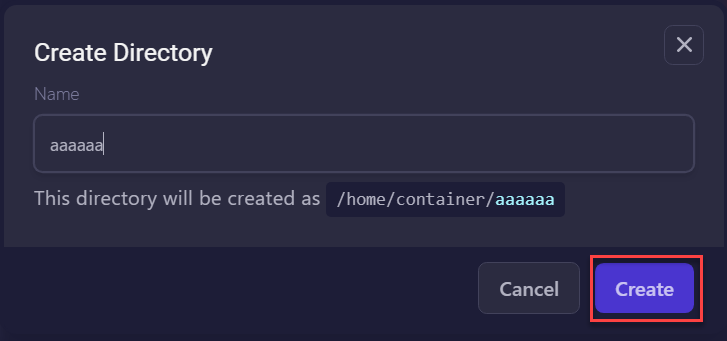
STEP3. Name the new folder and click [Create] at the bottom-right.
How to create a file
STEP1. Navigate to the target directory.
STEP2. Select [New file].
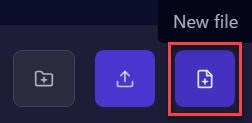
STEP3. After editing, click the [Create File] button.

STEP4. Name the new file and click [Create].

How to rename files and folders
STEP1. Right-click the target file or folder and select [Rename].
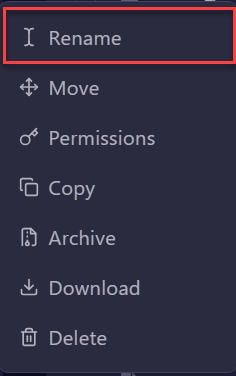
STEP2. Enter the desired new name and click [Rename].

How to move a file to a new directory
STEP1. Check the checkbox next to the target file or folder.

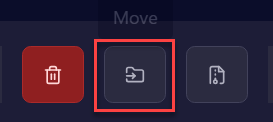
STEP2. Select [Move] at the top-right.
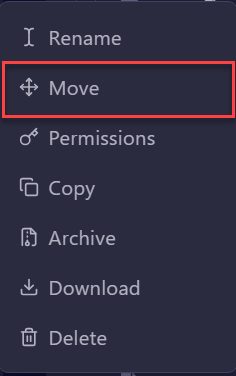
STEP3. Or right-click the target file or folder and select [Move].
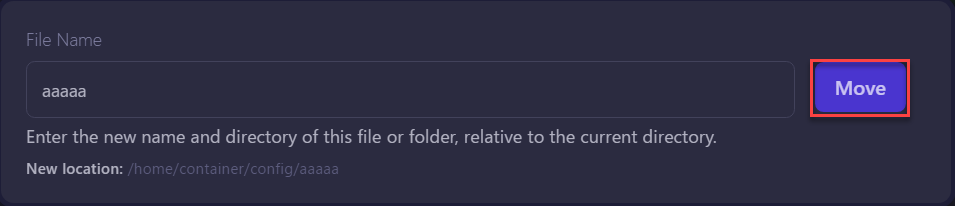
STEP4. Before the file or folder name (relative to the current directory), enter the destination directory and click [Move].
How to delete a file
STEP1. Check the checkbox next to the target file or folder.
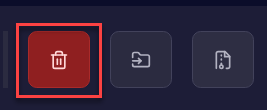
STEP2. Click the trash icon to delete.
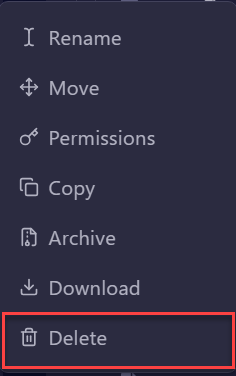
STEP3. Or right-click the target file or folder and select [Delete].
How to unzip / extract a compressed folder
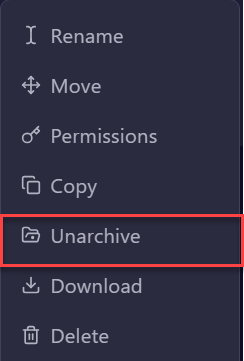
STEP1. Right-click the target folder and select [Unarchive].
How to download a single file
STEP1. Right-click the target file or folder and select [Download].

How to download multiple files
STEP1. Check the checkboxes next to the files you want to download.

STEP2. Right-click and select [Download].


