
Adding MODs to your Project Zomboid server can sometimes cause performance slowdowns or disconnections immediately after joining. This article reviews how to install MODs and outlines points you can check yourself to prevent lag and disconnections.
Revision History
- v1.0
- October 2026 — Initial version
Introduction
MODs are to be installed and managed by customers themselves. We do not verify the operation of individual MODs or provide installation services, so we cannot guarantee operation with MODs installed.
This article summarizes points that customers can check themselves regarding common issues with MOD servers: "lag/freezing" and "disconnection immediately after joining".
How to Install Mods (Review)
- Press Stop in the Console tab and wait for it to stop.
- Open
Zomboid/Server/ProjectZomboid.iniin the Files tab (if you have changed the save name, it will be the.iniwith that name). - Write the IDs in
WorkshopItems=andMods=. If there are multiple IDs, separate them with;(semicolons). For additional maps, also write them in theMap=line according to the instructions on that mod's page. - Save and start with Start.


WorkshopItems= is the ID for acquiring, and Mods= is the ID for loading—these are different numbers. The explanation in the configuration file also states this. Please check the IDs on each mod's workshop page.*** SERVER STARTED **** appears in the console. From the second startup onward, it only needs to check if they are already acquired.Also Be Mindful of Disk Space
Mod files use disk space. The game itself is about 7GB, and adding many mods can add around 10GB on top of that. Please check your disk usage at the top of the game panel screen.
Checklist to Prevent Lag and Disconnections
First, verify you can play without MODs
Before installing MODs, verify that everyone can join and play normally without any MODs. By confirming this first, you can isolate whether issues that occur later are caused by MODs.
Add MODs gradually and verify each time
If you install many at once, you won't know which one is the cause. Add a few at a time, verify that you can join and that performance doesn't degrade, then proceed to the next.
Use MODs compatible with Build 42
Our servers are initially configured with the latest stable version (Build 42). Check the MOD's Workshop page to verify it is compatible with Build 42. Incompatible MODs will leave errors in the server logs (see "Verify in server logs" below).
Match players' MODs with the server
If the MODs on the server and players don't match, players will be disconnected shortly after joining with the following message:
- When joining, if the "Server WORKSHOP Items" screen appears ("The following Steam WORKSHOP items are required to join this server:"), acquire the displayed MODs before joining.
- MODs you have manually modified or MODs with the same name obtained from outside the Workshop can cause mismatches.
- When a MOD is updated on the Workshop, restart the server. The server verifies MOD status each time it starts. Players should also restart their game before joining.
Additional maps and large cities tend to be heavy
Installing many additional maps or setting large cities like Louisville as the spawn point tends to make loading immediately after joining heavy and increases join time itself. If you experience heaviness, first review the number of additional maps and spawn points.
Keep memory headroom
The more MODs you use, the more memory the server consumes. If you plan to use many MODs, please consider a plan with ample memory.
Check the Server Logs
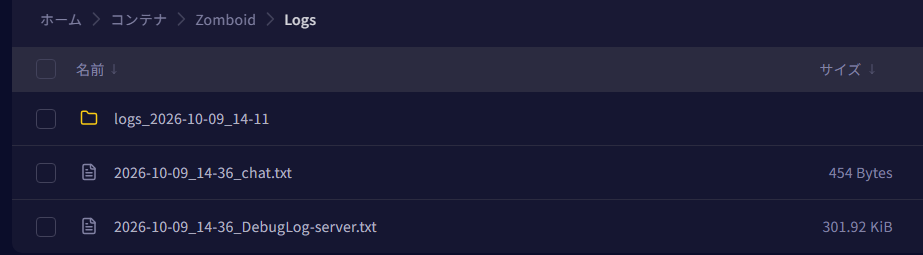
- Open
Zomboid/Logs/in the Files tab. - Open the most recent
DebugLog-server.txtwith a date and time stamp (you may download it and open it locally if you prefer). - Search for the following text.
| Search Text | Meaning | Action |
|---|---|---|
checksums do not match | The MODs do not match between the joining player and the server | See "Match the Joining Player's MODs with the Server" above |
doesn't exist / FileNotFoundException | There is a MOD that is not compatible with the current version | See "Use MODs Compatible with Build 42" above. Remove that MOD or replace it with a compatible version |
FileNotFoundException line shows the folder for that MOD. The number following steamapps/workshop/content/108600/ is the Workshop ID for that MOD. You can identify which MOD it is from this.When Removing or Replacing MODs
- First, stop the server using Stop in the Console tab, then take a backup in the Backup tab before proceeding.
- Game panel backups do not include the MOD files themselves (though the MOD lines in configuration files are included). The MODs will be retrieved again on the first startup after restoration.
If It's Still Slow
Please contact us via a support ticket. In doing so, it would be helpful if you could include the date and time when the slowdown occurred and the number of people connected at that time. We will review the server-side records (processing delays, connections, disconnections).


