
This guide provides step-by-step instructions with images, covering everything from automatic deployment completion after server order to connecting to your server from the game client.
Revision History
- v1.0
- August 2024 — Initial release
- v1.1
- February 2025 — Added server password verification section
- v2.0
- April 2026 — Complete revision following major game panel update. Manual query port assignment no longer required; all 78 detailed settings now accessible via Japanese GUI. Server password can now be checked and changed from Startup tab without editing JSON in file browser. Added reinstallation guidance for startup failures
Prerequisites
Please log in to the game panel. For information on how to log in to the game panel, see Logging in to the Game Panel and Feature Overview →.
Wait for Installation to Complete
Once you have completed your application and the service status becomes active, the game server installation will start automatically.
During installation, the server console will display “Installing” and most information will not be visible. This process typically completes within a few minutes, but depending on server load conditions or if the installation file size is large, it may take several tens of minutes.
When the server installation is complete, an installation completion message will be sent to your email address from our game panel system.
Check Server Address and Port
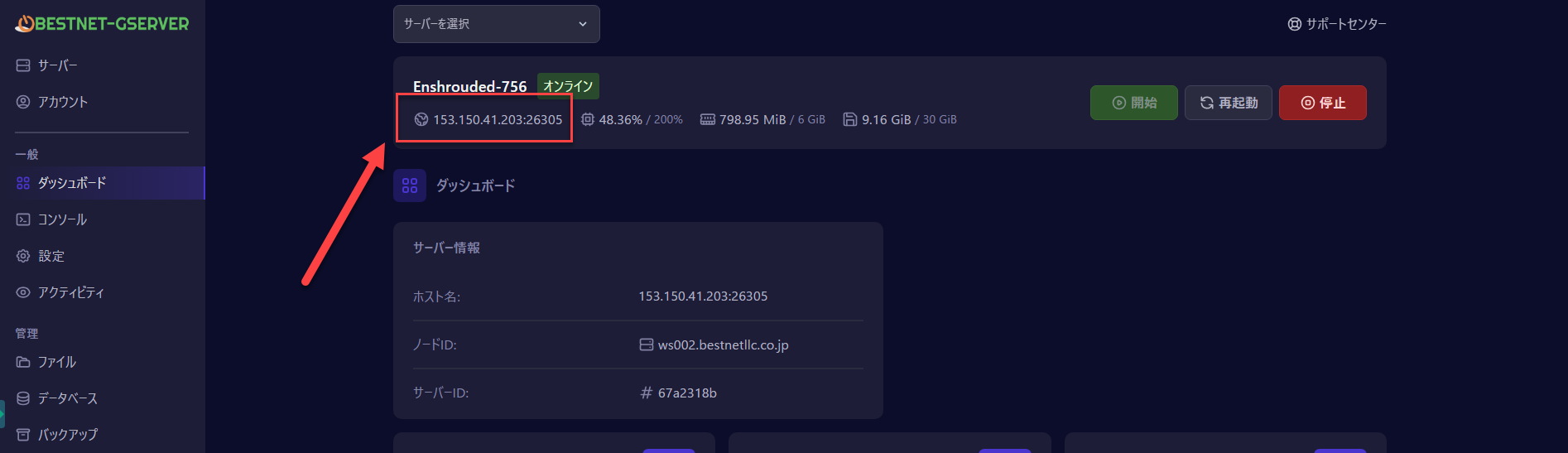
You can check your server address and game port on the server console screen of the game panel. The “Server Address” and “Port” values displayed on the right side of the screen are required when connecting from the game.
Each item can be automatically copied by clicking.
Checking and Changing Server Password
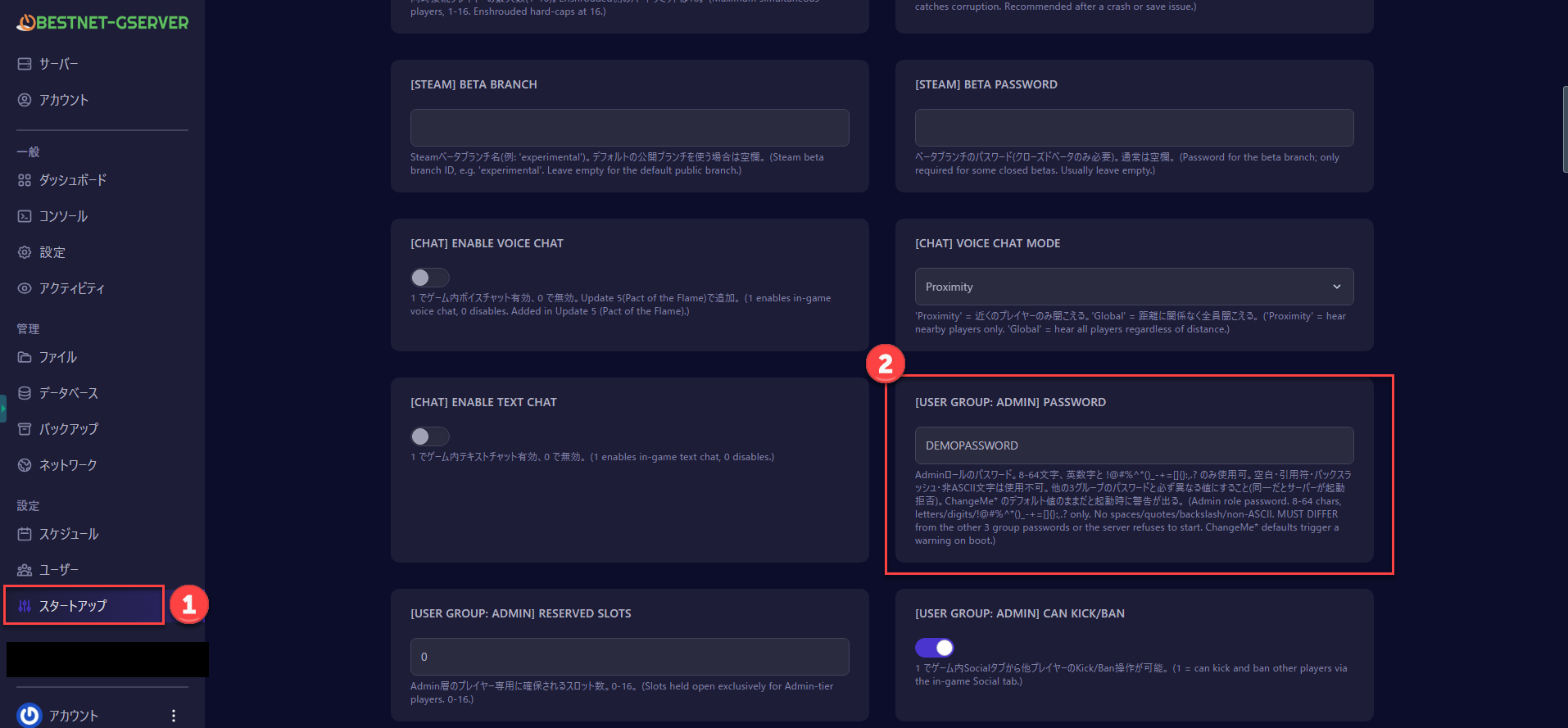
You can check and change the server password from the “Startup” tab in the game panel’s left menu.
There is no need to directly edit the enshrouded_server.json file as in previous versions.
Open the “Startup” tab and look for the “Server Password” entry in the variables list. An automatically generated password is entered as the default value.
If you want to change it to a custom password, simply edit the input box and it will be saved.
Starting the Server
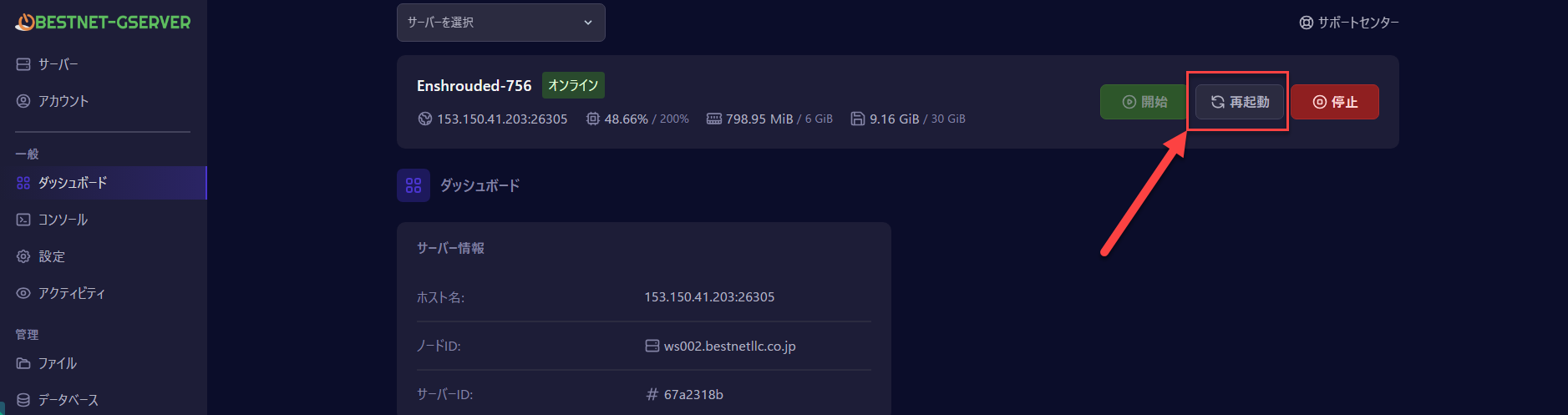
Click the “Start” button in the upper right corner of the server console screen to start the server.
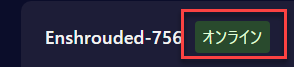
When the status changes from “Starting” to “Running”, the server startup is complete.
Connect from the Game Client
Launch “Enshrouded” on Steam and select “Multiplayer” from the main menu.
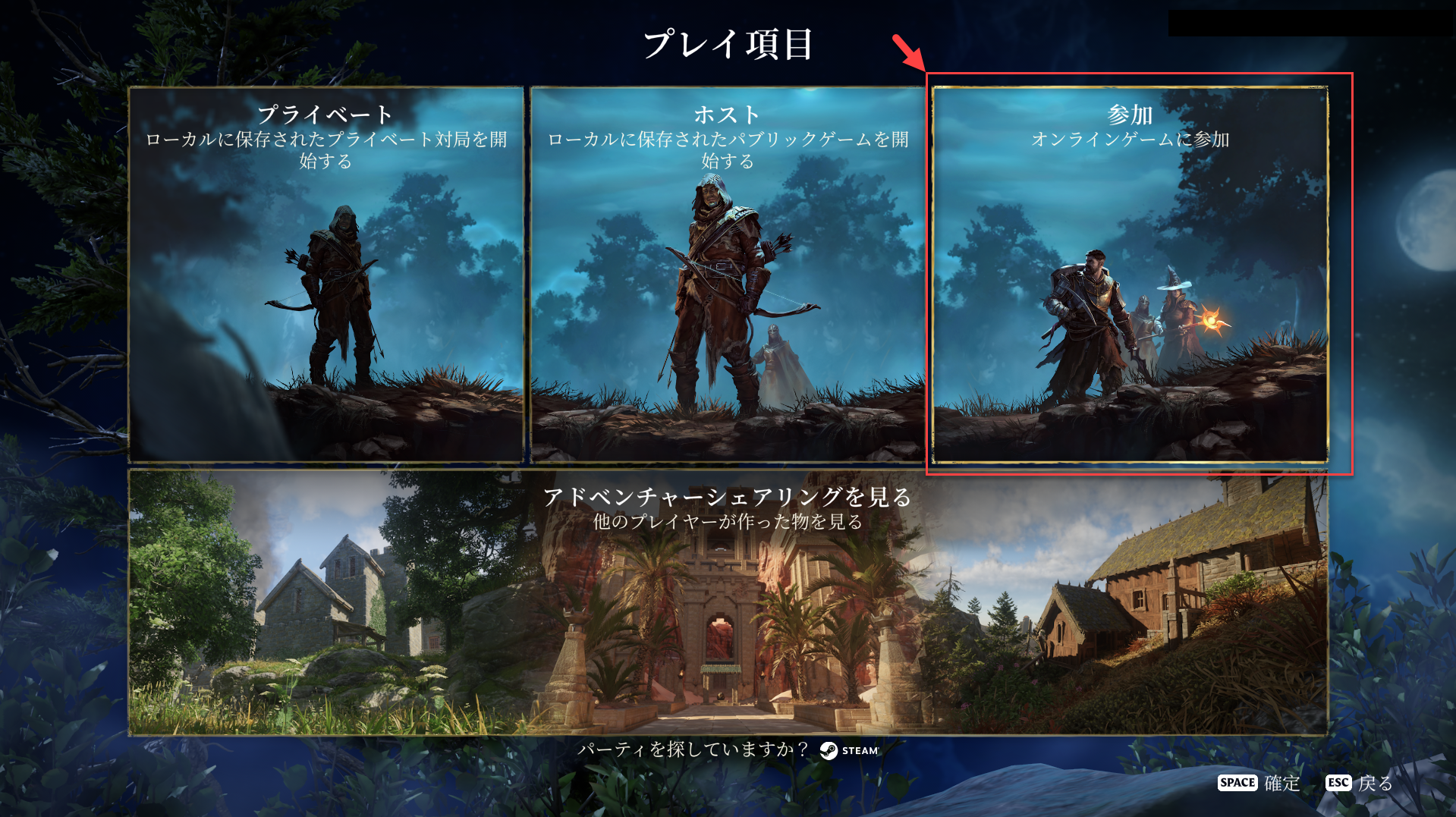
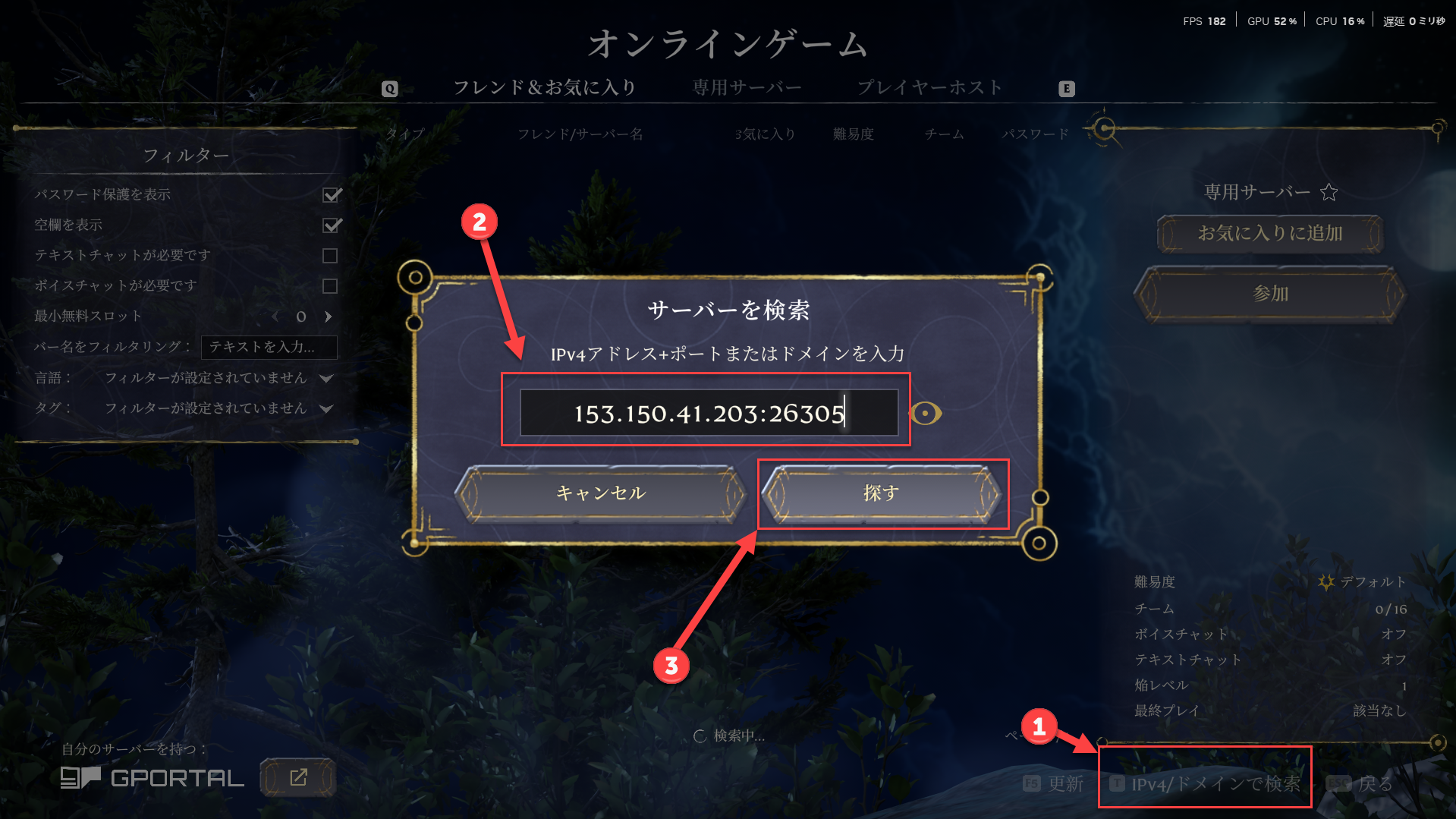
On the server list screen, select “Add Server” or “Direct Connect” and enter the server address and port number you confirmed in STEP3.
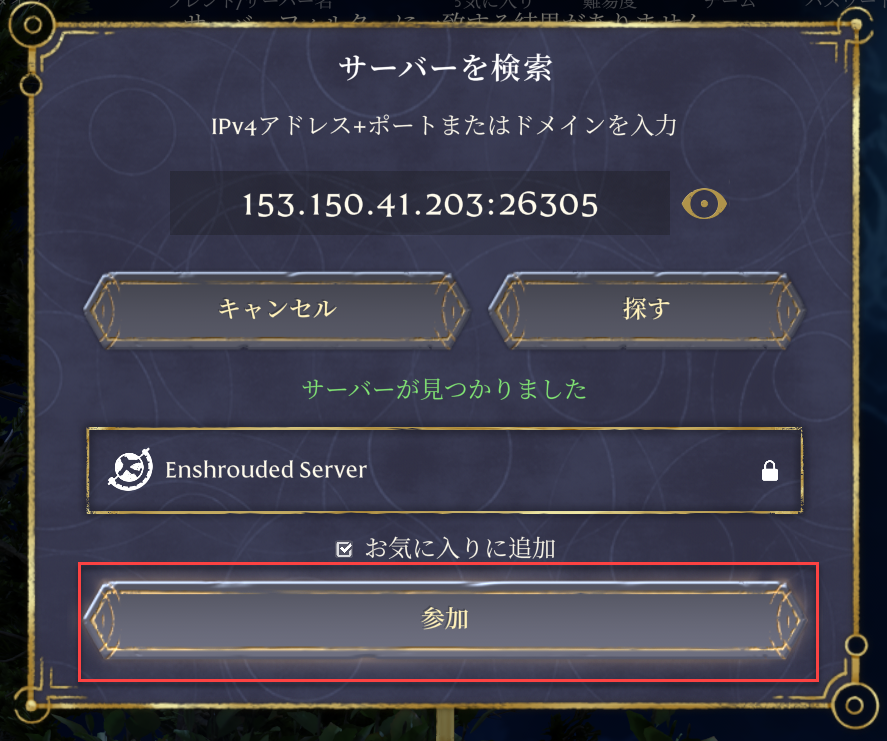
In the connection dialog, enter the server password you confirmed in STEP4 to complete the connection to the server.
Troubleshooting Startup Failures
In rare cases, the initial build immediately after ordering may not complete fully due to the status of the file distribution source (Steam), and the server startup may fail.
Init_Steamworks or Exit code: 3, performing a “Reinstall” from the game panel will almost certainly resolve the issue.For specific reinstallation procedures, please refer to the following article:
Reinstallation procedure when the server won’t start →
If the issue persists, please reply to the support ticket automatically issued at the time of your order, or issue a ticket from the Support Center.
Customizing Advanced Settings
This article guides you through the basic connection procedures. Enshrouded servers allow you to control a total of 78 settings for difficulty, permissions, chat, and server basic configuration, all through a fully Japanese-localized game panel.
Fine-tuning options such as player health multiplier, enemy damage multiplier, experience multiplier, and 4-tier permission group management (Admin / Friend / Guest / Visitor) are available to suit your community.

A detailed explanation of all 78 settings is compiled in the following article.
Enshrouded Server Settings Complete Guide (All 78 Settings) →


