New here? For first-time setup of a Bedrock server (the allow list, the connection address and where each setting lives), see Minecraft Bedrock Edition – Initial Setup.
Basic Usage
The BESTNET Game Server Panel has a feature that allows you to easily change the version of your Minecraft Bedrock Edition server.
STEP1. Open the Server Page
Open the server page for the Bedrock Edition server whose version you want to change. It is recommended that you stop the server first before performing version changes (replacing core files while the server is running may cause problems).
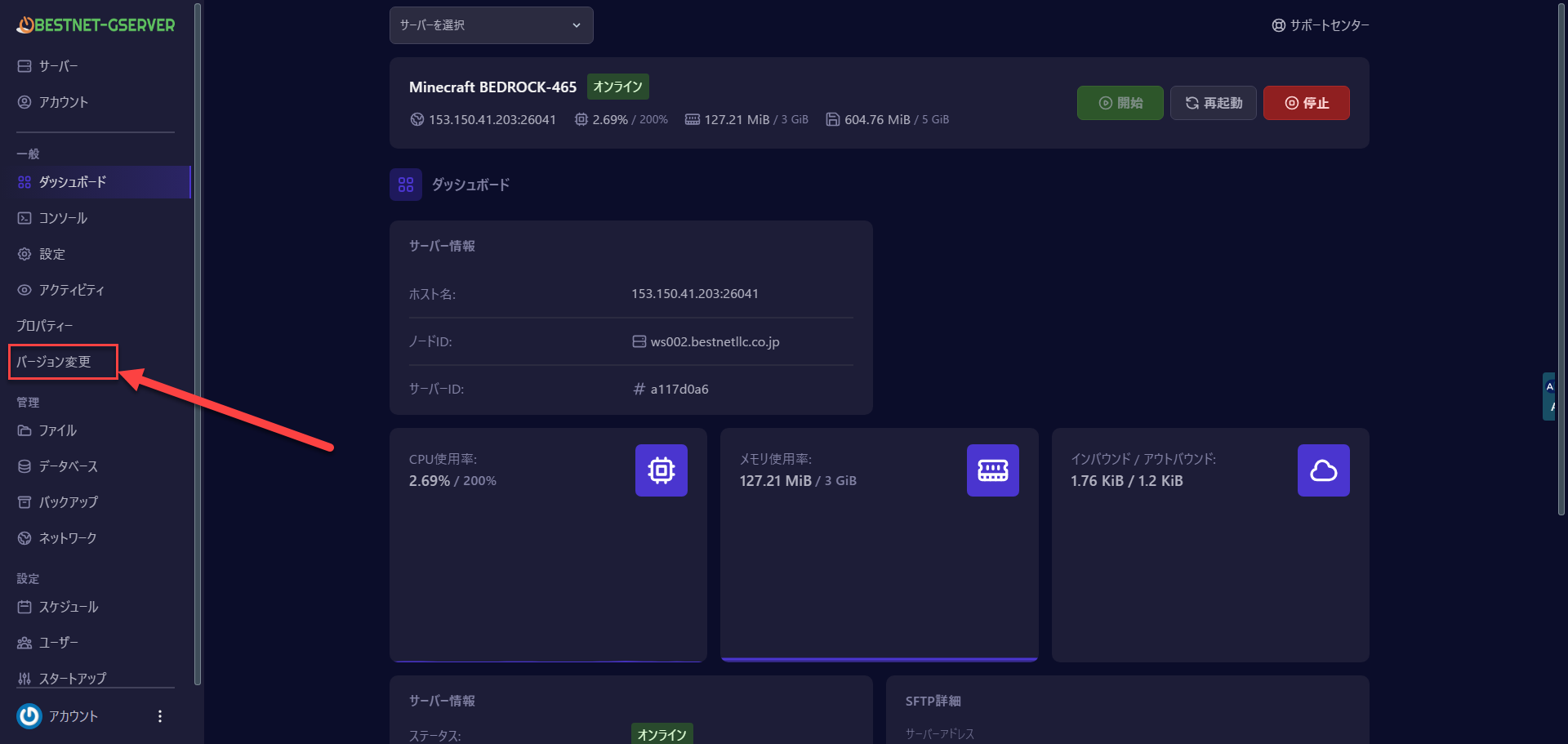
STEP2. Click the Version Changer Button
STEP3. Check Version List
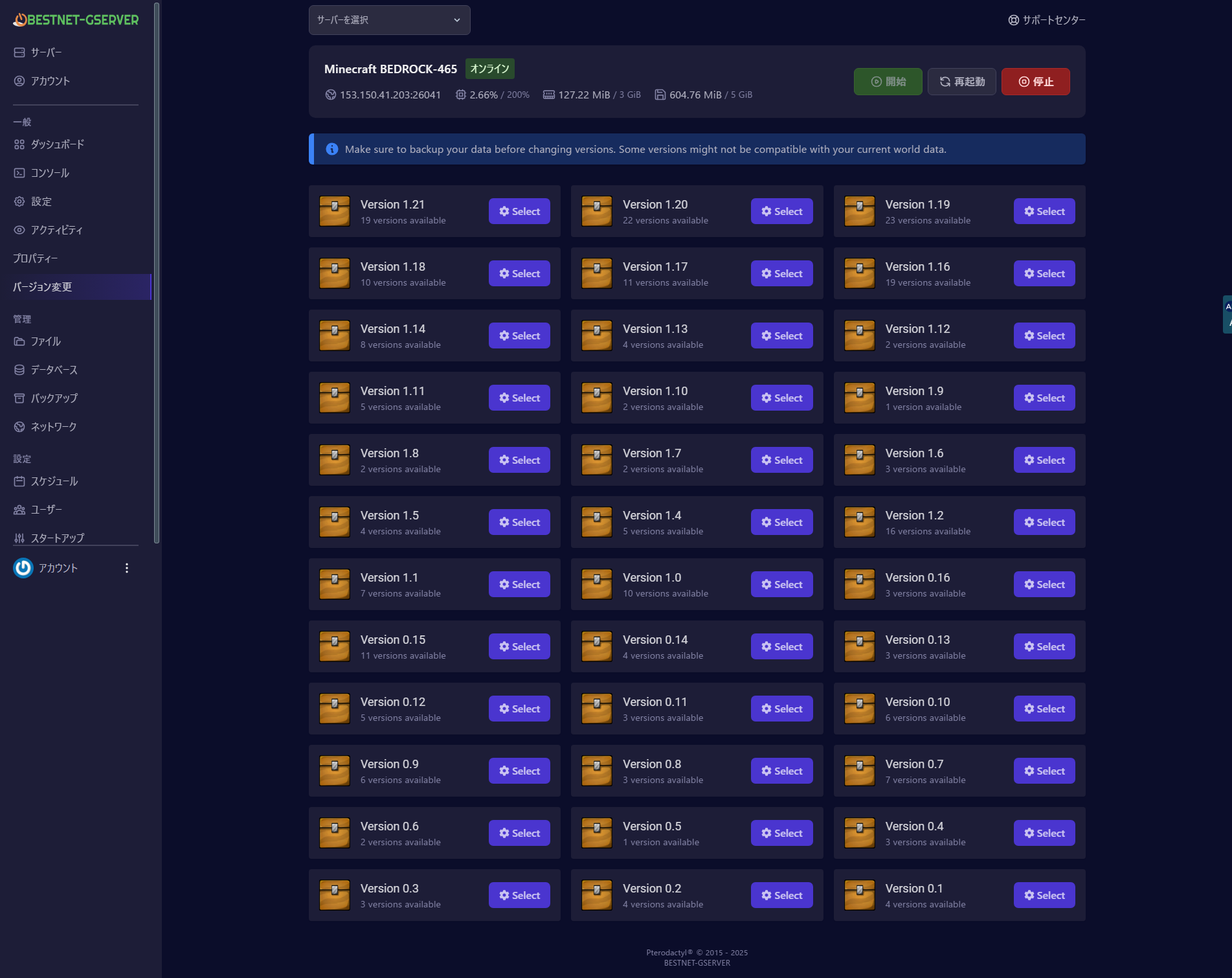
A list of available alternative versions will be displayed. Search for your desired version from the list of provided Bedrock Edition versions. If versions are organized by major version (for example: 1.19, 1.20, etc.), expand them to view detailed build numbers and release date information.
For example, if you are currently using 1.20.30 and want to update to 1.20.32, open the 1.20 series list and search for “1.20.32”.
STEP4. Select Version
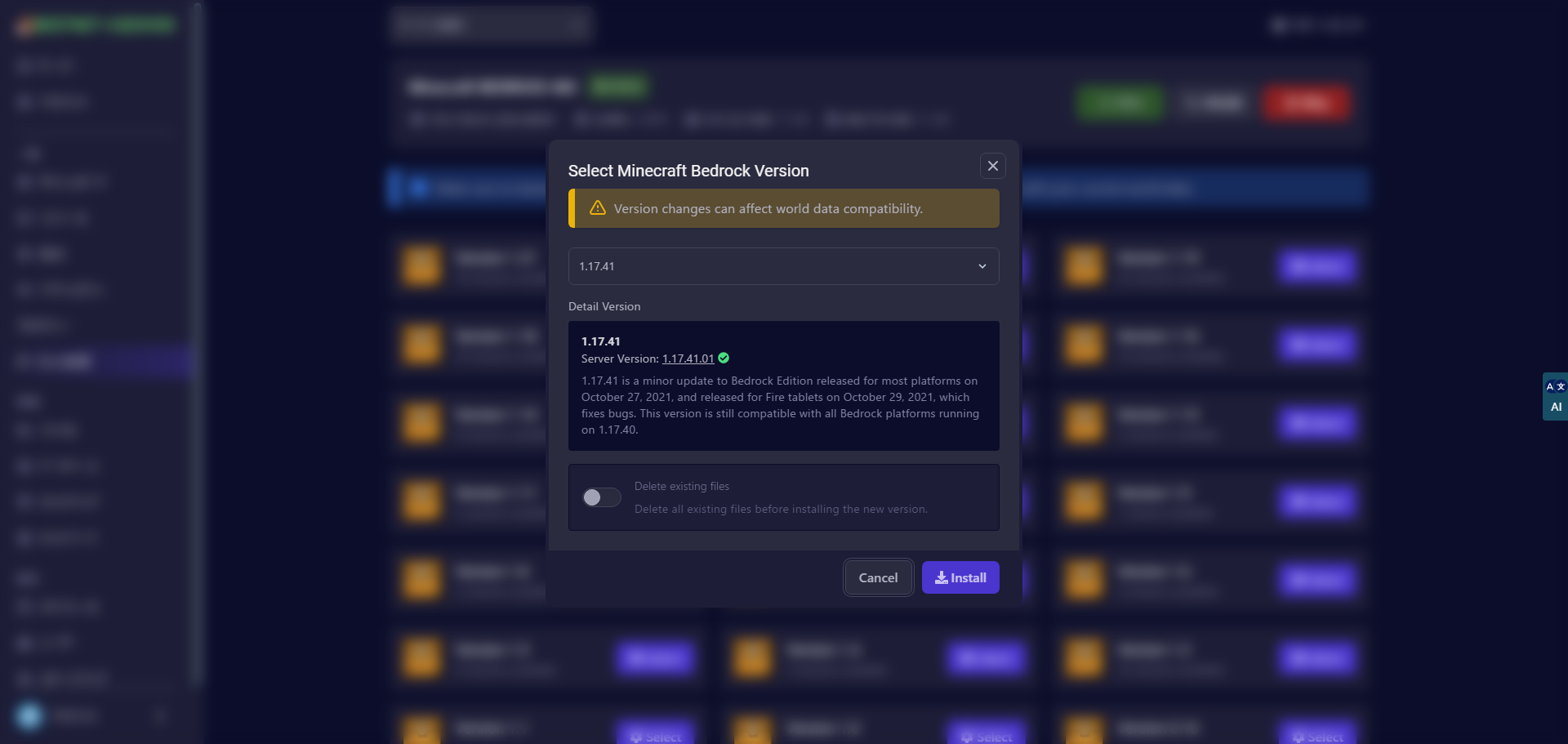
Select the version you want to change to. Once selected, additional information about that version (such as links to release notes or important compatibility information) may be displayed. If add-ons perform a compatibility check and there are concerns about the impact on world data, a warning will also be shown.
STEP5. Execute Version Change
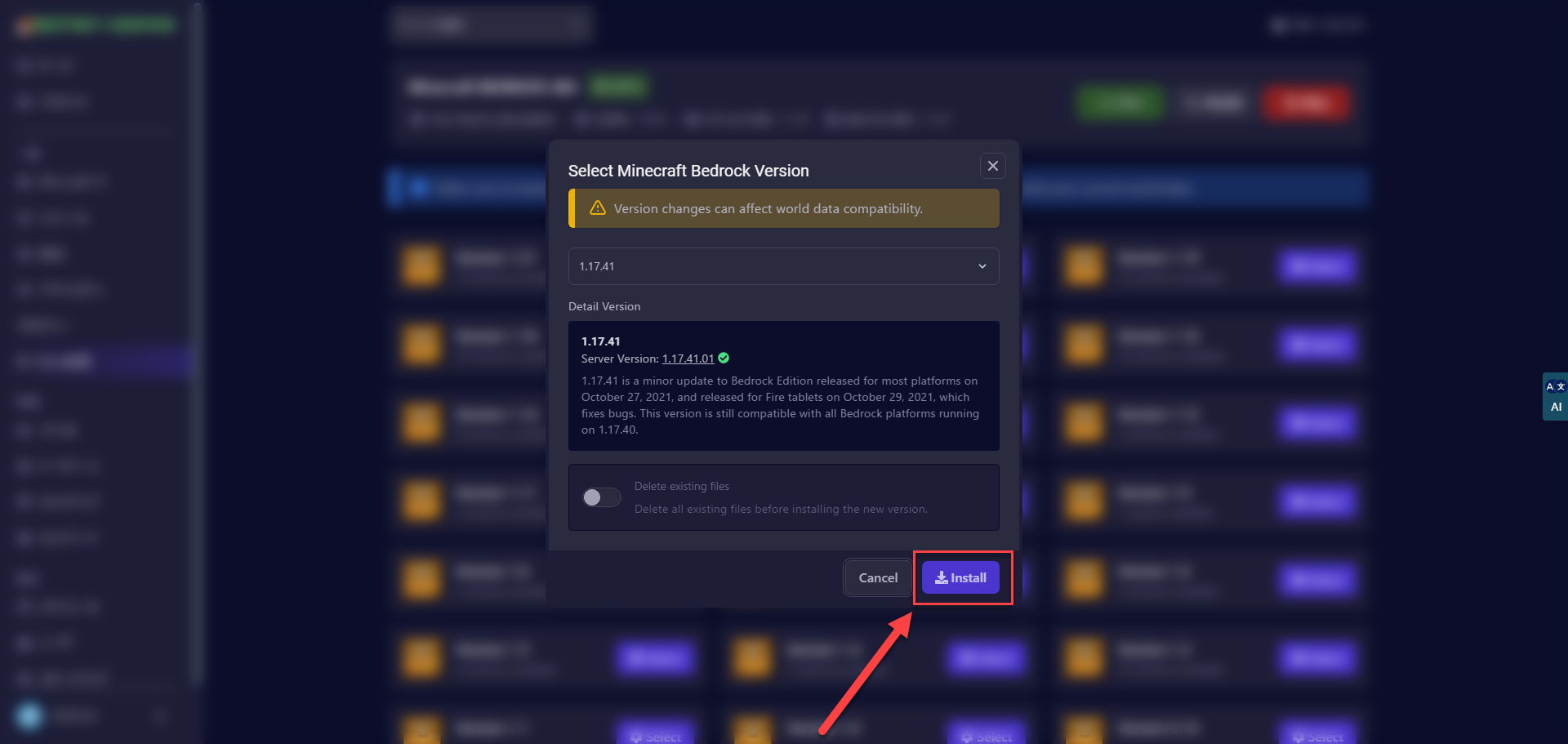
Click the Install button, and after a confirmation message, the download and installation process will begin. The add-on will obtain the official Bedrock server package of the selected version from online and replace your current server files. While the process is in progress, a progress bar and log messages will be displayed on the screen. Refrain from any other operations until the process completes.
When the process completes successfully, an “Install Successfully” message will be displayed in English, and the installation process will end.