
Prerequisites
Please log in to the Game Panel. For information on how to log in to the Game Panel, please see here.
Revision History
- 1.0:
- Creation Date: 2024/8
- Update Details: Initial version created
- Creator: BESTNET-GSERVER
STEP1. Wait for the Installation to Complete
Once you have completed your application and the service status becomes active, the game server installation will begin. During installation, the screen will appear as shown in the image below, and most information will not be visible. This screen typically completes in a few minutes, but may take several tens of minutes if the server load is high or if the game title has a large file size.

Once the server installation is complete, a completion message will be sent from our Game Panel system to your email address.
STEP2. Confirm the Game Port
You can confirm the game port in the server console of the Game Panel. In the case of the image below, the Game port number is 26369. Clicking on the red framed area in the image will automatically copy it.

STEP3. Additional Port Allocation
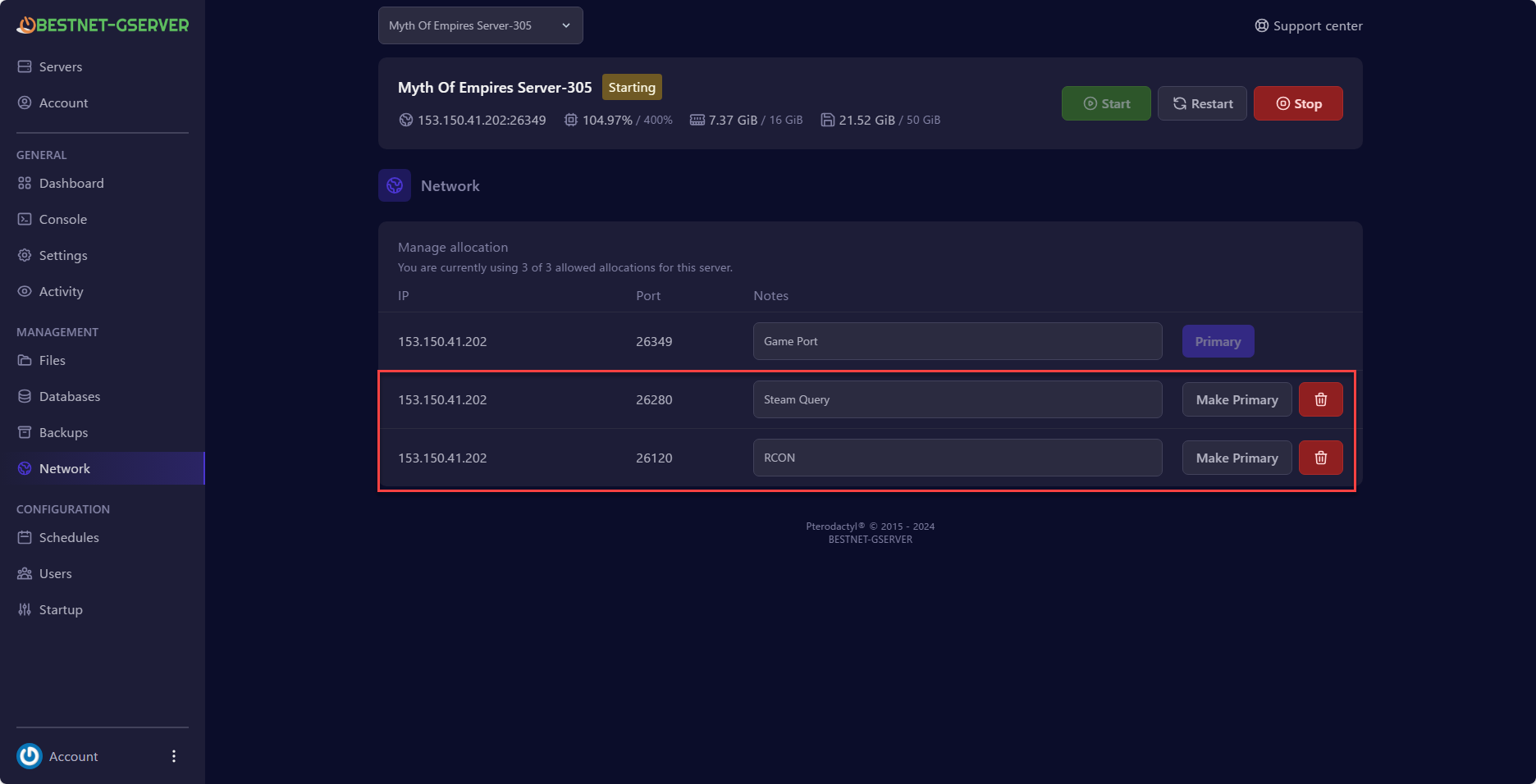
The Myth of Empires game server requires 2 additional ports besides the game port. Go to the ‘Network’ tab in the Game Panel and click the ‘CREATE ALLOCATION’ button twice. This will add 2 additional ports as shown in the image below. ※There is a feature to note the role of each port to avoid confusion. In the image below, the role of each port is listed.※
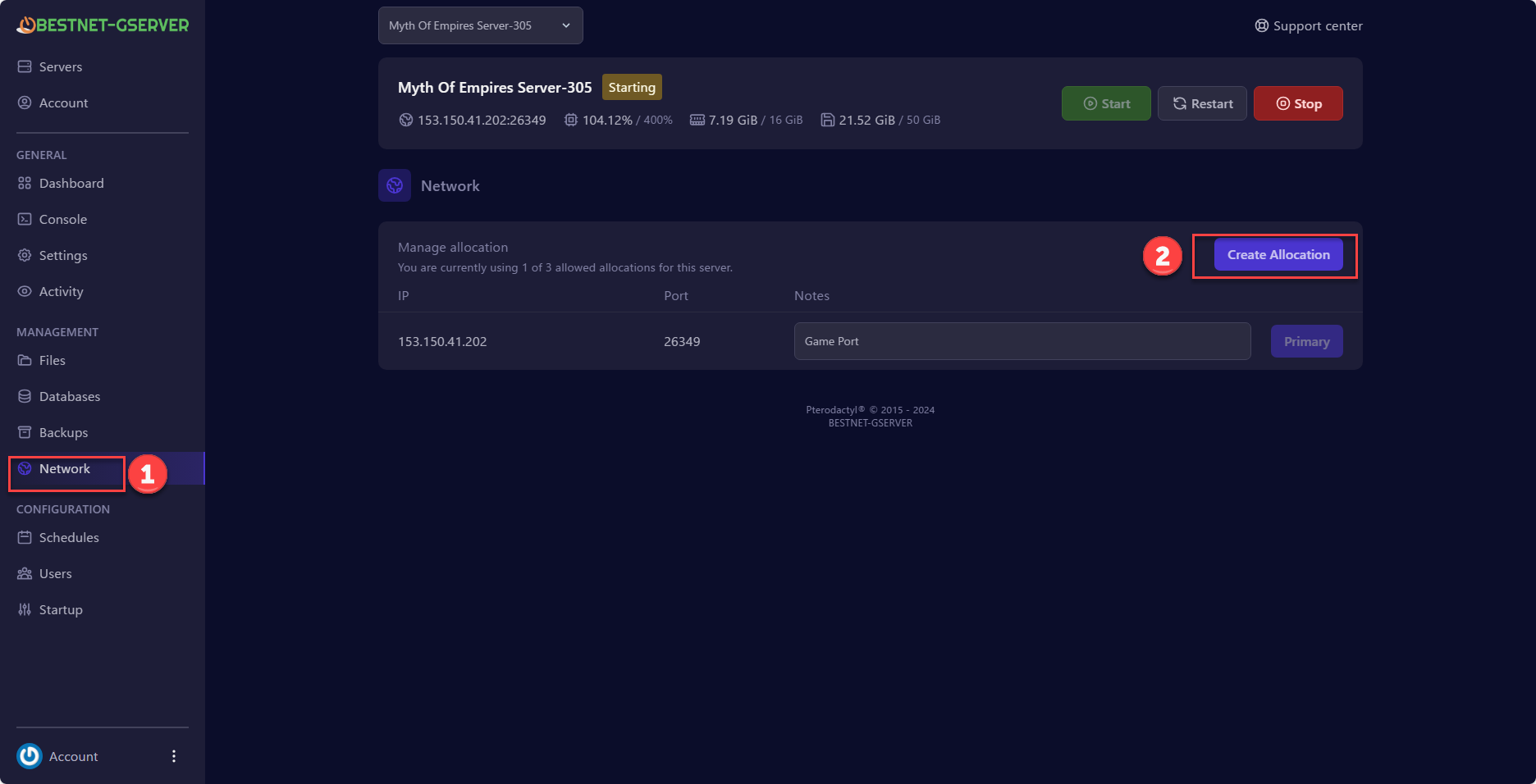
Additional ports (in the reference image):
1: 26349 = Game Port
2: 26280 = Steam Query
3: 26120 = RCON
STEP4. Configure the Steam Query Port and RCON Port
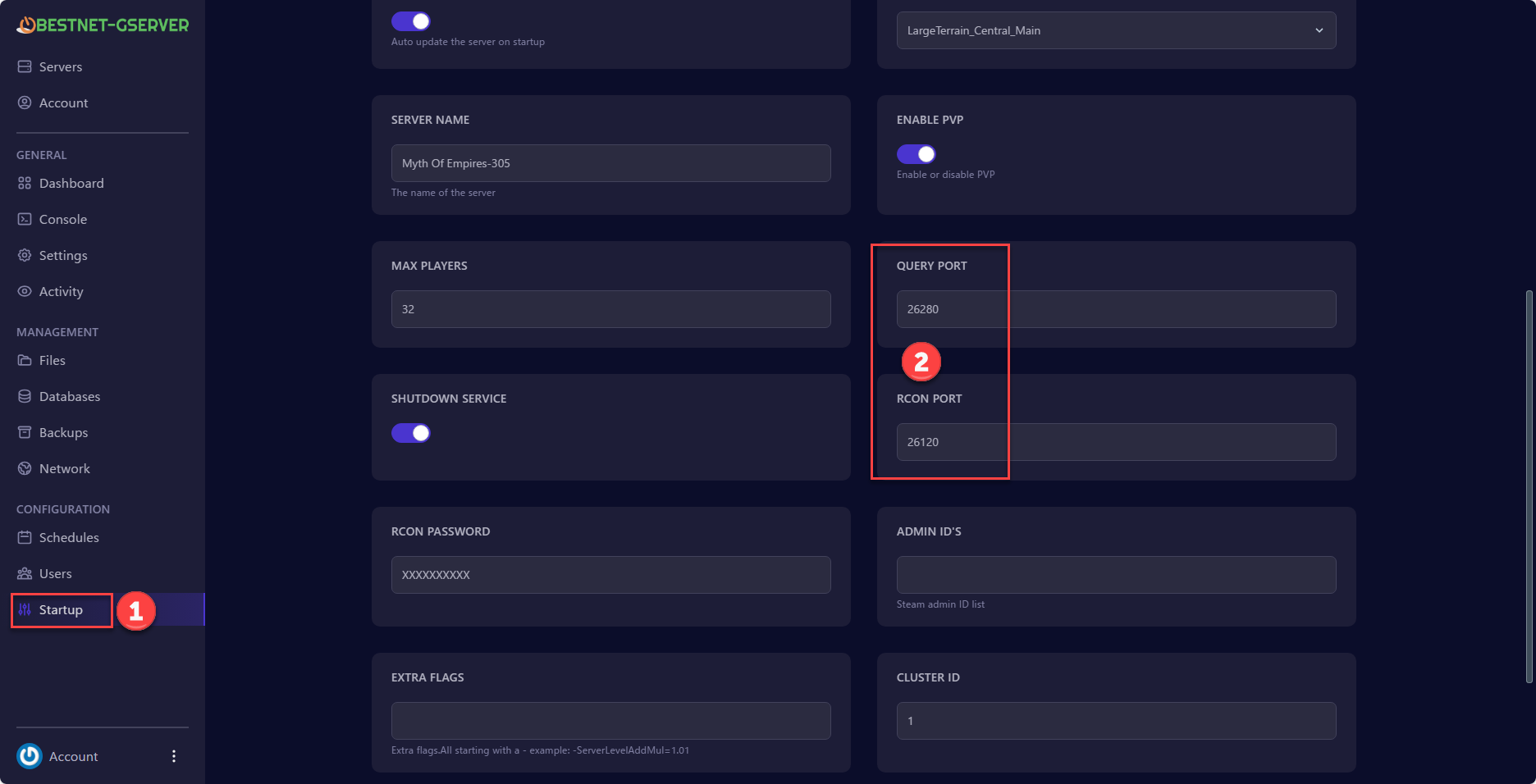
You need to make the game server recognize the additionally allocated port numbers.
Click on “Startup” in the right menu of the Game Panel, and simply enter the additionally allocated port numbers in the “QUERY PORT” and “RCON PORT” configuration boxes.
In the example of this article, the port numbers 26280 and 26120 allocated in the previous step are entered in the “QUERY PORT” and “RCON PORT” configuration boxes respectively.
STEP5. Apply Settings
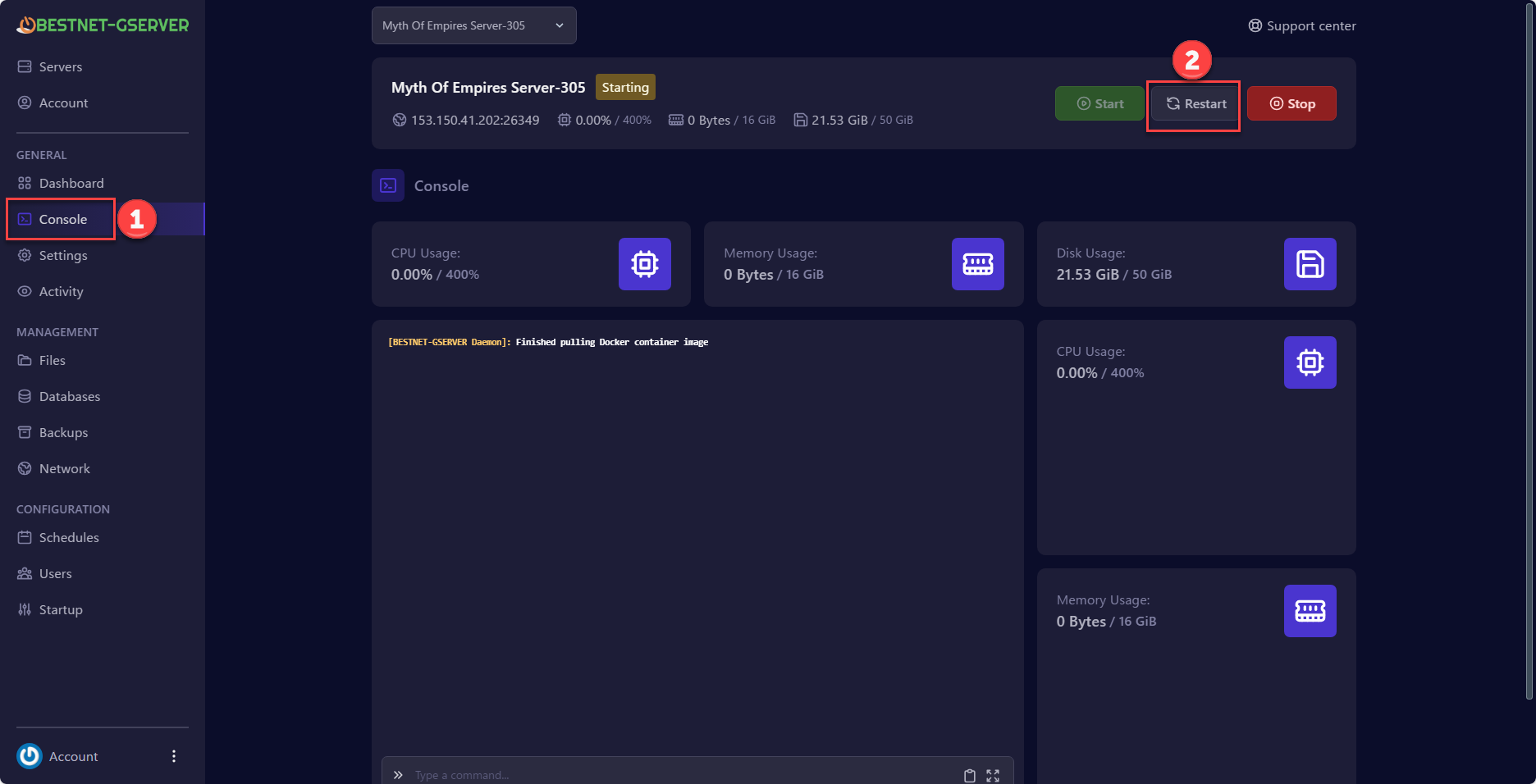
To apply these settings, you must restart the server. Navigate to the ‘Console’ tab and click the ‘Restart’ button to perform the restart.
If you have any other questions, please submit a ticket.


