
This page explains how to return your server to an earlier state using a backup stored in the game panel. Use it when a setting has been broken, or when you want to roll the world back a little. The server is stopped for a few minutes while it restores.
How to restore
- Open Backups from the left menu of the game panel.
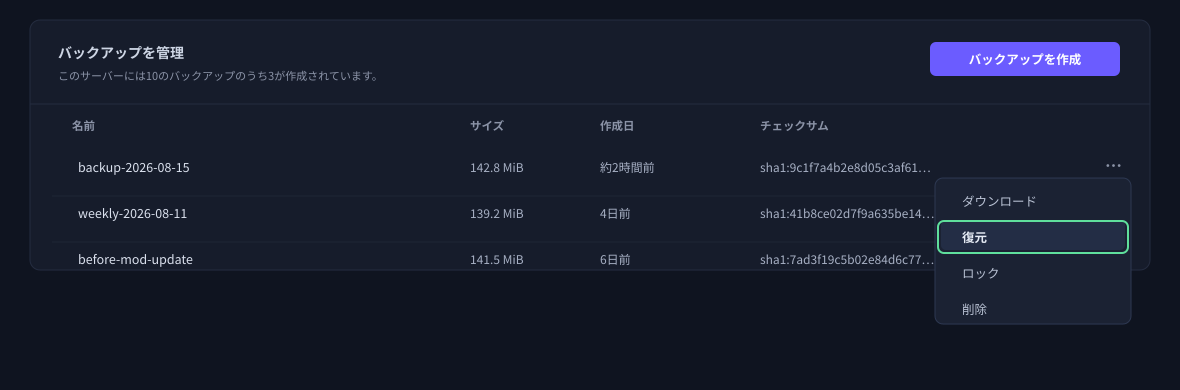
- Click the “⋯” at the right of the backup you want, and choose Restore.
- A confirmation dialog appears. Check the contents and proceed (the button is labelled
Restore). - Once the restore finishes, start the server.

Be careful with the checkbox
The confirmation dialog has a checkbox that deletes all files before restoring the backup.
What happens during a restore
- The server stops automatically. Until it finishes, you cannot control the power state, use the file manager, or create new backups.
- How long it takes depends on the size of the backup. We recommend doing it at a natural break in play.
- Restoring returns the server to the moment that backup was taken. Anything after that is lost. If you play with others, please check with them first.
What a backup contains
A backup stores the files on your server. Your world (save data) and the server configuration files are included. Whether the game program files are included depends on the game title. If the category for your title has an article about restoring from a backup, please read that one as well.
Restoring after a reinstall
If you have reinstalled the server, or the game files have a problem, the order matters.
If something does not go to plan
| Symptom | What to check |
|---|---|
| The world after restoring is not the one I expected | Check the date and time of the backup you restored. A different generation returns you to a different moment. |
| The server will not start after restoring | Check whether the checkbox in the confirmation dialog was ticked. If it was, reinstall and then restore again. |
| My world disappeared after reinstalling | Restore after the reinstall. Your backups are still there. |
| I cannot create a backup | At the limit, manual creation is unavailable. Delete one you no longer need, or use a scheduled backup. |
If that does not solve it, send us the message shown on screen exactly as it appears and we will take a look.


