
⚓ Windrose Game Server – Initial Setup
Please log in to the game panel. Click here for instructions on how to log in to the game panel
Table of Contents
This guide covers the initial setup procedure for a Windrose dedicated server using the BESTNET-GSERVER game panel.
The Windrose game server requires 1 query port in addition to the game port.
The game port and the query port are both allocated automatically when your server is built. You do not need to allocate anything yourself.
| Version | Created Date | Update Details | Created By |
|---|---|---|---|
| 1.0 | 2026/4 | Initial creation | BESTNET-GSERVER |
| 2.0 | 2026/8 | Removed the query-port allocation and configuration steps, now that ports are allocated automatically | BESTNET-GSERVER |
Once you complete your application and the service status becomes active, installation of the game server will begin.
During installation, most information cannot be viewed. This screen typically completes in a few minutes, but depending on server load or large installation file sizes, it may take several tens of minutes.
When the server installation is complete, an installation completion message will be sent from our game panel system to your email address.
The Windrose server automatically generates a world on its first startup. Please wait until the status becomes Online.
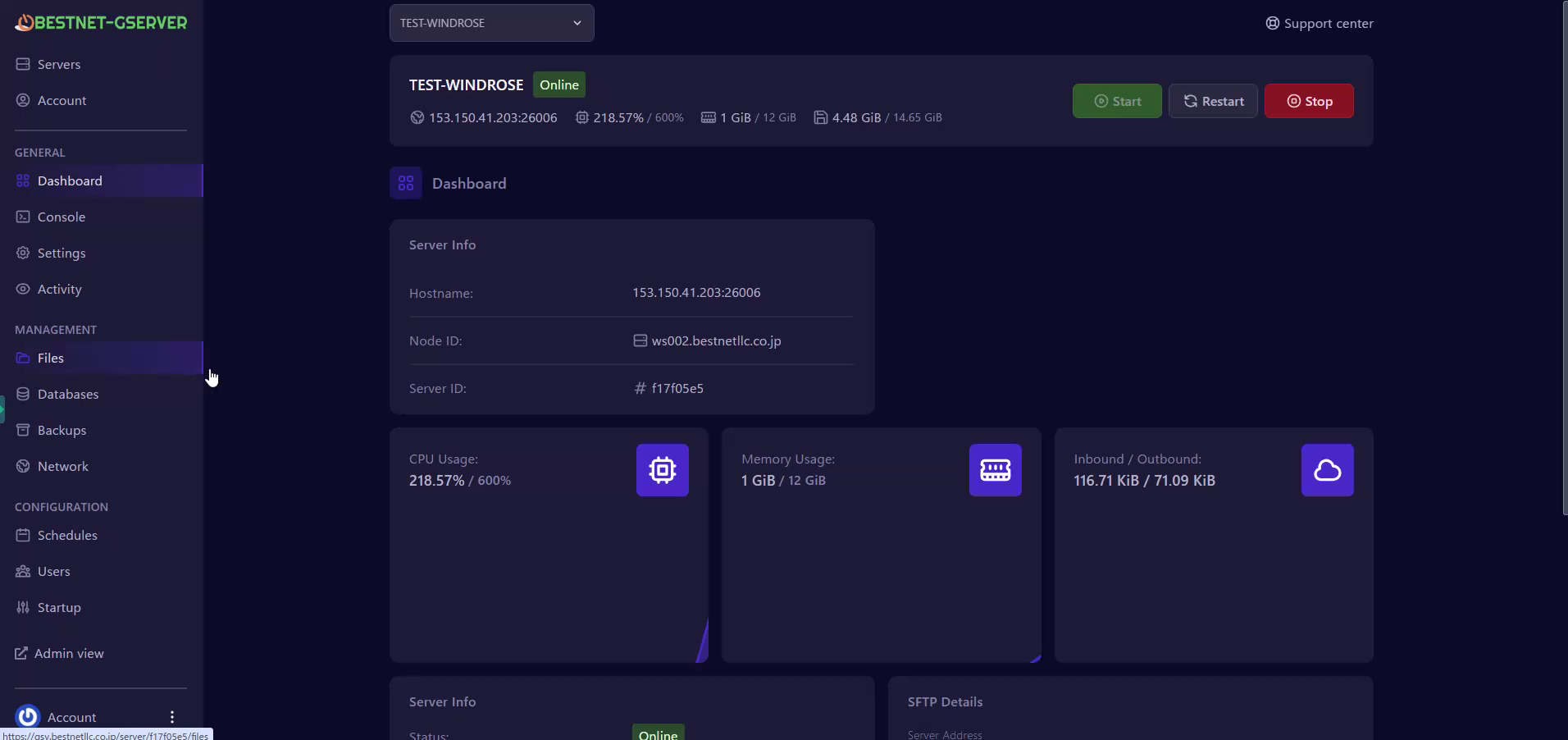
▲ Server status is Online
You can confirm the game port in the game panel dashboard.
In the following image, the Game port number is 26086. Clicking on the Hostname field will automatically copy it.
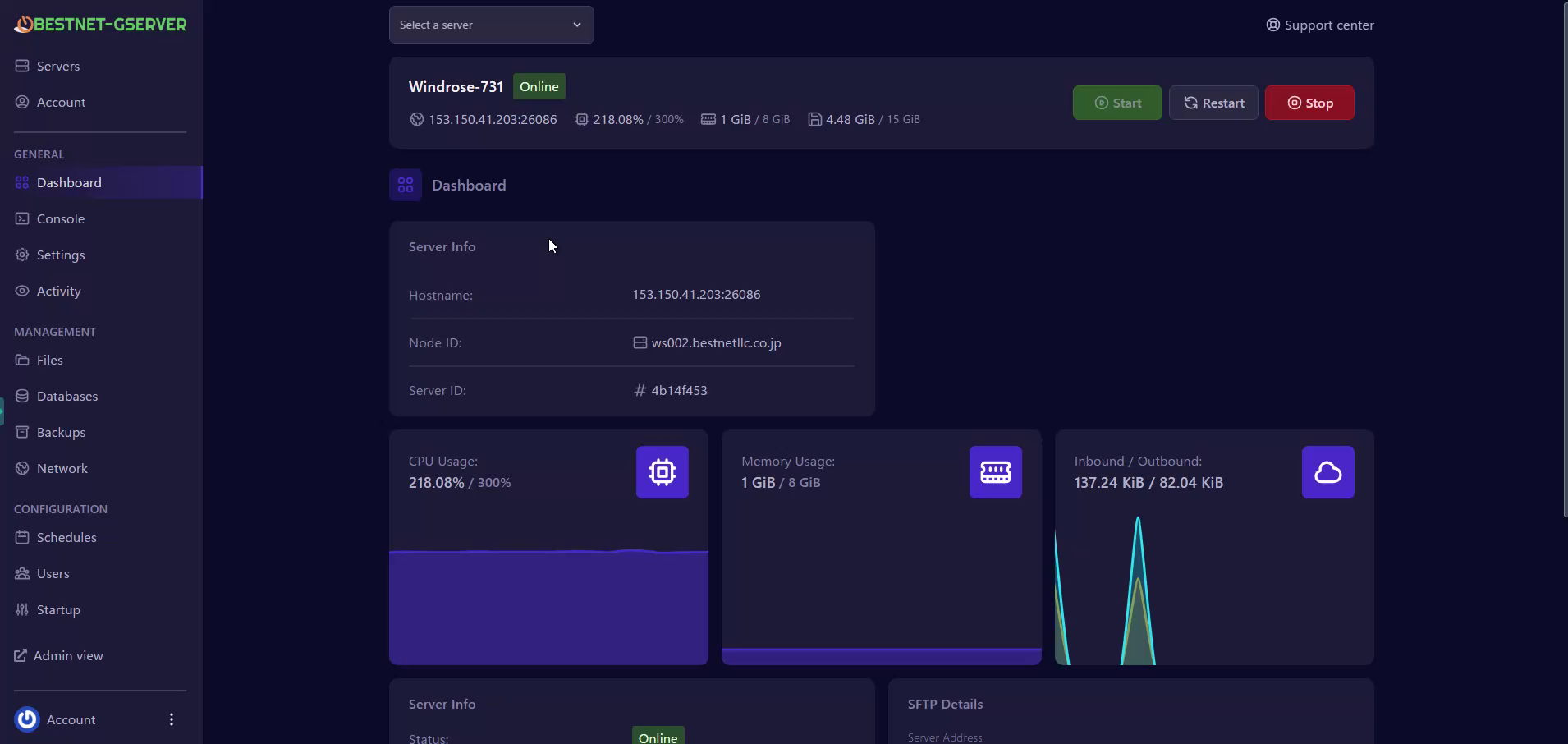
▲ Game port number is displayed in the Hostname field
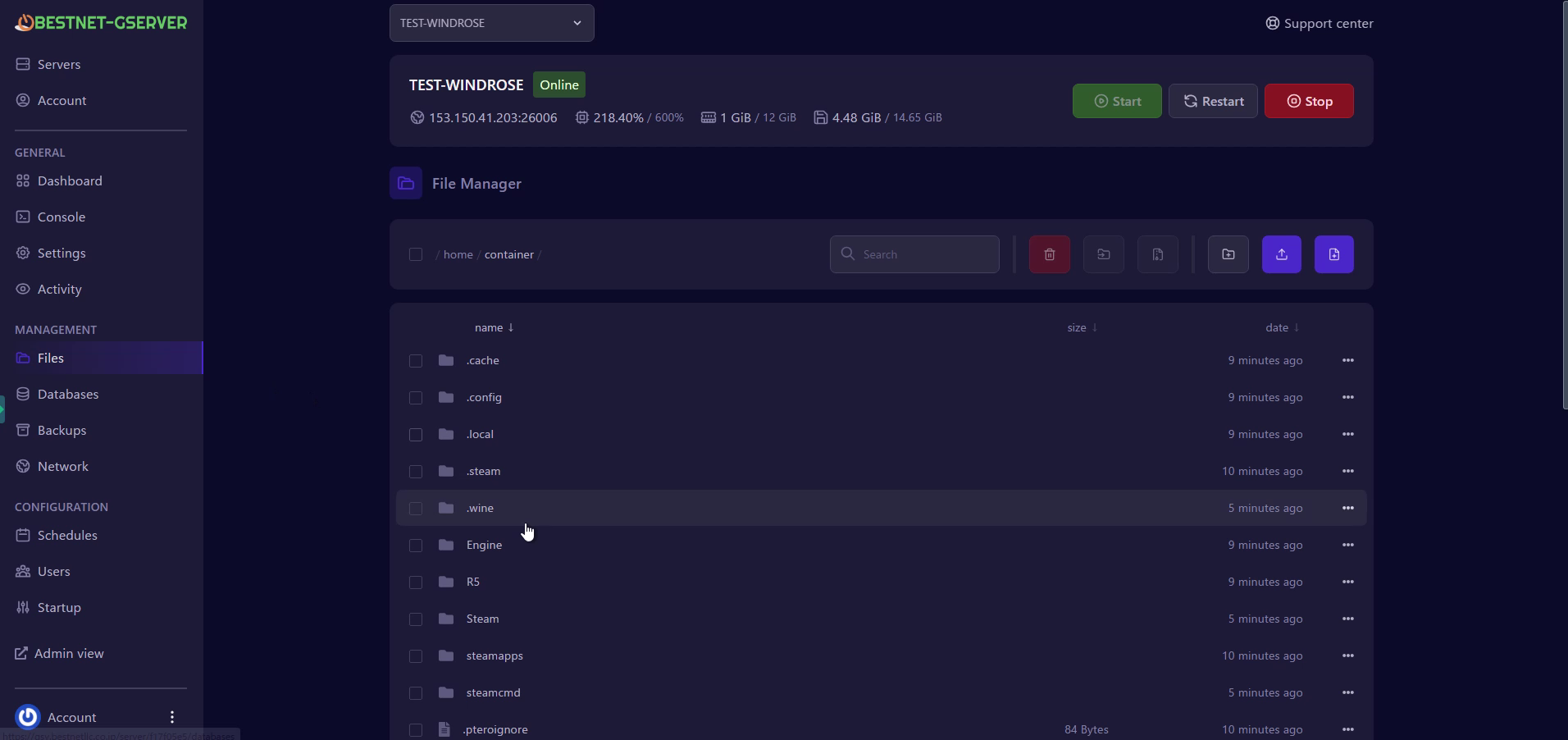
When the server starts for the first time, an Invite Code and World ID are automatically generated. These values can be confirmed from the file manager.
Click on Files in the left menu and open the R5 folder.
Click on ServerDescription.json in the R5 folder to open it.
container/
R5/
ServerDescription.json
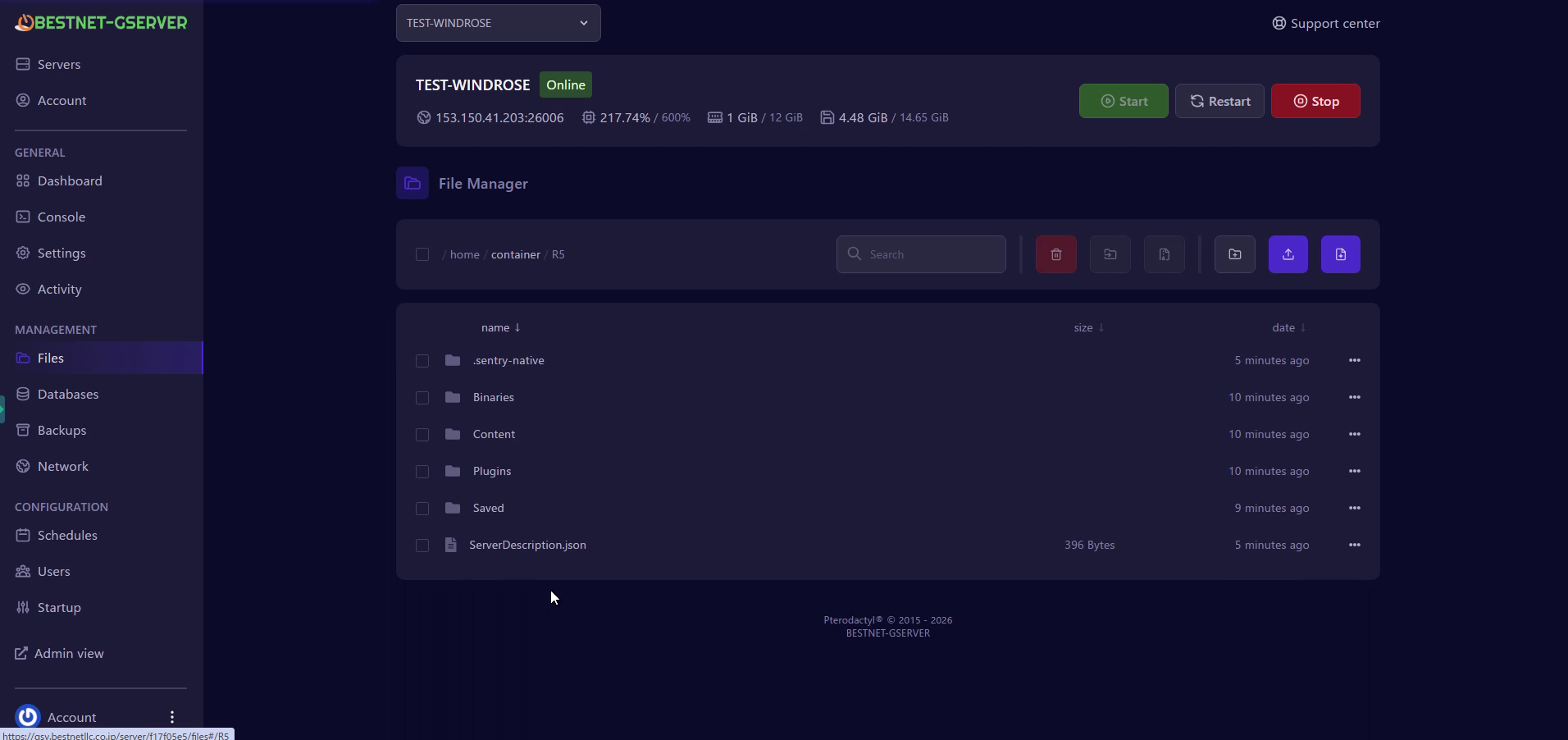
The file contains the following two important values:
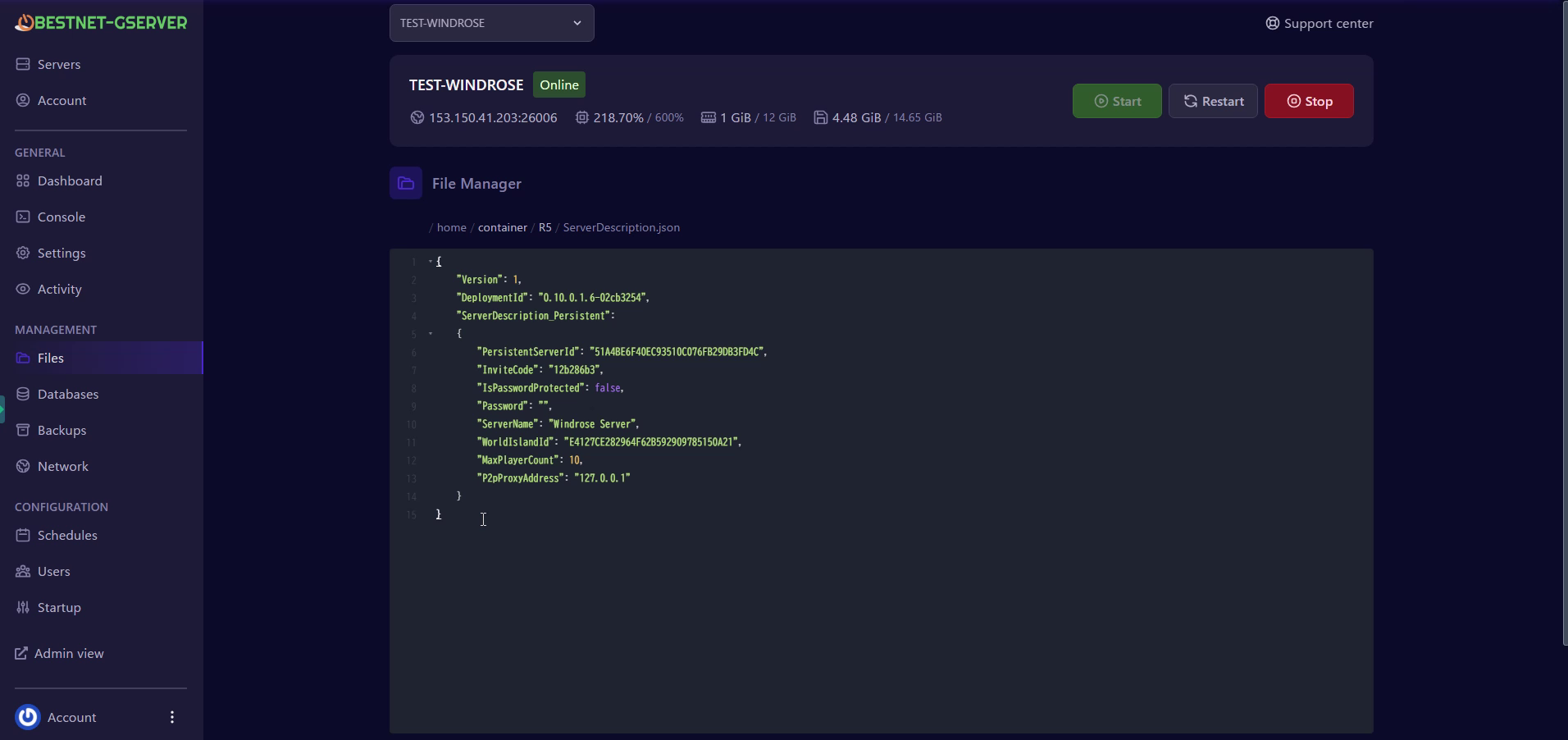
This is the code your friends use to connect to the server. Share it with your team.
Example: 12b286b3
A 32-character hexadecimal string that identifies the world. You will need to copy this in the next step.
Example: E4127CE282964F62B592909785150A21
Click on Startup in the CONFIGURATION section of the left menu. Find the WORLD ISLAND ID field and paste the 32-character value you copied in the previous step.
If you do not perform this step, a new world will be generated each time the server restarts, and you may lose your progress!
Once all settings are complete, restart the server to apply the settings.
Return to the dashboard and click the Restart button.
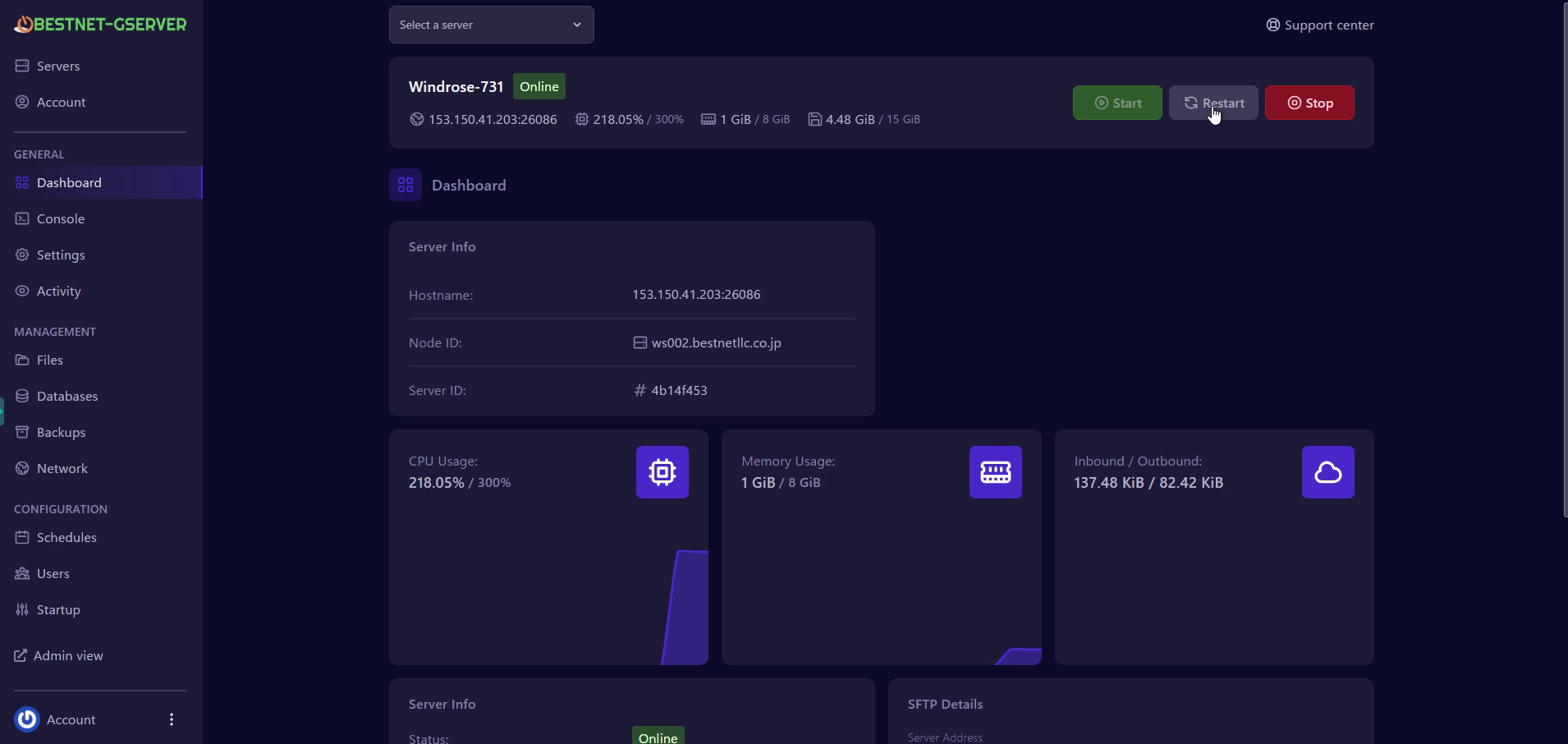
▲ Click the Restart button to restart the server
After the restart, once the status returns to Online, the configuration is complete.
Connect using the following steps in the Windrose game client:
Play → Connect to Server → Paste Invite Code → Connect
The invite code is also displayed in the server console log. Look for the following line:
InviteCode : xxxxxxxx
Windrose uses an invite code system rather than direct IP address connection. Server browser or IP:port input is not required. You can simply share the invite code for your team to connect.


