
This article explains the meaning and usage of each configuration item (configuration variable) displayed in the "Startup" tab of the game panel. In Satisfactory, server name and password are configured in-game, so we'll clarify what can be changed from the panel side.
Revision History
- v1.0
- June 2026 — Initial version
Settings are divided into "2 locations"
Satisfactory server settings are broadly divided into the following 2 locations. Understanding this difference from the start will prevent confusion.
| Where to configure | What can be configured |
|---|---|
| Game panel "Startup" tab (explained on this page) | Operational settings such as automatic updates, autosave generations, connection timeout, beta version selection, etc. |
| In-game server manager (after connecting and registering as administrator) | Server name, admin password, join password, game rules (difficulty, various multipliers, etc.) |
Please note that the server name and passwords are configured in-game, not in the game panel.
Settings You Can Change in the Game Panel (List)
| Item (Panel Display Name) | Variable Name | Default Value | Overview |
|---|---|---|---|
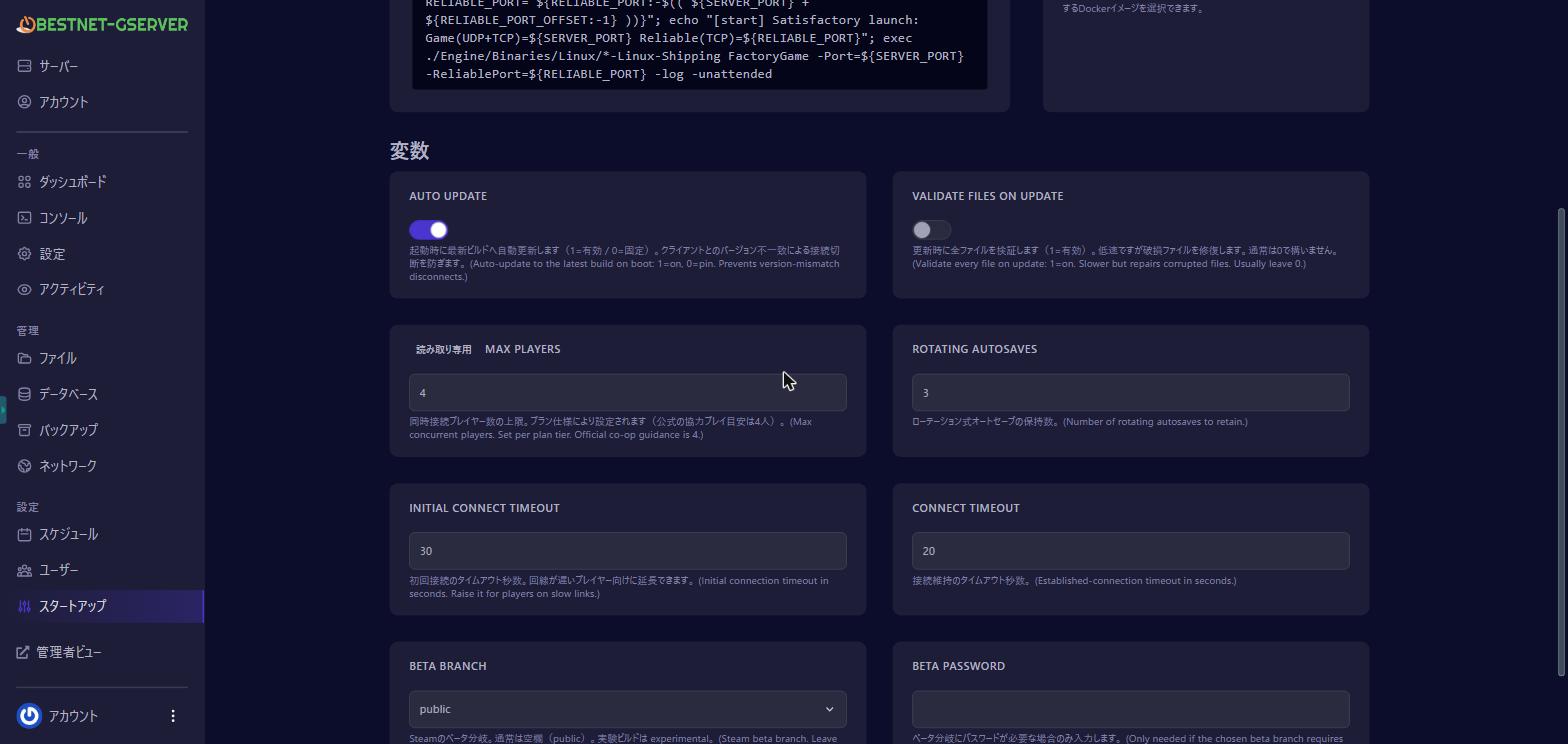
| Auto Update | AUTO_UPDATE | 1 (Enabled) | Automatically update the game to the latest build on each startup |
| Validate Files On Update | VALIDATE_FILES | 0 (Disabled) | Verify all files during updates (slow, for repair purposes) |
| Max Players | MAX_PLAYERS | Plan-dependent | Maximum concurrent player limit (Not changeable, linked to plan) |
| Rotating Autosaves | NUM_AUTOSAVES | 3 | Number of autosave generations (retained count) |
| Initial Connect Timeout | INIT_CONNECT_TIMEOUT | 30 | Initial connection timeout (seconds) |
| Connect Timeout | CONNECT_TIMEOUT | 20 | Connection maintenance timeout (seconds) |
| Beta Branch | SRCDS_BETAID | Blank (public) | Game version branch (for advanced users) |
| Beta Password | SRCDS_BETAPASS | Blank | Beta branch password (only when required) |
Detailed Explanation of Each Item
Auto Update
When 1, the game will automatically update to the latest build each time the server starts. When the Satisfactory client is updated, the server also needs to be on the latest version so that friends with the newest game version can connect. It is generally recommended to leave this 1 (enabled).
Only set to 0 if you want to temporarily lock to a specific version (such as waiting for MOD or save compatibility). Changes take effect upon restart.
Validate Files On Update
When 1, all game files will be verified against the distribution source (Steam) information during updates, and any corruption will be repaired. Validation takes time, so it is usually fine to leave this 0 (disabled).
If the server fails to start properly, behaves abnormally, or after a crash, setting this to 1 and restarting once may resolve issues caused by file corruption. After verification, returning it to 0 will speed up startup.
Max Players
This is the maximum number of players that can connect simultaneously. This item is set per your contracted plan and cannot be changed by customers (it is displayed but not editable). If you wish to play with more people, please consider upgrading to a higher plan.
Rotating Autosaves
This is the number of generations of autosaves the game will retain. Increasing the number provides more restore points to the past, but uses more disk space accordingly.
Initial Connect Timeout / Connect Timeout
These are timeout durations related to connections. If friends with slow connections or from distant locations are disconnected during connection, increasing these values may improve the situation.
- Initial Connect Timeout: Wait time until connection is established (default 30 seconds)
- Connect Timeout: Time until response is considered lost after connection is established (default 20 seconds)
In most cases, the default values are fine.
Beta Branch / Beta Password (Advanced Users)
Beta Branch selects the version branch of the game to install.
- Blank: Normal public release (public / stable version). Most customers should leave this as is.
experimental: Experimental version (receives new features earlier but may be unstable).
Beta Password should only be entered if the selected branch requires a password. It is not needed for public / experimental, so normally leave this blank.
Items Managed Automatically (No Changes Required)
The following items are automatically optimized by us and are not displayed in the game panel or cannot be changed. You do not need to configure them.
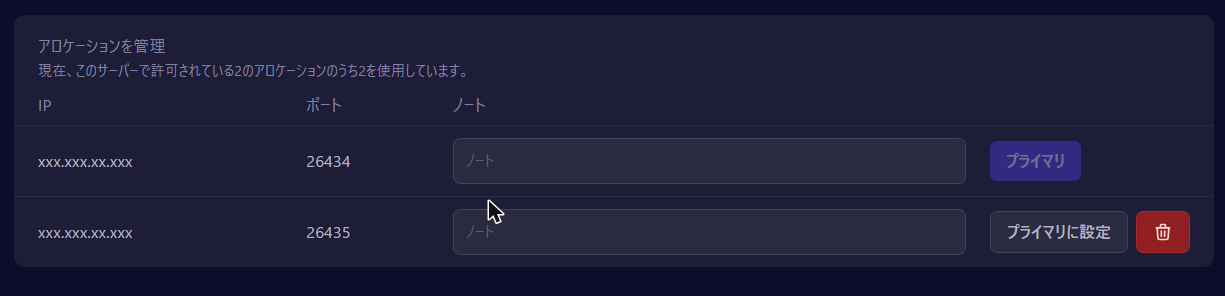
- Connection Ports (Game / Reliable): Automatically assigned when the server is newly created, and the Reliable port is automatically secured as a sequential number following the Game port. You can check the actual port numbers in the "Network" tab (for details, see "How to Check Your Server Port Numbers").
- Game Identification ID: Fixed for Satisfactory.
Settings Not Available in the Game Panel (Configured In-Game)
The following settings are configured in the in-game Server Manager rather than in the game panel due to Satisfactory specifications (you can configure these after connecting to the server and registering as an administrator).
- Server Name
- Admin Password
- Join Password
- Game Rules (difficulty, resources, building, and other various settings)
Frequently Asked Questions
Should Auto Update be enabled or disabled?
We recommend leaving it enabled (1) under normal circumstances. This prevents friends running the latest game version from being unable to connect when the game is updated. Only set it to 0 if you have a special reason to lock the version.
The server is unstable / won't start
First, set Validate Files On Update to 1 and restart to check for file corruption. If the issue persists, try reinstalling (save data will be retained) or contact our support desk.
I can't increase Max Players
Max Players is fixed per plan and cannot be changed. To play with more people, please upgrade to a higher plan (you can upgrade while retaining your data by paying the difference).
I can't find the server name or password fields
In Satisfactory, these are configured in the in-game server manager. There are no fields for them in the game panel.
My settings aren't being applied after I changed them
Settings in the "Startup" tab are applied after a restart. After changing values, please execute "Restart (Restart)" in the panel.


