
This guide provides the steps and precautions for canceling your game server service. All data on the server will be deleted upon completion of the cancellation, so please be sure to back up any necessary data in advance.
Critical Information
Required Checklist Before Cancellation
Before proceeding with cancellation, you must complete the following:
- Create a full backup using the “Backup” feature in the game panel
- Download the created backup file to your local environment
- Download important files such as save data individually (optional)
- Verify that the downloaded files are not corrupted
Cancellation Types and Refunds
You can choose from the following cancellation methods:
Immediate Cancellation
Your game server instance will be deleted immediately upon submitting a cancellation request from the client portal.
Refund
The prorated amount for the unused period will be returned as account credit. This credit can be applied to other services we offer.
Cancellation at End of Billing Period
You can continue using your server normally until the end of the current billing period, at which point the service will automatically terminate.
Refund
None. You will use the full billed period.
Revision History
- v2.0 — May 29, 2026
- Added pre-cancellation notes, replaced procedure screenshots, clarified refund policy. BESTNET LLC
- v1.0 — January 2024
- Initial version created. BESTNET LLC
Cancellation Procedure
After completing the required checklist above, please proceed with the cancellation using the following steps.
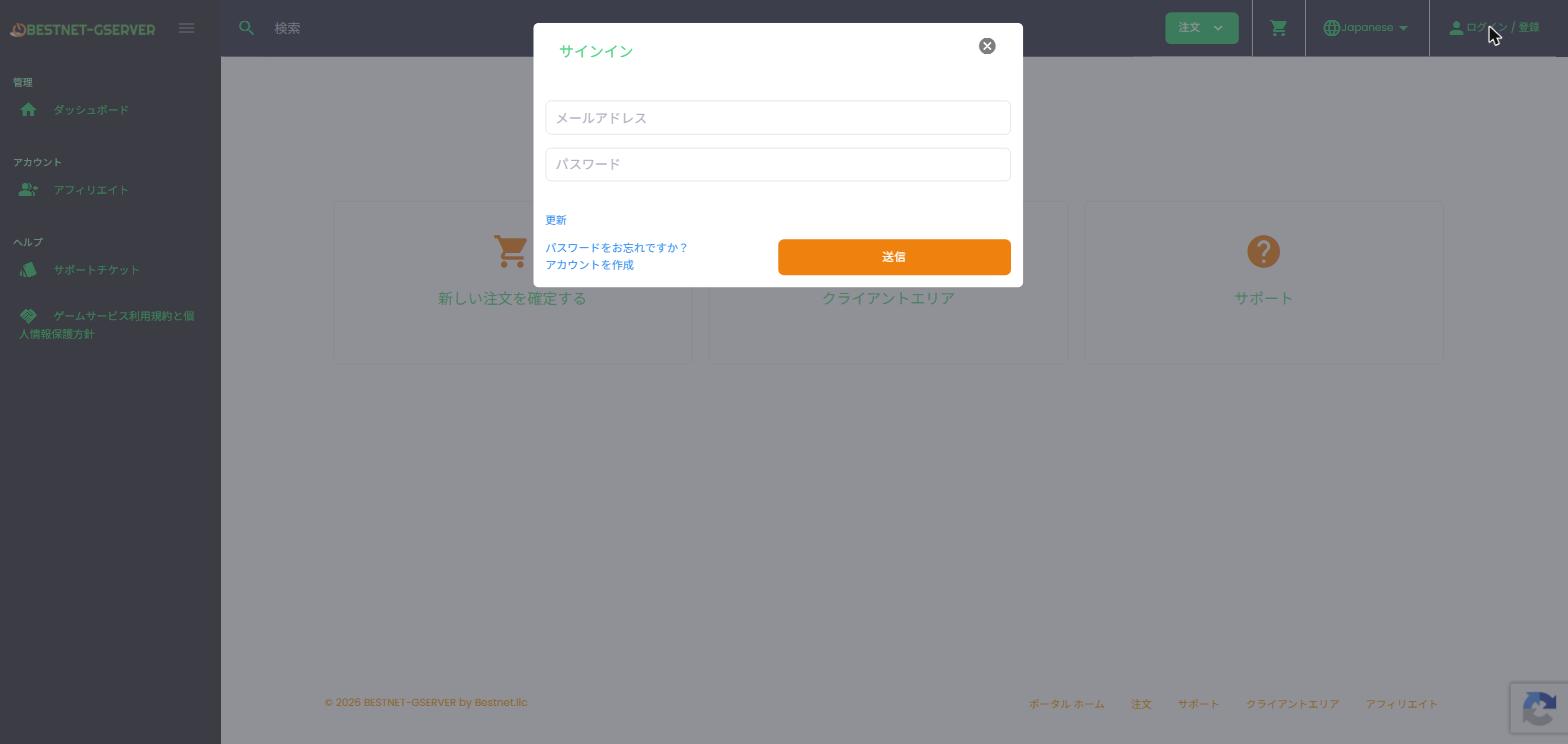
STEP 1: Log in to the Client Portal
Access the Client Portal and log in with your registered email address and password.
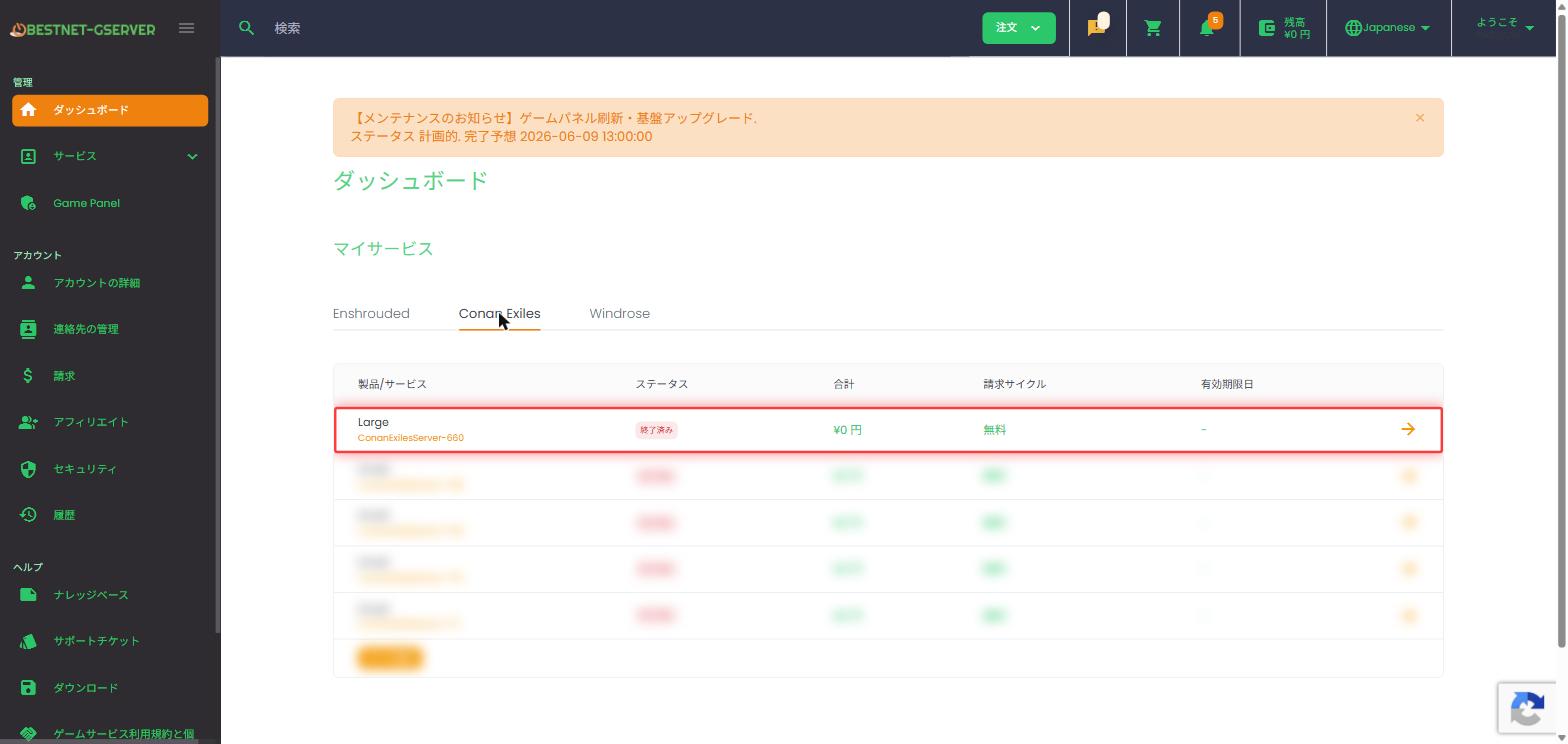
STEP 2: Select the Applicable Service from the Service List
After logging in, click “Services” from the top menu or dashboard to display the service list. Click on the service you wish to cancel.
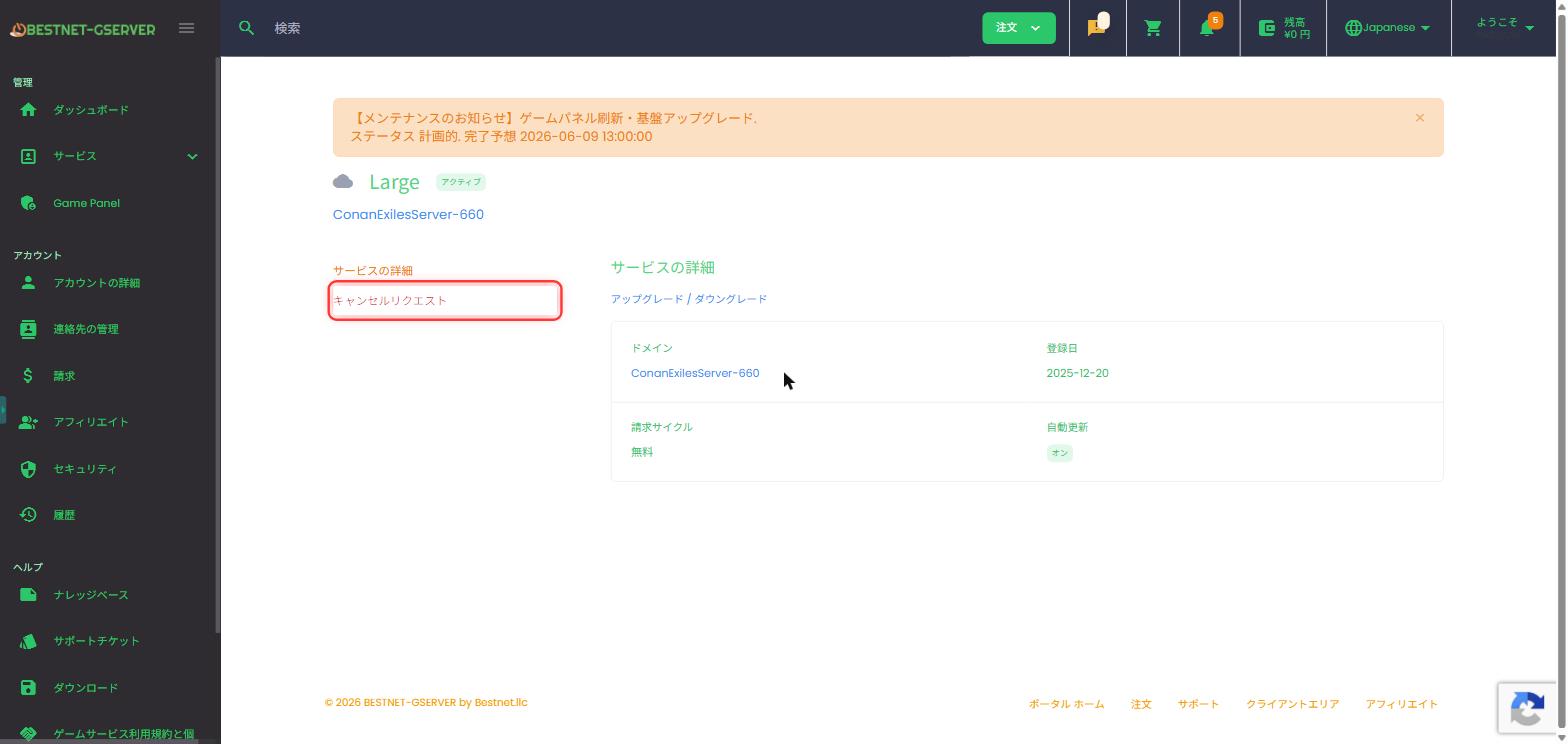
STEP 3: Click “Request Cancellation”
Select “Request Cancellation” from the menu on the service details screen.
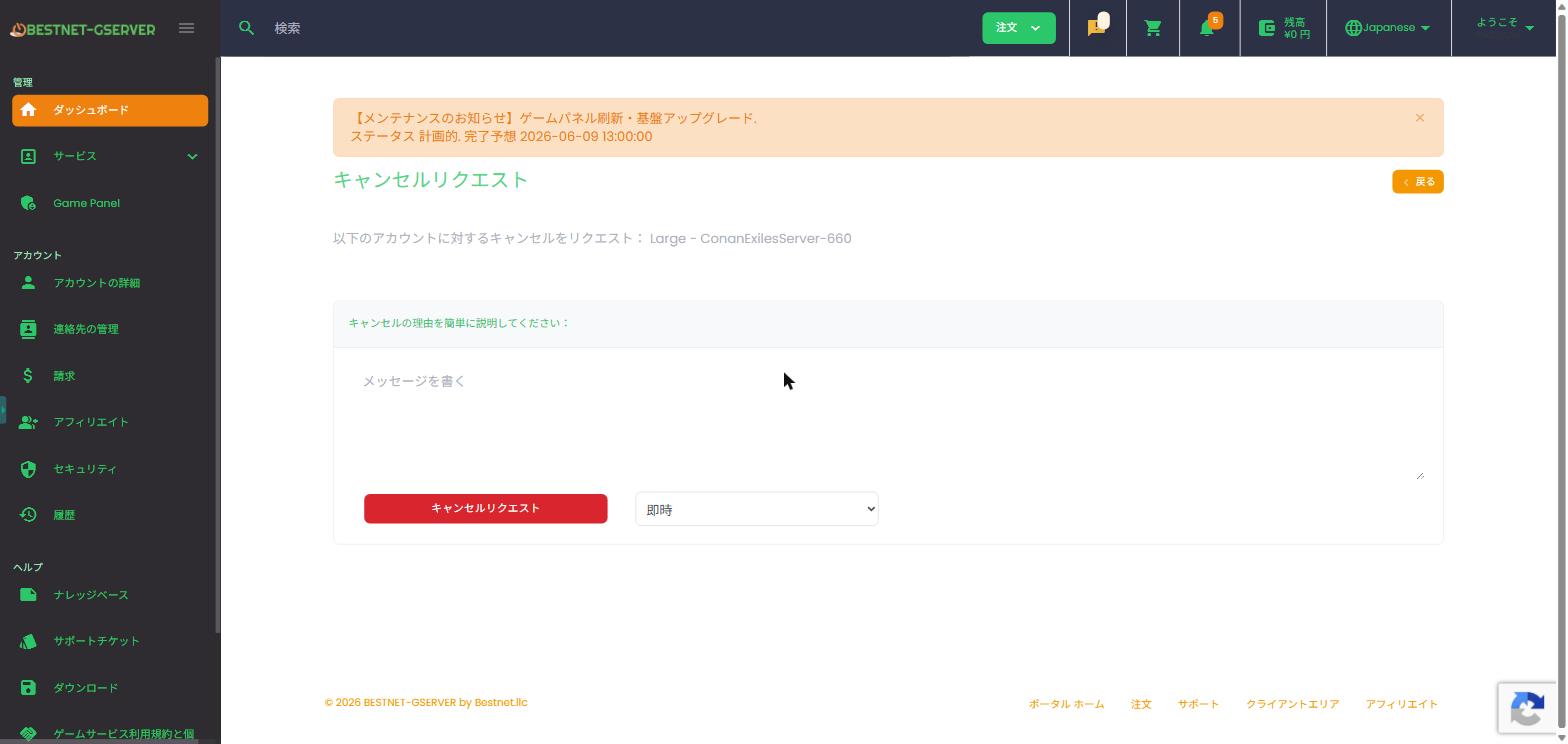
STEP 4: Enter Cancellation Type and Reason
Select the cancellation type (Immediate / End of Billing Period) and briefly enter the reason for cancellation.
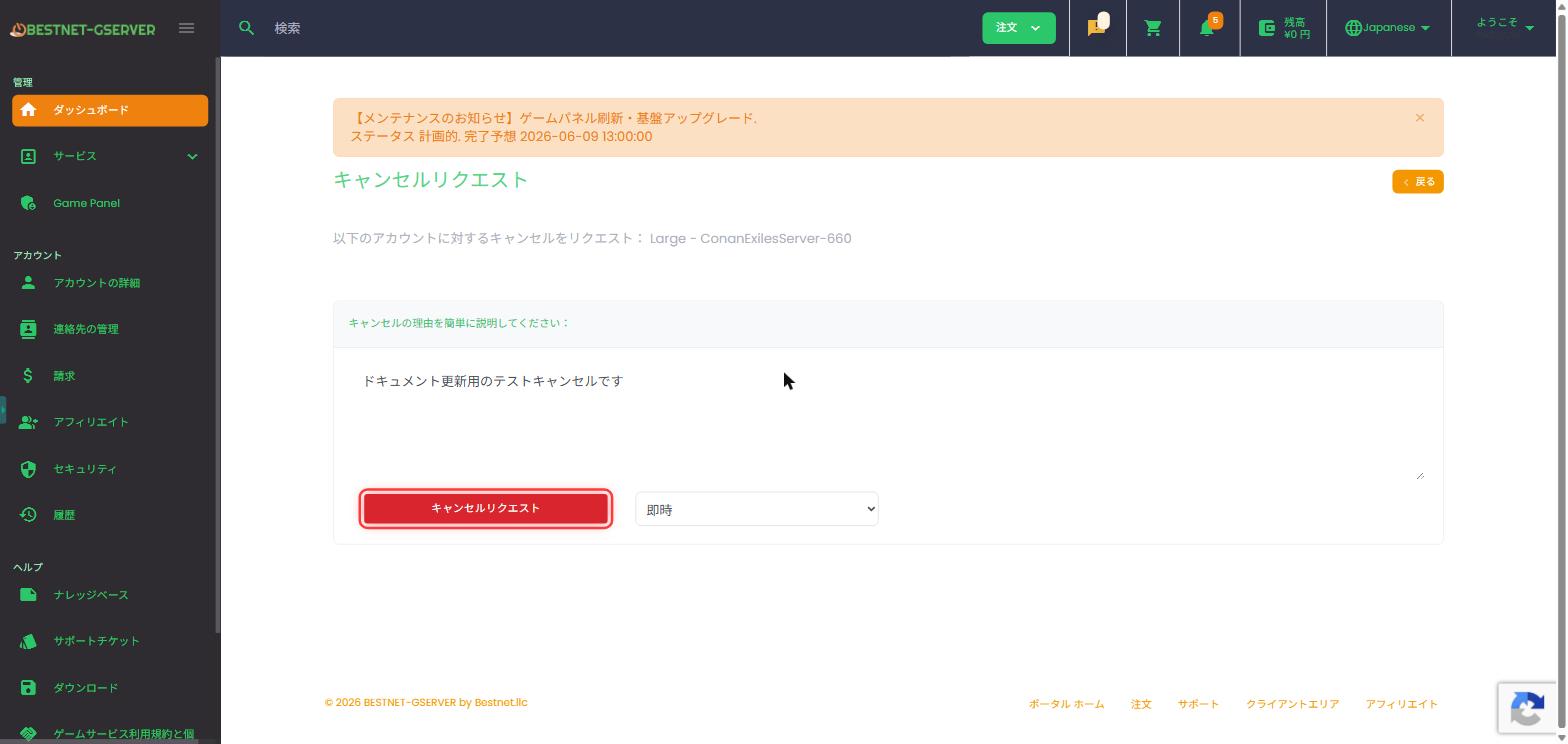
STEP 5: Submit the “Request Cancellation” Button
After confirming the entered information, click the “Request Cancellation” button to submit the request.
STEP 6: Confirm Cancellation Completion
Return to the service list and confirm that the status of the target service shows “Cancelled” or that it has been removed from the list.
After Cancellation
After cancellation is completed, the following will be automatically performed:
- Deletion of the server instance (at the time of the request for “Immediate”, or on the last day of the billing period for “End of billing period”)
- Complete erasure of related data (server itself, files, settings, panel-side backups, etc.)
- Sending of cancellation completion notification email (to your registered email address)
- If applicable, account credit will be granted (in case of immediate cancellation)


