
You can pay your BESTNET-GSERVER service fees online from the invoice screen in the client portal. As of July 2026, you can now also pay by Stripe Credit Card (3D Secure supported). This page walks you through everything from checking your invoice to completing payment, with real screenshots.
Before you start (language and currency)
Most of our system supports multiple languages. The client portal automatically sets the display language (Japanese, English, Korean, Chinese) based on the country code of your access IP address. Prices are shown in the currency for your region (Japanese yen for access from within Japan).
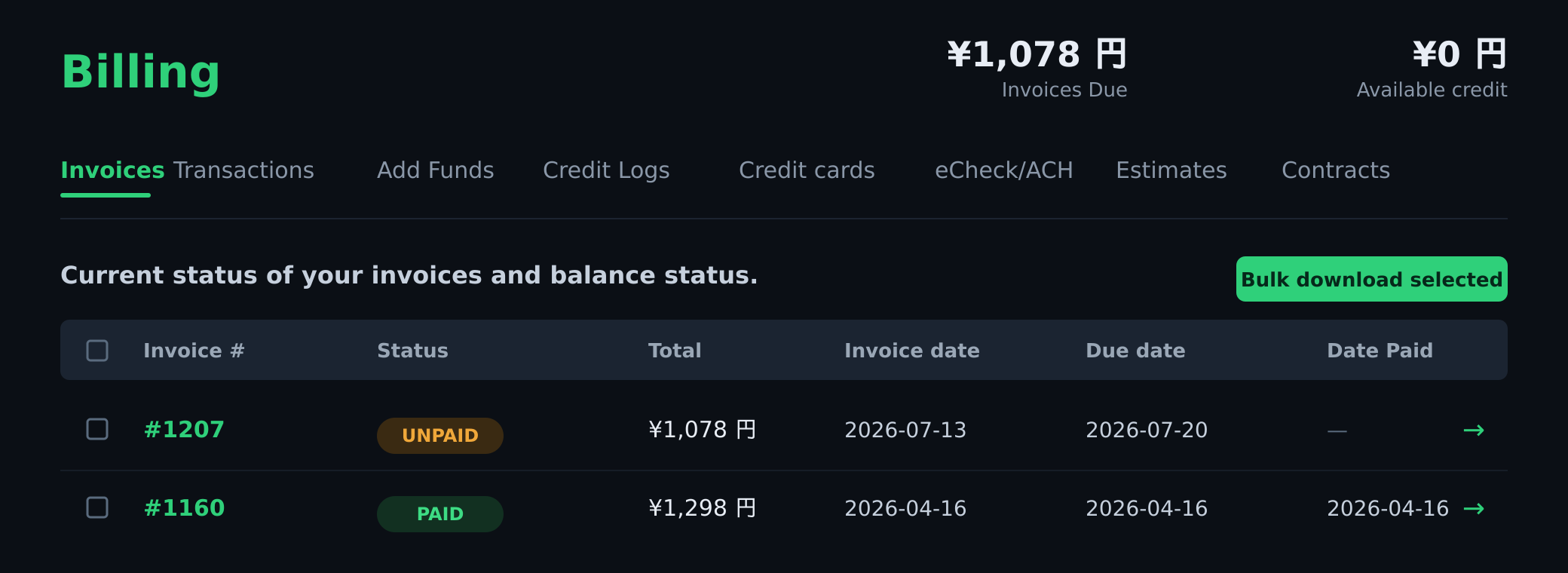
How to check your invoices
About one week before the due date, we send an invoice notification email to your registered address. When it arrives, log in to the client portal and open Billing → Invoices from the left menu. Your unpaid and paid invoices are shown in a list.
- UNPAID — an invoice that has not been paid yet.
- PAID — an invoice that has been paid.
Available payment methods
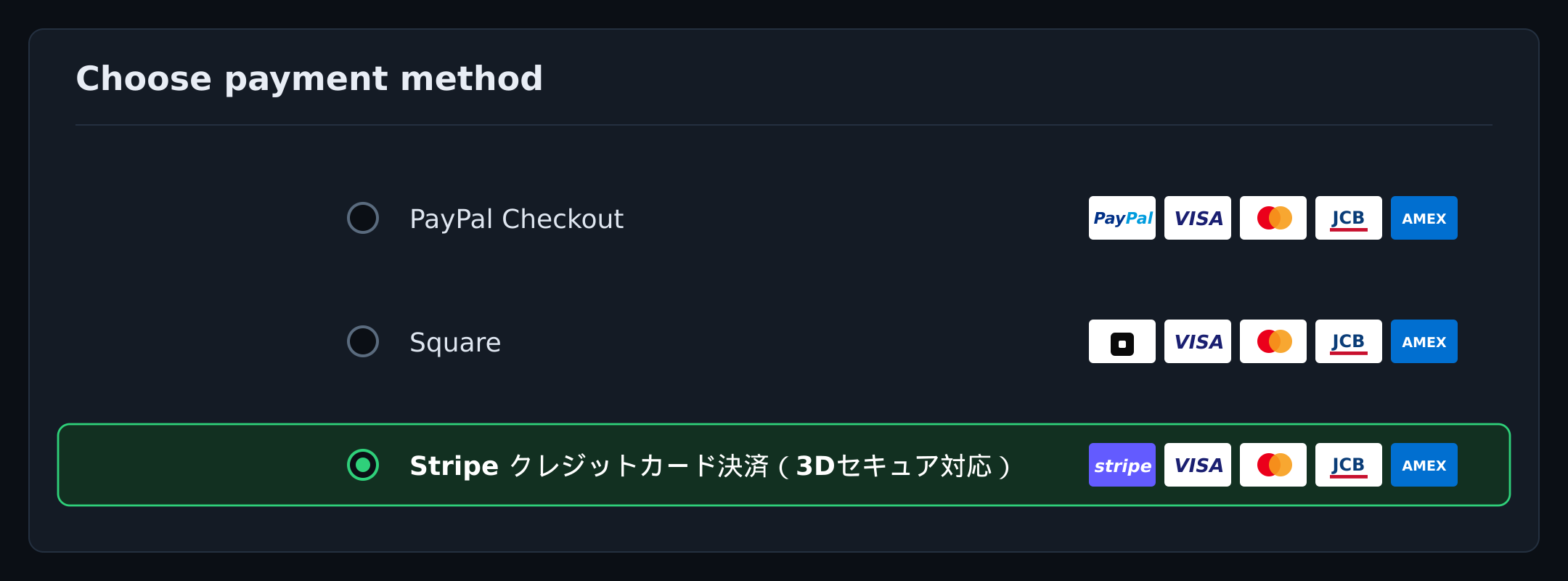
The following online payment methods are currently available. All of them accept major credit cards (VISA / Mastercard / JCB / American Express).
- PayPal — pay with your PayPal account or a credit card.
- Square — pay with a credit card. This is a one-time payment (no automatic card charges).
- Stripe Credit Card (3D Secure) — pay with a credit card. It supports the "3D Secure" cardholder authentication service, so you can pay with extra peace of mind.
How to pay
Pay an invoice using the following steps.
- Log in to the client portal.
- Open Billing → Invoices from the left menu and click the invoice you want to pay (UNPAID).
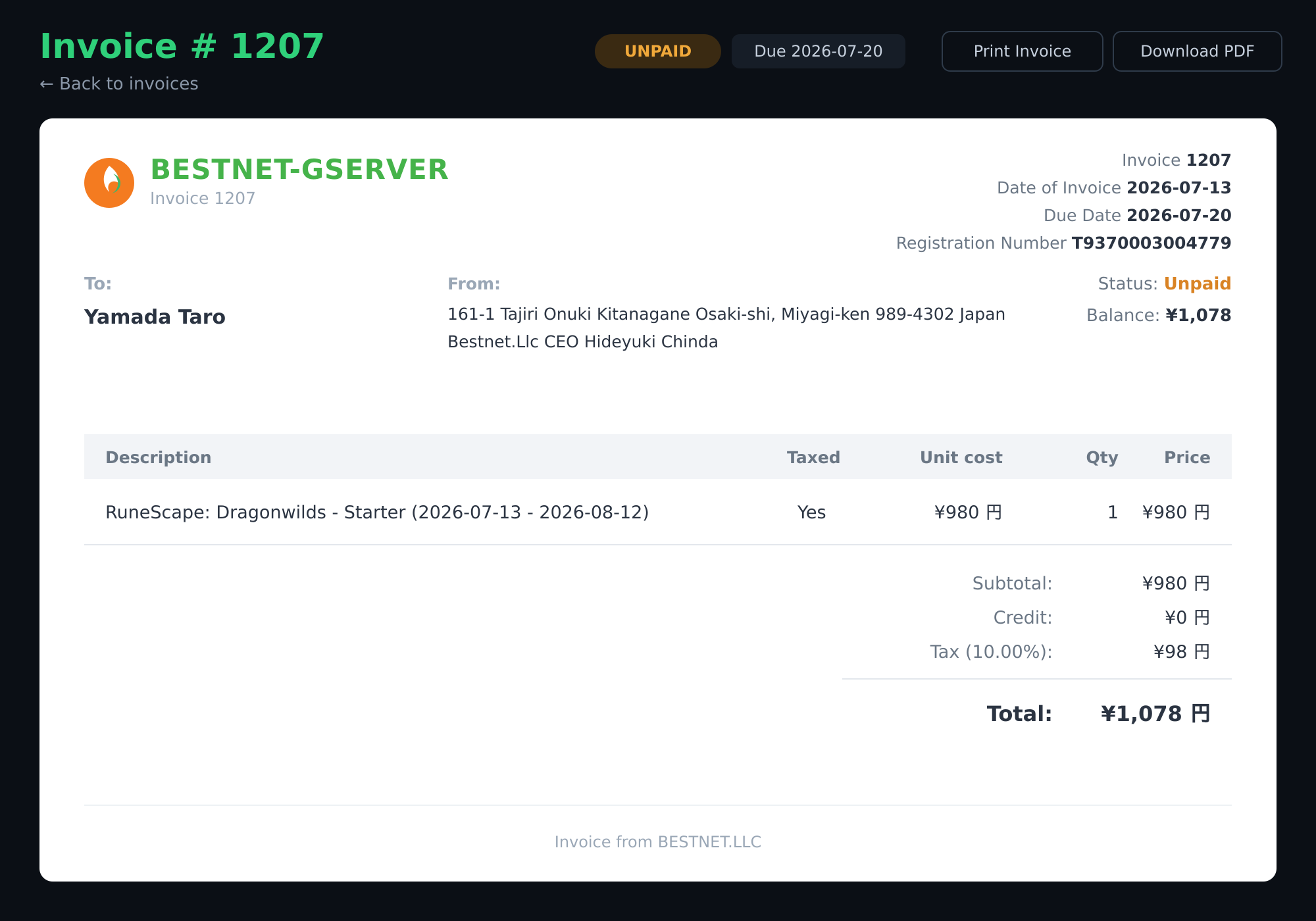
- Check the invoice details (amount due, due date, and line items).
- Under "Choose payment method", select your preferred method (PayPal, Square, or Stripe).
- Follow the on-screen instructions to complete payment.
- Once payment is complete, the invoice status changes to PAID.
Service auto-renewal and how we handle payment information
Our services renew on the billing cycle of your plan (monthly, etc.). At each renewal, we issue an invoice about one week before the due date and send a notice to your registered email address. How recurring billing (auto-renewal) works depends on your payment method.
- Stripe Credit Card — supports auto-renewal (recurring billing).
- PayPal — supports auto-renewal (recurring billing). At payment time you can choose to "set up automatic payment" or "pay only this time."
- Square — one-time payment (no automatic card charges). If you continue to use the service, please complete the payment again at each renewal.
How we handle payment information
We handle your information as follows, by payment method. With any method, we never store your card security code (CVV/CVC).
Credit card (Stripe, auto-renewal)
Your card number itself is stored securely by our PCI DSS-compliant payment processor (Stripe). We do not store the full card number on our servers; we keep only the card brand, last 4 digits, and expiry date (to identify the card), plus an encrypted payment token used for recurring billing. Future charges are processed with this token.
PayPal (auto-renewal)
For PayPal auto-renewal, no card information is stored on our servers or by our payment processor. What we hold is only the recurring-payment agreement ID issued by PayPal and billing information such as the next billing date and amount. The funding source (PayPal balance, linked bank account, linked card, etc.) is all managed within your PayPal account.
Square (one-time payment)
Payment via Square is a one-time payment. It does not support auto-renewal, and we do not store any information (card, token, etc.) used for future charges. If you continue to use the service, please complete the payment again at each renewal.
Cancellation and removing a payment method
You can remove or change a saved payment method at any time from the client portal. PayPal automatic payments can also be set up later, partway through your subscription; to cancel them, use the "Automatic payments" settings in your PayPal account. If you would like your service to stop renewing, please submit a cancellation request ("End of billing period") from the client portal. For the procedure to cancel the service itself, see How to Cancel Your Game Server Service.
Paying in advance (adding funds)
You can also add funds to your account balance in advance. Go to Billing → Add Funds and deposit the amount you want. The deposited balance can be applied to future orders and invoice payments.
- Deposits can be made within a set minimum and maximum (for example, ¥500–¥50,000).
- Keeping a balance ready reduces the effort of paying at each renewal.
Receipts and payment history
From each invoice screen, you can get a copy with Print Invoice or Download PDF. You can review your past payments under the Transactions tab.
Notes on payment
- Please pay by the due date shown on the invoice.
- If payment cannot be confirmed after the due date, the service may be suspended. A suspended service is resumed as soon as payment is confirmed.
- For any questions or help with payment methods, please contact us via a support ticket.
Frequently asked questions
Q. If “Auto renew” is on, will my card be charged automatically?
No. The “Auto renew” setting shown in the client portal simply keeps your service active and issues the next invoice automatically. It is separate from automatic card charges (recurring billing). Your card is charged automatically only if you pay by Stripe credit card, or if you selected “Set up automatic payments” with PayPal. Square is a one-time payment method, so no automatic charge occurs. If you would like your service to stop renewing, please submit a cancellation request (“End of billing period”) from the client portal. Your service will then end on the last day of your current billing period.
Q. I requested a cancellation, but an unpaid invoice and a “Balance” are still showing.
With an “End of billing period” cancellation, the cancellation is carried out on the last day of your current billing period. Any unpaid invoice already issued for the next period is voided automatically at that point, so there is nothing for you to pay. The invoice and balance stay visible until then — this is normal. (If you choose an “Immediate” cancellation, the server and its data are deleted as soon as you submit the request.)
Q. Which payment method should I choose?
You can pay by credit card with any of them. Stripe, which supports cardholder authentication (3D Secure), is especially recommended for security. If you have a PayPal account, PayPal is also convenient.
Q. Is payment secure?
Payment takes place on a secure payment screen within the client portal. With any method, we never store your card security code (CVV/CVC), and we never hold your full card number (for credit cards, the PCI DSS-compliant processor Stripe stores it securely). What we store differs by payment method — see "Service auto-renewal and how we handle payment information." Stripe Credit Card supports 3D Secure.
Q. Can I change the payment method later?
For an unpaid invoice, you can choose a different method when you pay.
Q. What happens if my payment is late?
If the due date passes, the service may be suspended. We resume it promptly once payment is confirmed.
Q. Will I receive a receipt (qualified invoice)?
You can download a PDF from each invoice screen. The invoice includes our qualified invoice issuer registration number.
Q. Can I pay by bank transfer?
Online self-service payment supports PayPal, Square, and Stripe. If you would like another payment method, please contact us via a support ticket.
Changelog
- v2.1
- 2026-08 — Added FAQs on the difference between “Auto renew” and automatic card charges, and on unpaid invoices remaining after a cancellation request.
- v2.0
- Jul 2026 — Added Stripe Credit Card (3D Secure). Fully revised the article with step-by-step screenshots.
- v1.0
- 2024 — Initial release.


