
- About editing from inside the game
- World settings are decided when the world is created
- What you will need
- Step 1: Create a world on a PC
- Step 2: Stop the server
- Step 3: Upload the save file
- Step 4: Choose which world to load
- Step 5: Start the server and check
- Returning to your previous world
- Frequently asked questions
- Related documents
This guide explains how to change world settings such as difficulty. The in-game editor is not available on our servers, so the change is made by replacing the world with one created on the PC version. If you do not own a PC, you can still make the change using a file created on a friend's PC.
About editing from inside the game
The world settings editor inside the game is not available on our servers. When you try to open it, a message appears telling you that dedicated servers are not yet supported.
This is not a mistake on your part. Editing from inside the game requires a separate communication path from the game itself.
World settings are decided when the world is created
World settings such as difficulty are decided when the world is created and are stored inside the save data. Because of this, the settings of an existing world cannot be rewritten afterwards.
To change them, you replace the world with one re-created using the settings you want.
However, the file for your previous world is not deleted. You can switch back to it later.
What you will need
- One copy of RuneScape: Dragonwilds for PC (Steam version)
Step 1: Create a world on a PC
- Start Dragonwilds on a PC and create a new world with the settings you want.
- Enter that world once, then quit the game. (The save file is created at this point.)
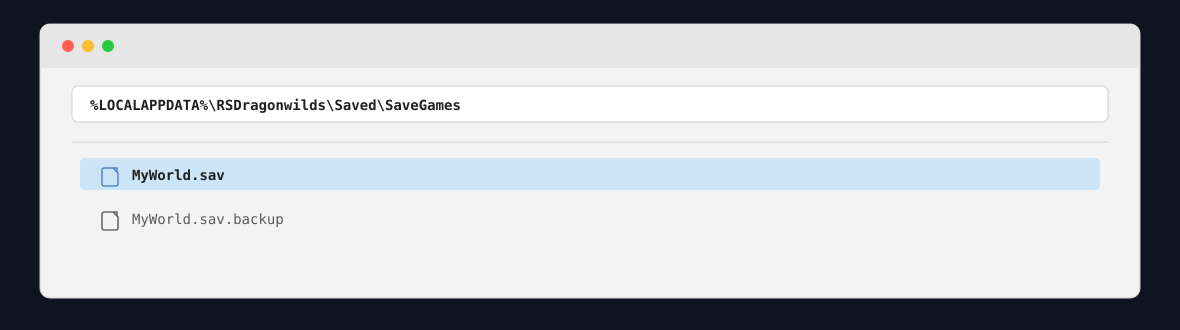
- Open File Explorer, type
%LOCALAPPDATA%\into the address bar and press Enter.RSDragonwilds\ Saved\ SaveGames - Check that a file named WorldName.sav is there.
Step 2: Stop the server
Stop the server from the game panel.
Step 3: Upload the save file
In the file manager, open RSDragonwilds → Saved → SaveGames.
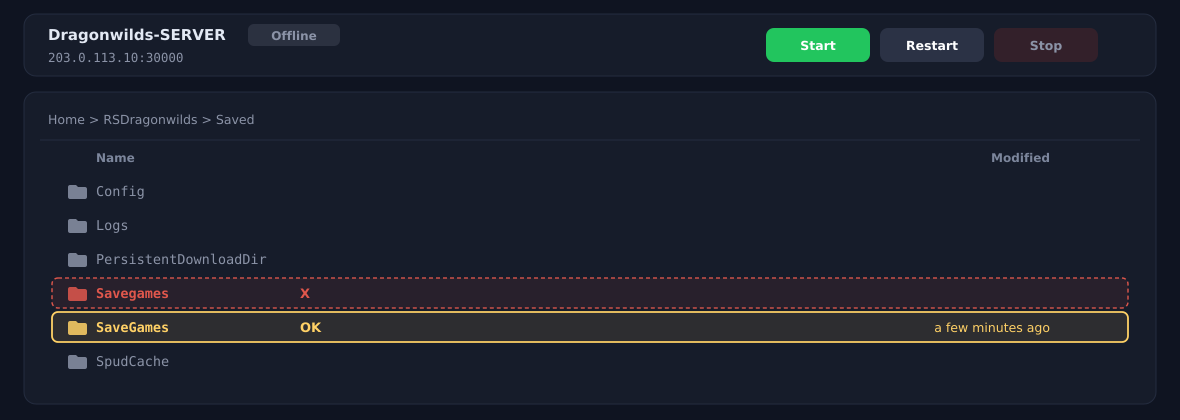
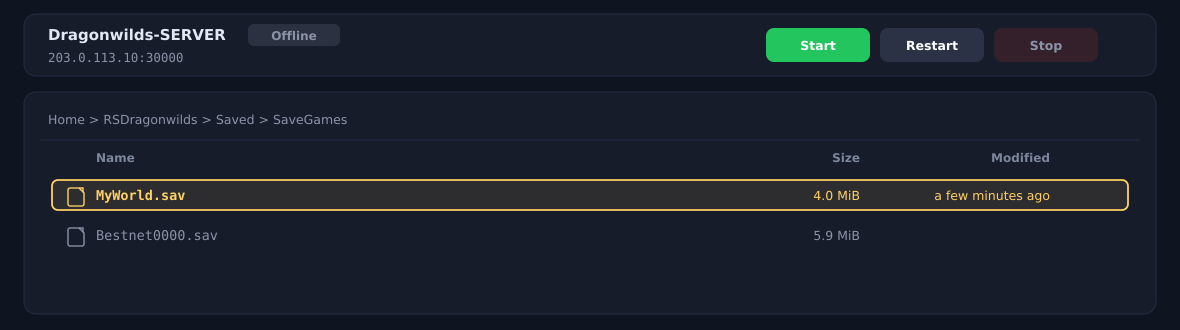
Open SaveGames and upload the .sav file from Step 1.
Step 4: Choose which world to load
On the Startup page, enter the file name without the trailing .sav into [SERVER] Default World Name.
Example: if you uploaded MyWorld.sav, enter MyWorld
![The Startup page. Enter the world name without .sav into [SERVER] Default World Name.](https://gss.bestnetllc.co.jp/wp-content/uploads/2026/10/kb-dw-world-startup-en.png)
Step 5: Start the server and check
Start the server, join the world and check that your settings have been applied.
Returning to your previous world
The file for your previous world is still in SaveGames. Replacing the world does not delete it.
Set [SERVER] Default World Name back to the original name and restart, and you can continue your previous world.
Frequently asked questions
| Question | Answer |
|---|---|
| Can I change the settings using only a PlayStation 5 or Xbox? | No. A file created on the PC version is required. However, it does not have to be your own PC — a file created on the PC of a friend you play with is fine. |
| Is my existing progress carried over? | No. The new world starts from the beginning. |
| Will my previous world be deleted? | No. Set [SERVER] Default World Name back to the original name and restart to return to it. |
| Can I use non-Latin characters in the world name? | Yes. We have confirmed that file names in Japanese work. |


