
About RUST ports
As of October 6, 2026, you no longer need to add ports yourself. All of the ports you need are assigned automatically when you place your order.
Revision history
- 1.0:
- Created: 2026/10/06
- Changes: First edition
- Author: BESTNET-GSERVER
| Important | Our earlier guide asked you to press CREATE ALLOCATION three times on the Network tab and then enter the numbers into QUERY PORT / RCON PORT / APP PORT on the Startup tab. This is no longer necessary. If you have already set your server up with the old procedure, you can leave it as it is. |
1. The allocations you have now (Network tab)
Open Network in the left-hand menu, and you will see that two ports are already listed.
- Row 1 (primary) = the game port
This is the number you give to your friends. It is used for the game’s own communication. - Row 2 = the query port
This is used so that your server appears in the in-game server list. The number is the game port + 1, and it is assigned automatically.
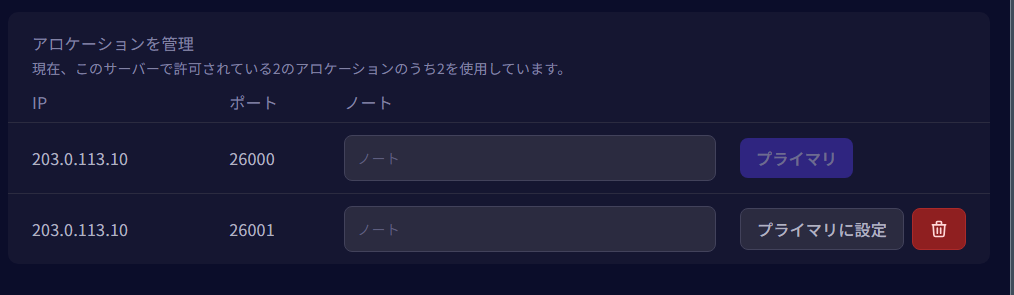
| Important | Please do not delete row 2 (the query port) on the Network tab. If you delete it, queries from outside will no longer get a response, and your server will disappear from the in-game server list. (You can still connect directly from the F1 console.) Right after you delete it, the server may still be visible in the list for a few minutes, but players cannot join even while it is still listed. Also, row 2 may not have been there in the first place. First, please check whether the Network tab has two rows. Whether you deleted it or there was only one row from the start, you can restore it yourself with the steps below. If the steps do not fix it, please contact us by ticket. |
How to fix it when the Network tab has no row 2
- Open the Network tab and click Create Allocation once (it is the button shown in the image below; it does not appear when you already have two rows, and in that case you do not need to do this). A second row is added, so make a note of its port number (just the port number, not the IP address).
- Open the Startup tab and enter the number you noted in step 1 into the QUERY PORT field. It does not have to be the game port +1.
- Restart the server. It will not appear in the list right away. In our own testing, it took about 3 minutes before queries from outside got a response, and about 3 and a half minutes before the server appeared in the in-game server list. Please wait about 5 minutes before you check.

| Important | In QUERY PORT, please do not enter the same number as the game port. The number you enter is not used. A different number is used instead, and your server ends up not appearing in the in-game server list. Please use the number you noted in step 1 exactly as it is. If you have already entered the game port, re-enter the number you noted in step 1 and restart the server, and it will go back to normal. |
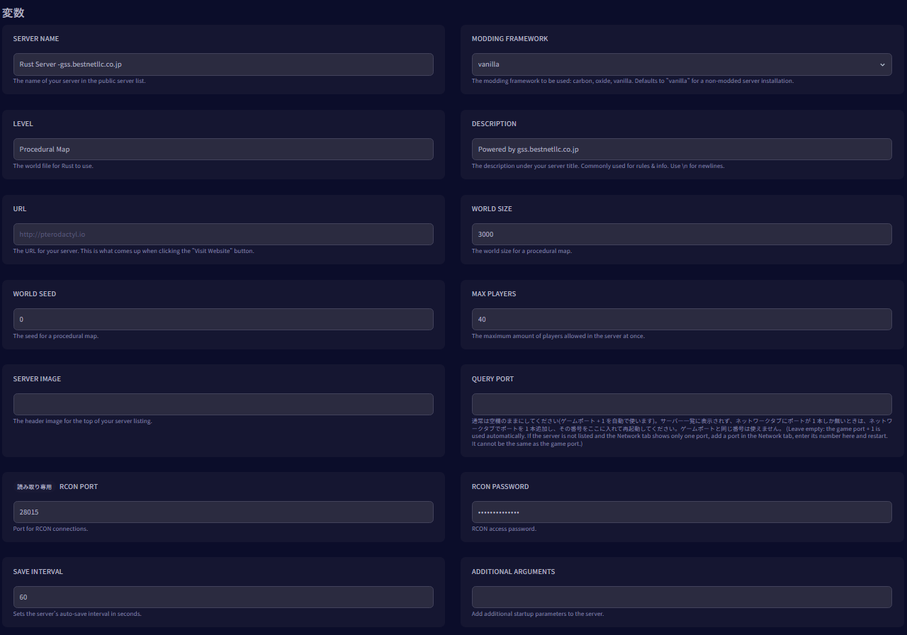
2. The QUERY PORT field on the Startup tab is normally left blank
The Startup tab has a QUERY PORT field. Normally, please leave it blank. When it is blank, the game port + 1 is used automatically. You only need to enter a number when the Network tab has no row 2. For how to fix that, please see “How to fix it when the Network tab has no row 2” above.
There is no APP PORT field. Rust+ uses the same number as the game port, so there is nothing for you to enter.
RCON PORT is shown, but it is read-only and cannot be changed.
3. Rust+ (the smartphone app) needs no extra port
The Rust+ app uses the same number as the game port. The game itself uses UDP and Rust+ uses TCP, so the same number does not cause a conflict. No extra allocation is needed.
4. RCON is not open to the outside
RCON is not published externally, so you cannot connect to it from an external RCON tool.
When you want to send a command, please use Console in the left-hand menu. The console works through RCON, so commands such as status can be used just as they are.
| Note | Console commands only reach the server while it is running. If you stop the server and then open the console, your commands will not be carried out. |
Summary
| Purpose | Port | What you need to do |
| The game itself | Game port (UDP) | Nothing (this is the number you give to your friends) |
| Listing in the server list | Game port + 1 (UDP) | Nothing (automatic) |
| Rust+ app | The same number as the game port (TCP) | Nothing (no extra allocation is needed) |
| RCON | Not open to the outside | Use the console in the panel |


