
STEP1. Log in to the Game Panel.
For instructions on how to log in, please see here.
Revision History
- 2.0:
- Update Date: 2026/10/06
- Update Details: Corrected an incorrect tab name. Added that changing these settings creates a different map, how to revert, and how to look up your seed number
- Updated by: BESTNET-GSERVER
- 1.0:
- Creation Date: 2024/1
- Update Details: Initial version created
- Created by: BESTNET-GSERVER
| Important | Changing World Seed or World Size creates a new, different map. Your buildings and progress up to that point will not carry over. Before you change these settings, we strongly recommend writing down your current seed number. If you have it written down, you can return to the original map later by entering the same number. |
STEP2. Stop the server with “Stop”.
World settings are loaded when the server starts, so stop the server first. Click “Stop” in the upper right of the server screen and wait until the server stops.
| Note | Always use “Stop” to stop the server. It saves the world before shutting down (the console shows Saving complete → Config Saved). “Kill” force-quits without saving, so your most recent progress will be lost. Use it only as a last resort, when “Stop” does not finish after several minutes. |
STEP3. Select “Startup” from the left menu.
Once the server has stopped, open “Startup” in the left menu. You can change the map settings on this tab.
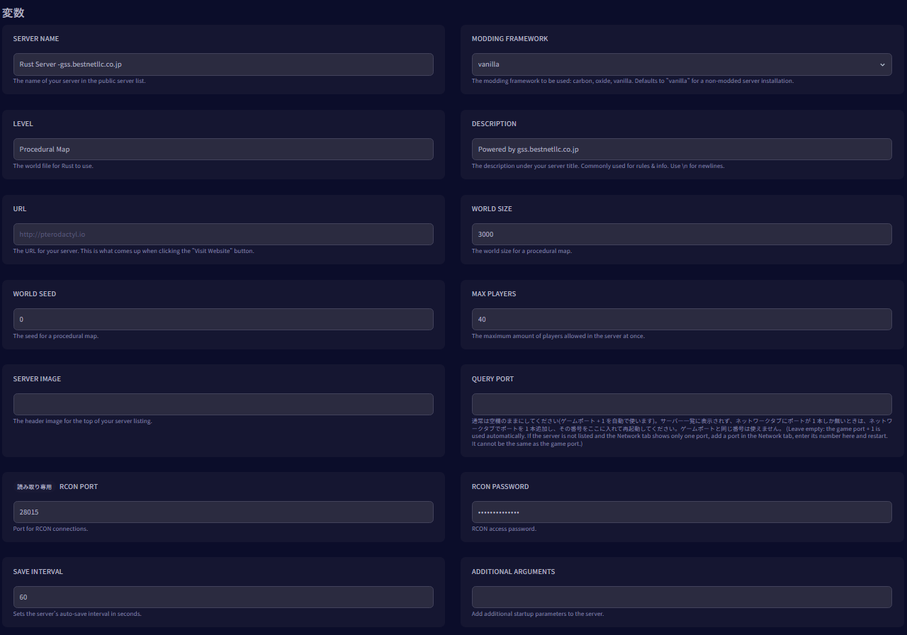
STEP4. Verify that [Level] is set to [Procedural Map].
Level is the map type. To use an automatically generated map, leave it set to Procedural Map. If you have not changed the default value, you can leave it as it is.
STEP5. Set the seed value in [World Seed].
World Seed is the number that determines the map’s terrain. If you enter the same number, you get a map with the same terrain.
- If you leave it at 0 (the default), the number from when the server was first created is recorded and continues to be used.
- If you enter a number, you get the terrain for that number.
| Note | How to look up your current seed number: Open “Files” in the left menu and check the contents of seed.txt, located directly under the server root. You can also look at the name of the world file in server/rust/ (it looks like proceduralmap.3000.45782.289.map): the middle number is the seed number, and the number before it is the world size. |
STEP6. Set the map size in [World Size].
World Size is the size of the map. The default is 3000.
The larger the number, the larger the map, but map generation takes longer and disk usage increases (generating a 3000 map from scratch took about 9 minutes).
| Note | Changing World Size gives you a different map even if the seed is the same. This is because the world file name contains both the size and the seed. Even if you only meant to change the size, your buildings up to that point will not carry over. |
STEP7. Start the server with “Start”.
Once you have changed the settings, return to the server screen and click “Start”.
| Note | You can return to the original map by restoring the original settings. The old world files remain on the server, so if you set World Seed and World Size back to their original numbers and start the server, the world is loaded in its original state, including your buildings (we confirmed this on our test server). However, you cannot go back after restoring from a backup or deleting files. |
This completes the procedure for changing the world size and seed.


