
This page explains how to restore your world (save data) and server settings from a backup you have created. For Enshrouded, the game program files are not included in the backup. We explain why, and how the game's own save generations differ from our backups.
How to restore
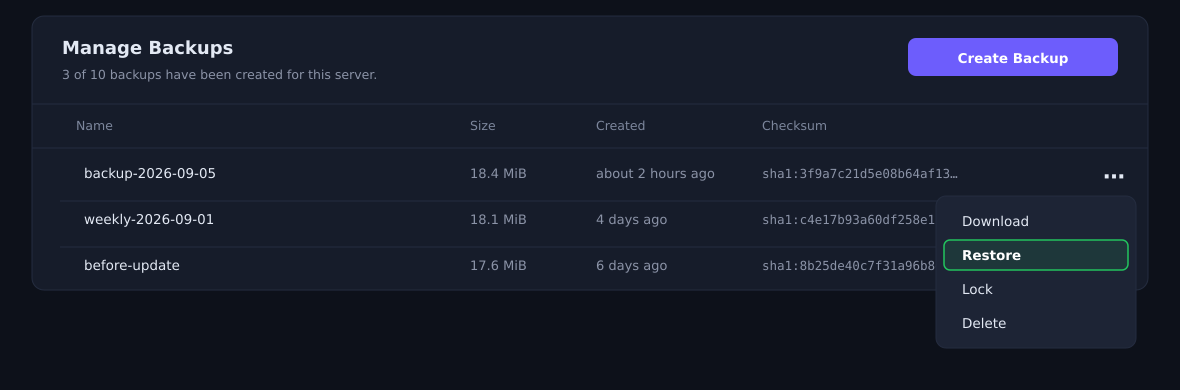
- Open Backups from the left-hand menu of the server management screen.
- Click the “…” → Restore at the right-hand end of the backup you want to restore.
- A confirmation dialog appears. Go ahead and run Restore.
Please be careful with the checkbox in the dialog
The restore confirmation dialog has a checkbox that reads “Delete all files before restoring the backup.”

If you tick it, every file is deleted, including the game program files. Because Enshrouded backups do not contain the game itself, restoring from that state will not bring the game back, and the server will not start.
Even if you tick it by mistake, you can recover with the steps under Restoring after a reinstall below. Your world data is not lost.
What a backup does and does not contain
| Category | Contents |
|---|---|
| Included | Your world (save data) / server settings / the setting history / logs |
| Not included | The game program files / the Steam runtime / SteamCMD |
The game itself runs to several gigabytes, and it is identical for every customer. We can fetch it again automatically, so we deliberately leave it out of the backup.
The game's own save generations are not the same thing as our backups
Enshrouded saves your world automatically at regular intervals by itself, and keeps a few of the preceding generations. That is useful when you want to go back to how things were a little while ago.
If something happens to the server itself, they are lost along with the world. Please do not assume that backups are unnecessary because the game keeps its own generations.
Our backups are stored separately from the server. For a world that matters to you, we recommend keeping backups.
Restoring after a reinstall
If you have reinstalled the server, or something has gone wrong with the game files, the order matters.
Please do it in this order. The other way round, the reinstall wipes the world you just restored.
The reinstall puts the game itself back, and the restore that follows brings back your world and settings. For the reinstall steps, see Reinstallation procedure when the server fails to start.
If something does not go to plan
| Symptom | What to check |
|---|---|
| I restored, but this is not the world I expected | Check the creation date and time of the backup you restored. |
| The server will not start after the restore | Check the console screen. It shows the cause and what to do. |
| My world disappeared after a reinstall | Restore after the reinstall. Your backups are still there. |
| I cannot create a new backup | Check whether you have reached the number of generations your plan keeps. Deleting one you no longer need lets you create a new one. |
If that does not resolve it, send us the message exactly as it appears and we will look into it.
How many generations you can keep
The number of backups you can keep depends on your plan.
| Plan | Generations kept |
|---|---|
| Starter | 3 |
| Medium | 5 |
| Large | 10 |
| Enterprise | 30 |
When a scheduled backup runs while you are at the limit, the oldest one is replaced automatically. Creating one by hand returns an error once you are at the limit, so delete a backup you no longer need and try again.
For how to set a schedule, see Procedure for setting a regular schedule on a game server.


