
- About this guide
- STEP 1 Wait for the installation to finish
- STEP 2 Check your connection details
- STEP 3 Wait for the server to finish starting
- STEP 4 Join from the game
- STEP 5 Become the administrator
- Items on the Startup tab
- Changing settings in the configuration file (GameUserSettings.ini)
- Stopping, reinstalling, backing up and restoring
- If something does not work
- Related articles
This guide explains your BESTNET-GSERVER dedicated server for ARK: Survival Evolved, from placing your order through to joining with your friends and setting yourself up as administrator, so that even first-time users can work through every step without getting lost.
- v1.0
- October 2026 — First edition.
About this guide
This guide covers the steps from completing your order, through starting to play together with your friends, to being able to use the administrator commands. Everything is done from the game panel.
STEP 1 Wait for the installation to finish
Once your payment is complete, preparation of the server begins automatically. The first fetch of the game takes about 20 minutes. When the installation finishes, the server goes on to start automatically.
STEP 2 Check your connection details
You can check the address to give your friends in 2 places. Both show the same information.
Checking on the Console tab
Open the Console tab of the game panel. Every time the server starts, a line beginning with [bestnet] is shown as follows.
[bestnet] 接続先 <IP>:<ポート> / 問い合わせ <番号> / マップ TheIsland / 版 public / 最大 20 人(詳しくは 接続情報.txt)Checking on the Files tab
When you open the Files tab of the game panel, 接続情報.txt is at the very top level. It is rewritten every time the server starts.
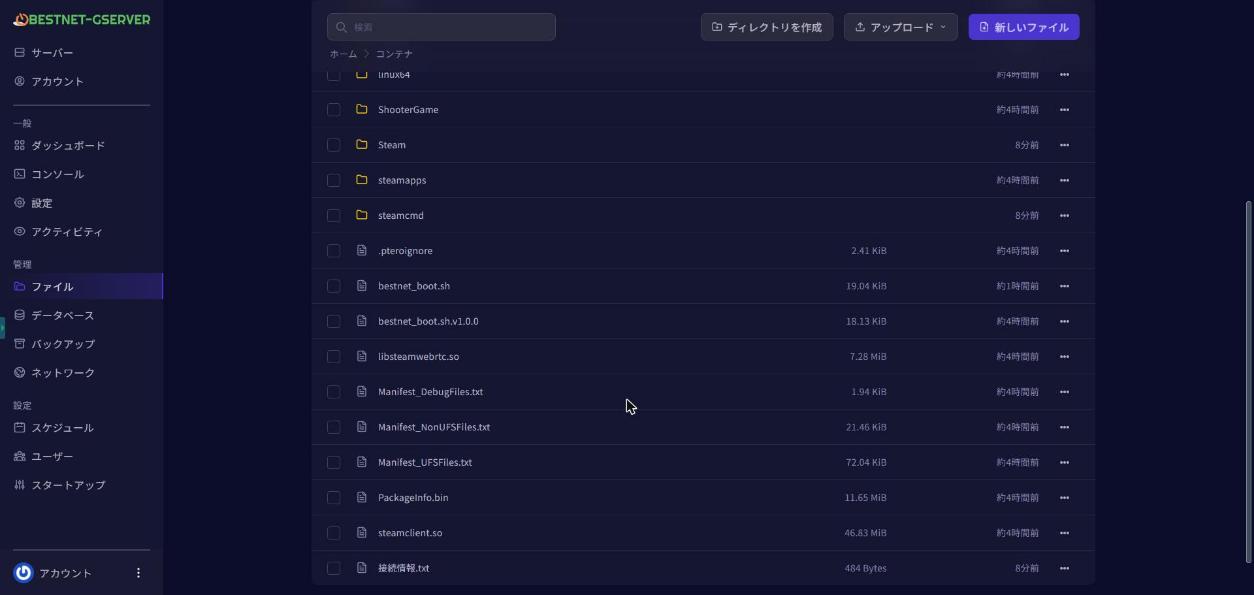
接続情報.txt at the very top of the Files tab| Line heading | Meaning |
|---|---|
| サーバー名 (Server name) | The name that appears in the server list. |
| 接続先(ゲームのコンソールで open) (Address — use with the open command in the game console) | The address to give your friends. It is written in the form IP:port. |
| 問い合わせ用ポート(Steam のお気に入りに追加) (Query port — add to your Steam favorites) | Used when adding the server to your favorites in the Steam server list. It is in the form IP:number. |
| マップ / 版 / 最大人数 (Map / version / maximum players) | The current settings. |
| 管理者パスワード (Admin password) | The location of the file that holds the password (bestnet/admin_password.txt). The password itself is not written here. |
STEP 3 Wait for the server to finish starting
When the following message appears on the Console tab, the server has finished starting and is waiting for connections. Starting takes a few minutes.
[bestnet] 起動しました。コンソールのコマンドを受け付けます(Waiting commands for 127.0.0.1:27020)STEP 4 Join from the game
There are 2 ways to join.
Entering the address directly
In the in-game console, enter open followed by the address (IP:port). Use the value of 接続先(ゲームのコンソールで open) in 接続情報.txt just as it is.
Joining from your favorites in the server list
Add the server to your favorites in the Steam server list using the query port (IP:number), then join. Please note that this is a different number from the port number in the address.
STEP 5 Become the administrator
The admin password is created automatically for each server. No default value shared across all servers is used.
- On the Files tab of the game panel, open the
bestnetfolder, then openadmin_password.txtand check the value. - In the in-game console, enter
enablecheatsfollowed by the admin password, and the administrator commands become available.
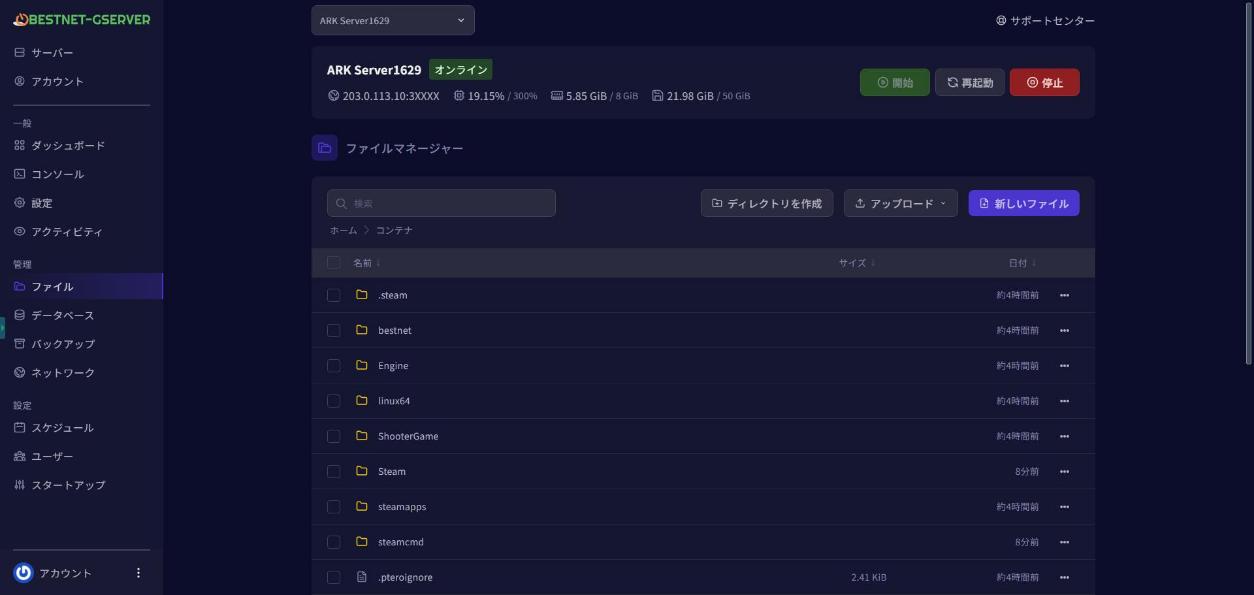
admin_password.txt is inside the bestnet folderIf you would like to use a value of your own, enter it in [ADMIN] Admin Password on the Startup tab and restart the server (only letters, digits, - and _). The value you enter takes priority.
How to change it is also explained in the article on the admin password.
Items on the Startup tab
You can change the server settings on the Startup tab of the game panel. After changing a value, please restart the server from the Console tab.
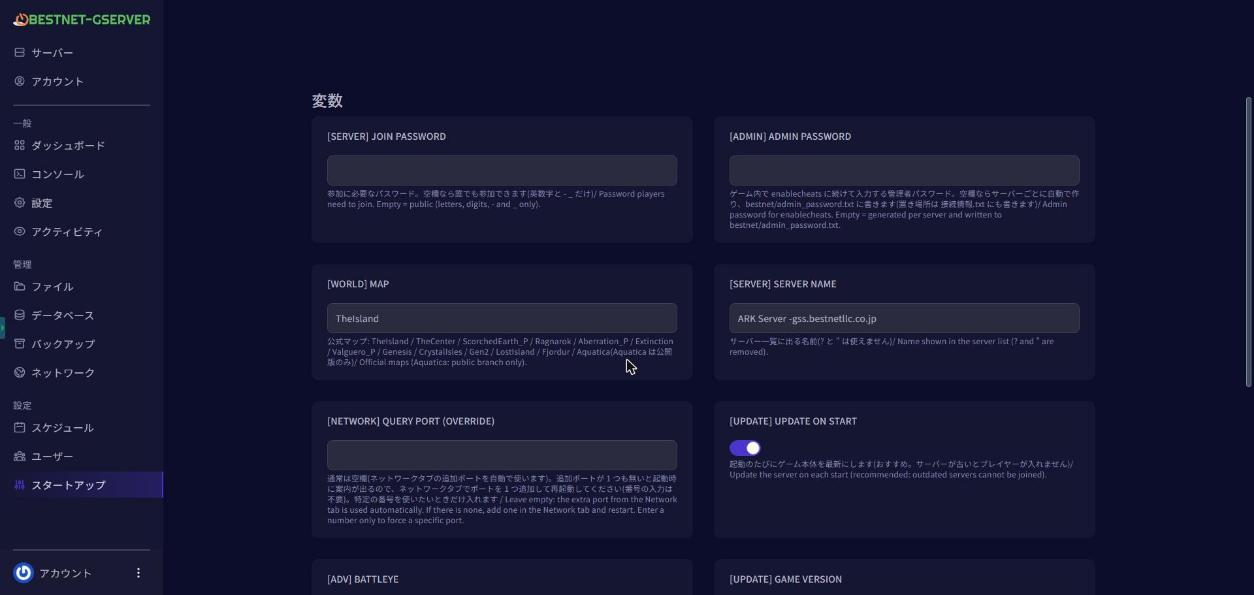
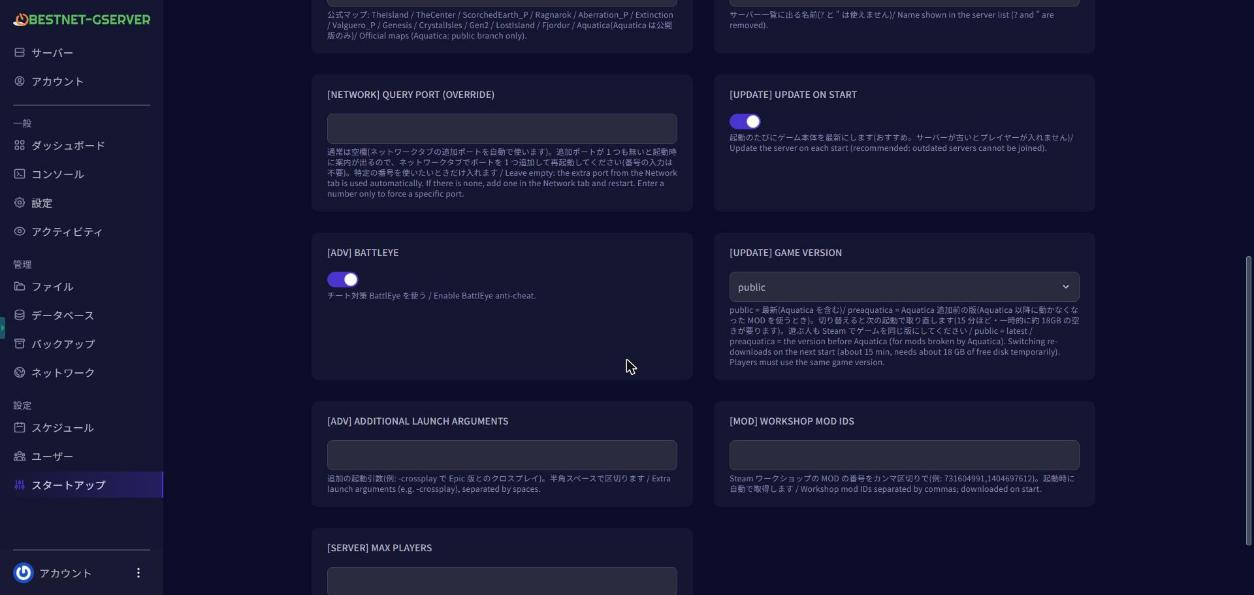
| Item | Description | Default |
|---|---|---|
[SERVER] Server Name | The name that appears in the server list. Up to 120 characters. ? and " cannot be used. | ARK Server -gss.bestnetllc.co.jp |
[SERVER] Join Password | The password used when joining. Only letters, digits, - and _ can be used. | Blank = none |
[SERVER] Max Players | The maximum number of players. You can change it anywhere between 1 and 255. | Blank = matches your plan (20 / 70 / 125 players) |
[ADMIN] Admin Password | The admin password. Only letters, digits, - and _ can be used. | Blank = created automatically for each server |
[WORLD] Map | Selects the map. You can choose from the 13 official maps. | TheIsland |
[UPDATE] Update on Start | A switch. It brings the game up to the latest version every time the server starts. We recommend leaving it on. | On |
[UPDATE] Game Version | public = latest / preaquatica = the version before Aquatica was added. If you change it, the game is fetched again on the next start (about 15 minutes, and about 18GB of free space is needed temporarily). | public |
[NETWORK] Query Port (override) | Specifies the query port. Please normally leave it blank. | Blank |
[MOD] Workshop Mod IDs | Enter the Steam Workshop mod IDs, separated by commas. They are fetched automatically at startup. | Blank |
[ADV] BattlEye | A switch. It turns on BattlEye, the anti-cheat protection. | On |
[ADV] Additional Launch Arguments | Additional launch arguments. Please normally leave it blank. | Blank |
The 13 maps you can choose from are as follows.
TheIsland / TheCenter / ScorchedEarth_P / Ragnarok / Aberration_P / Extinction / Valguero_P / Genesis / CrystalIsles / Gen2 / LostIsland / Fjordur / Aquatica
Aquatica can be selected only when the version is public. Also, memory use differs from map to map. If you select Aquatica on Small, or Gen2 on Small or Medium, the server may stop for lack of memory (a warning is shown at startup). We recommend Large for Gen2, and Medium or above for Aquatica.For how to change the map, please see the article on changing the map; for how to add mods, please see the article on adding mods.
preaquatica, everyone joining should also switch their game to the same version in Steam before entering.Changing settings in the configuration file (GameUserSettings.ini)
Settings that are not on the Startup tab can be changed in the configuration file. It is located on the Files tab at ShooterGame/Saved/Config/LinuxServer/GameUserSettings.ini. Please stop the server before editing it.
For all other lines, the values in the configuration file are used. The meaning and effect of each individual setting belong to the game itself, so we are unable to advise on them.
For details, please see the article on GameUserSettings.ini being reset.
Stopping, reinstalling, backing up and restoring
Stopping the server
Press Stop on the Console tab and please wait until it has stopped (the status becomes Offline). The world is saved before the server stops. The Console tab shows the following.
[bestnet] ワールドの保存を確認しました。停止しましたReinstalling
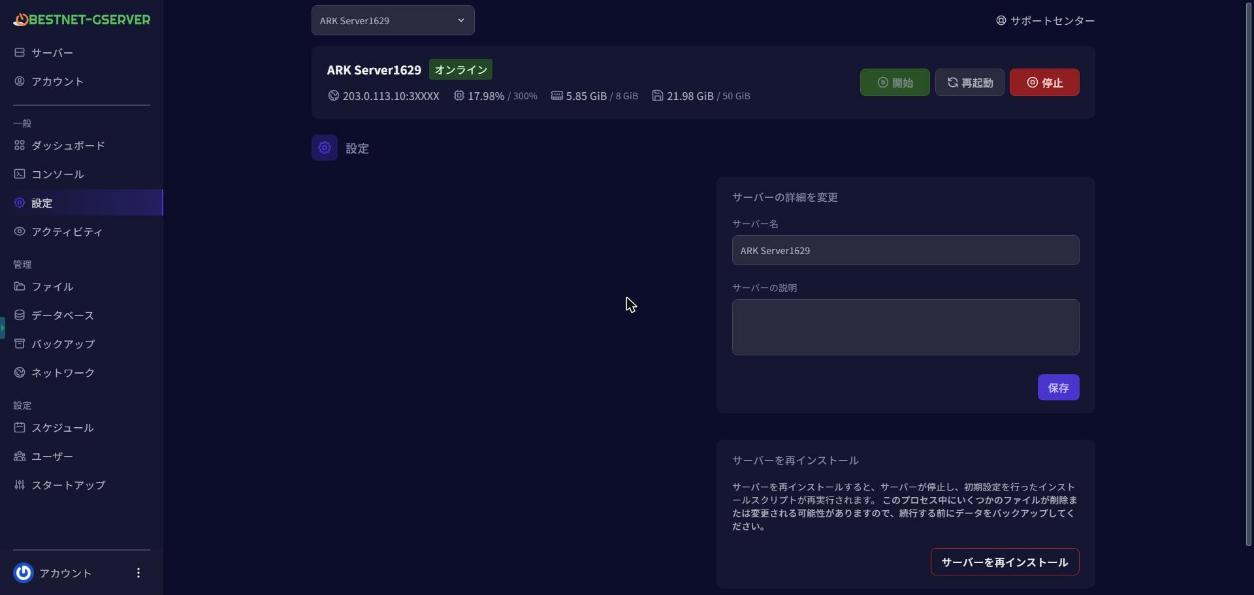
Your world and settings remain even after a reinstall. Only the game itself is put back in place. You will find it on the Settings tab.
Backup and restore
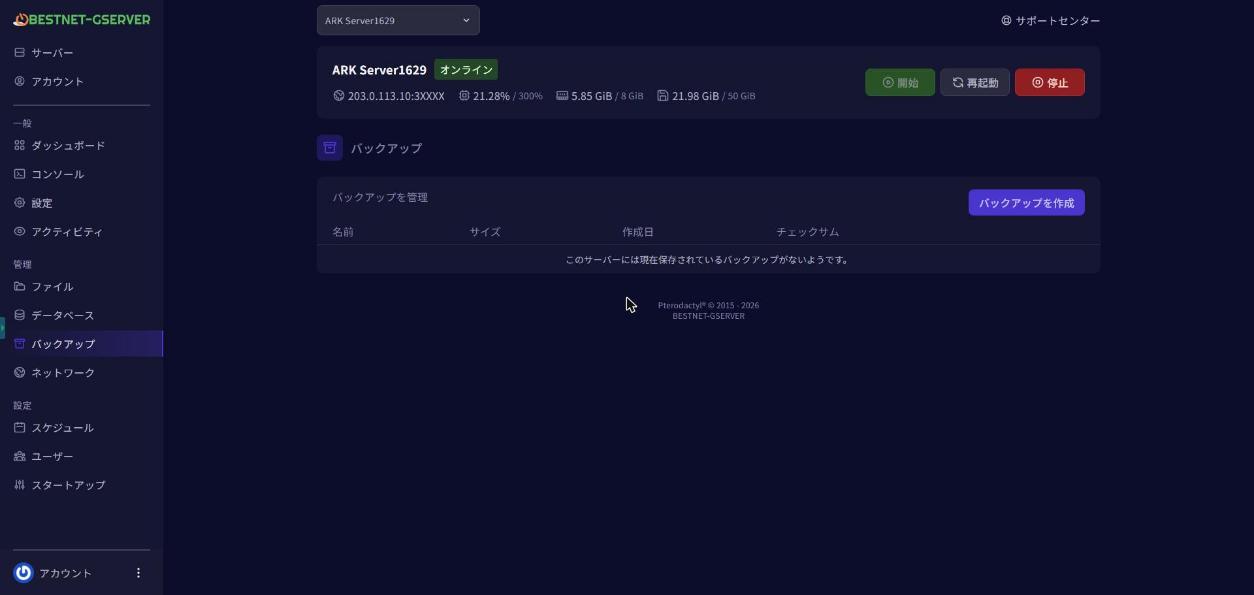
You can create and restore backups from the Backups tab of the game panel. The number of generations you can keep is 3 / 5 / 10 depending on your plan.
For the procedures, please see the shared articles Restoring from a backup and Reinstallation procedure when the server fails to start.
If something does not work
You still cannot join
Please check whether the Console tab shows 「起動しました。コンソールのコマンドを受け付けます」 (the server has started and is accepting console commands). You cannot join while the server is still starting.
Check that the address is correct
Please check that the IP and port number you entered in the game match 接続先 (the address) in 接続情報.txt. When adding the server to your favorites in the server list, use the query port instead.
「★割り当てられていません」 is shown (no query port assigned)
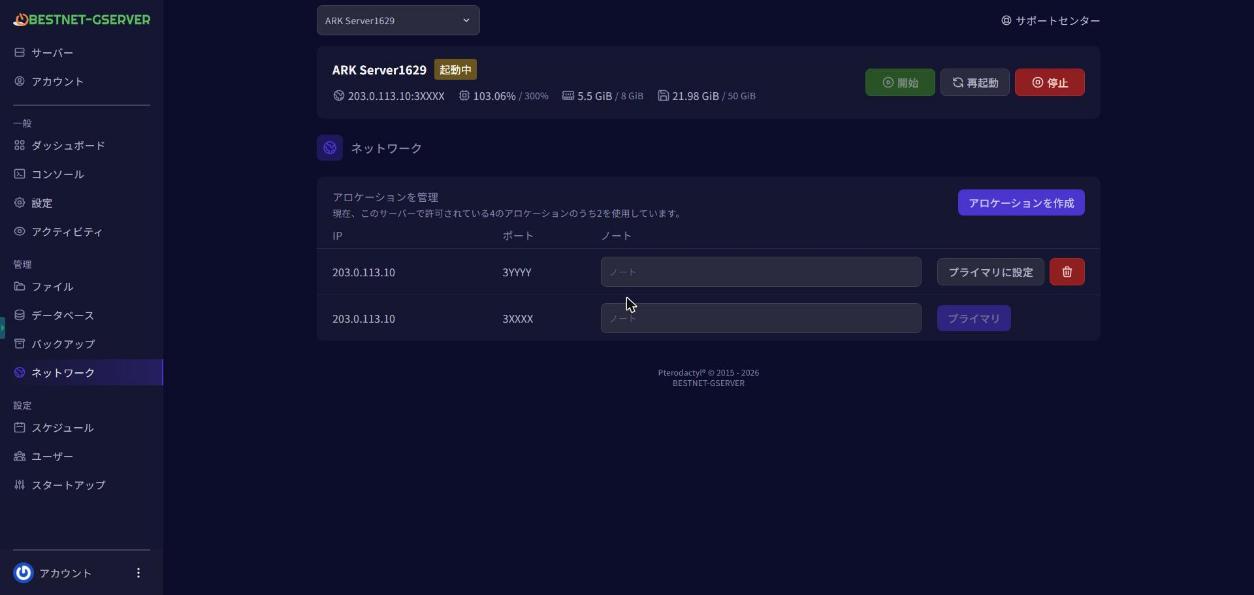
If this message appears on the query port line, please add 1 port on the Network tab of the game panel and restart the server. You do not need to enter a number. The port that has been added is used automatically.
「メモリが足りず止まることがあります」 is shown (the server may stop for lack of memory)
This appears when the map you have selected is large for the memory of your plan. Please consider changing the map, or moving up to a higher plan.
Check that the game versions match
Please check that the server and the game of each person joining are on the same version. When a game update is released, please restart the server and have everyone joining update their game to the latest version as well.
Join password
If a join password is set, please check that the value you entered matches [SERVER] Join Password on the Startup tab.


