
Server Reinstallation Procedure
When Server Fails to Start
If your server fails to start, you can resolve the issue by performing a reinstallation from the game panel. This page provides the specific steps and answers to frequently asked questions about reinstallation.
About This Page
When you order a server from BESTNET-GSERVER, the game files are automatically installed and the server is configured. However, due to temporary instability on Steam’s file distribution side, in rare cases the initial setup may not complete fully, resulting in server startup failure.
In such cases, executing “Reinstall” from the game panel will almost certainly resolve the issue. The process takes approximately 5–10 minutes. Your server settings and saved data are not affected (see precautions below).
When These Symptoms Apply
If any of the following symptoms apply to your server, try the reinstallation procedure below.
⚠ Applicable Symptoms
- The server does not start even when you click the “Start” button
- When you attempt to start it, the status returns to “Offline” within seconds or tens of seconds
- The console displays
Init_Steamworksfollowed by a crash - The console displays
Exit code: 3 - The server fails to start immediately after order, before you have ever connected from the game client
💡 Note: If this symptom occurs on a server that has successfully connected from the game at least once, the cause may be different (network issues, password setting inconsistencies, etc.). In that case, please contact support via a support ticket.
Reinstallation Procedure
While logged into the game panel (https://gsv.bestnetllc.co.jp/), follow the steps below.
-
Open the target server
Log in to the game panel and click on the target Enshrouded server to open it.
-
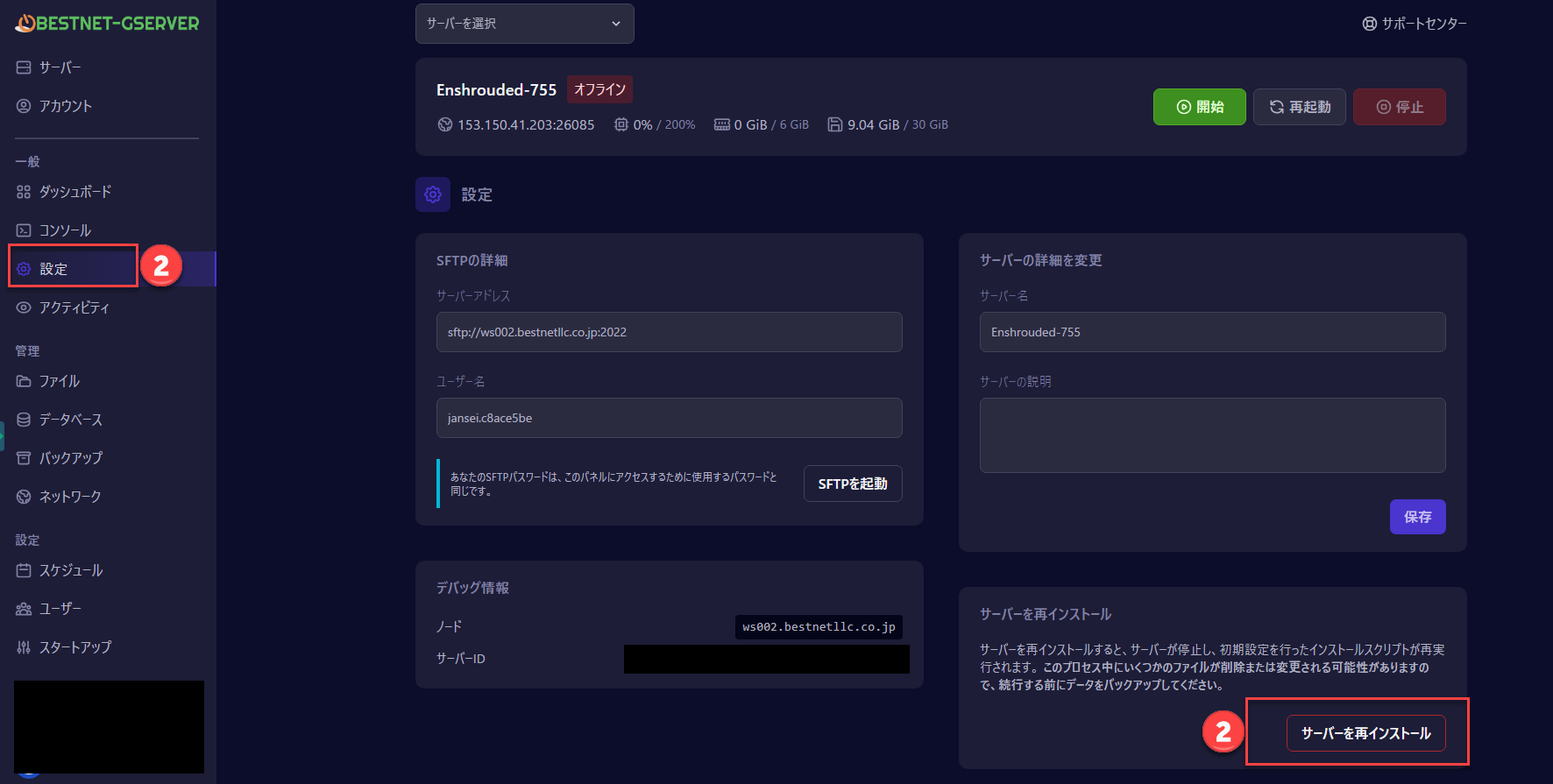
Click “Settings” in the left sidebar
Select the “Settings” menu in the left sidebar of the server screen. This is position ① in the image below.
-
Click the “Reinstall Server” button at the bottom of the screen
The “Reinstall Server” button is located in the lower right corner of the settings page. This is position ② in the image below. Clicking it will display a confirmation dialog.
-
Select Continue in the confirmation dialog
A confirmation dialog will appear. Select Continue to start the reinstallation process.
-
Wait approximately 5–10 minutes
The game files will be re-downloaded and automatically set up. The server status on the server screen will display “Installing”.
The time required varies depending on server load. During peak times, it may exceed 10 minutes.
-
After installation completes, click the “Start” button
When the status returns to “Offline”, reinstallation is complete. Click the “Start” button to launch the server.
If the server starts normally, the status will change “Starting” → “Running”, and the server will be online.
✓ Complete: When your server shows “Running”, you can connect from the Enshrouded game client. Thank you for your patience.
Precautions During Reinstallation
Reinstallation re-downloads the game executable files for the server. Please note the following:
⚠ Save Data
For new servers (those that have never been played on), reinstallation has no effect on your data.
If reinstalling a server where gameplay has already occurred, we recommend creating a backup beforehand. See the separate article “How to Create a Backup” for backup procedures.
💡 Startup Parameters
Variables configured in the “Startup” tab of the game panel (difficulty, password, etc.) are retained after reinstallation. No reconfiguration is necessary.
Frequently Asked Questions
Enshrouded server files are downloaded through the distribution network operated by Valve’s Steam service. Under certain conditions—such as Steam network issues or shortly after game updates—files may be transferred incompletely, resulting in startup failure. This is a known behavior and is resolved by reinstalling.
If the server does not start after two reinstallation attempts, please reply to the support ticket automatically issued when you placed your order, or contact our support team. We will review detailed logs and assist further. If a widespread outage is occurring on Steam’s side (such as during a major Enshrouded update), we may ask you to wait for recovery.
During reinstallation, the server will be offline and players cannot connect. Please restart the server after installation is complete.
No, there is no charge. You can use this service as many times as needed.
Yes, all variables set in the “Startup” tab of the game panel are retained. No reconfiguration is necessary.
If Problem Persists
If the server still will not start after two reinstallation attempts, please contact support.
📩 Support Contact
Reply to the support ticket automatically issued when you placed your order, describing the results of this procedure and your current situation. Our team will assist you individually.
To submit a new inquiry, you can create a ticket here: Support Center
When you contact us, please include the following information for faster assistance:
- Server name (e.g.,
Enshrouded-755) - Server address (e.g.,
153.150.41.203:26085) - Number of reinstallation attempts
- Error message displayed in the console (if any)


