
Prerequisites
Please log in to the Game Panel. For instructions on how to log in to the Game Panel, please see here
Revision History
- 1.0:
- Created: 2024/1
- Update: Initial version created
- Created by: BESTNET-GSERVER
STEP1. Wait for Installation to Complete
Once you have completed your application and the service status becomes active, installation of the game server will begin.
During installation, the screen will appear as shown in the image below, and most information will not be visible. This screen will be completed in a few minutes.

Once the server installation is complete, an installation completion message will be sent from our Game Panel system to your email address.
STEP2. Confirm Game Port
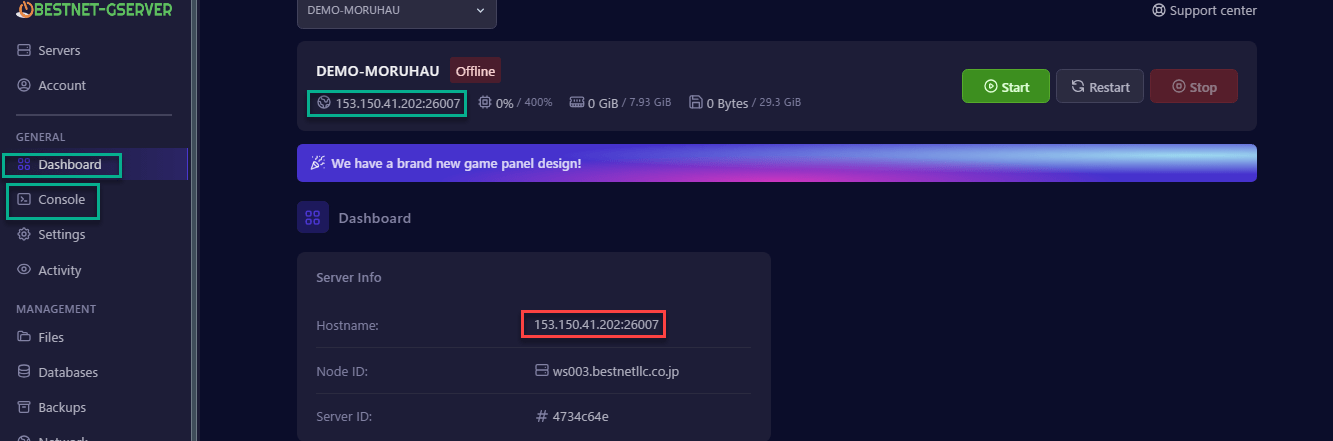
You can confirm the game port in the server console of the Game Panel. In the case of the image below, the port number is 26007. Clicking on the area marked with a red frame in the image will automatically copy it.
STEP3. Allocate Required Ports
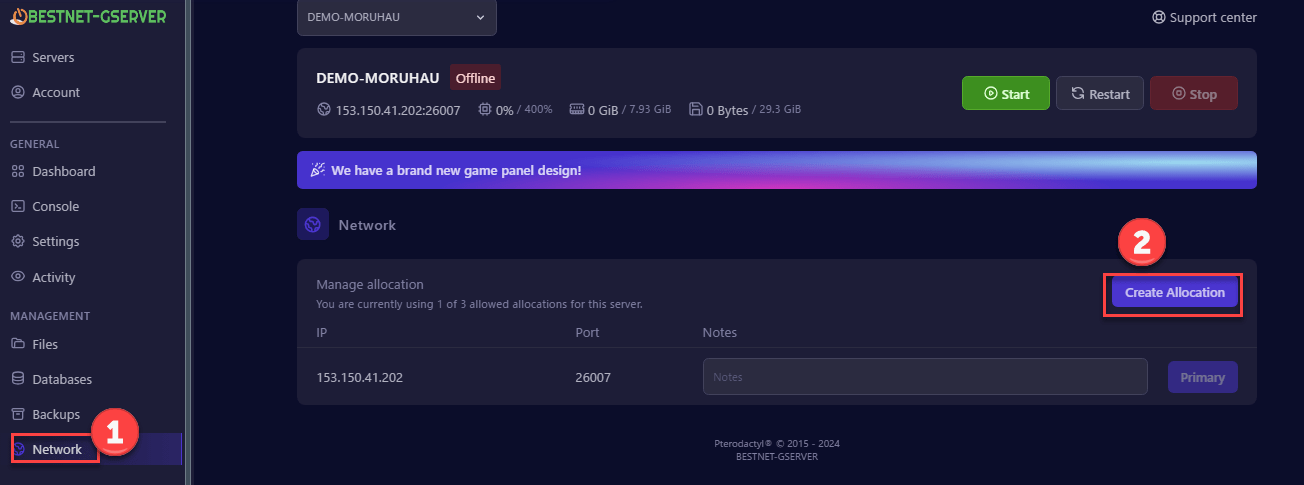
The MORDHAU server requires 2 additional ports in addition to the already allocated game port. Click on the Network tab and press the ‘CREATE ALLOCATION’ button twice.
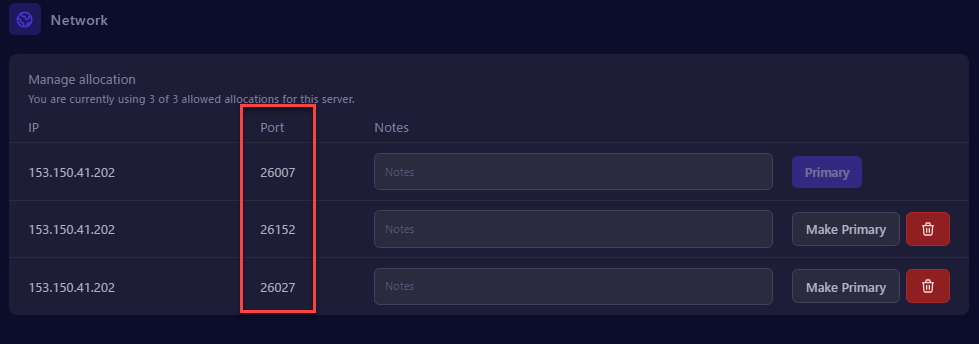
Two network ports should be added as shown in the image below. In this example, 26152 and 26027 have been added.
STEP4. Allocate Steam Query Port and Rcon Port
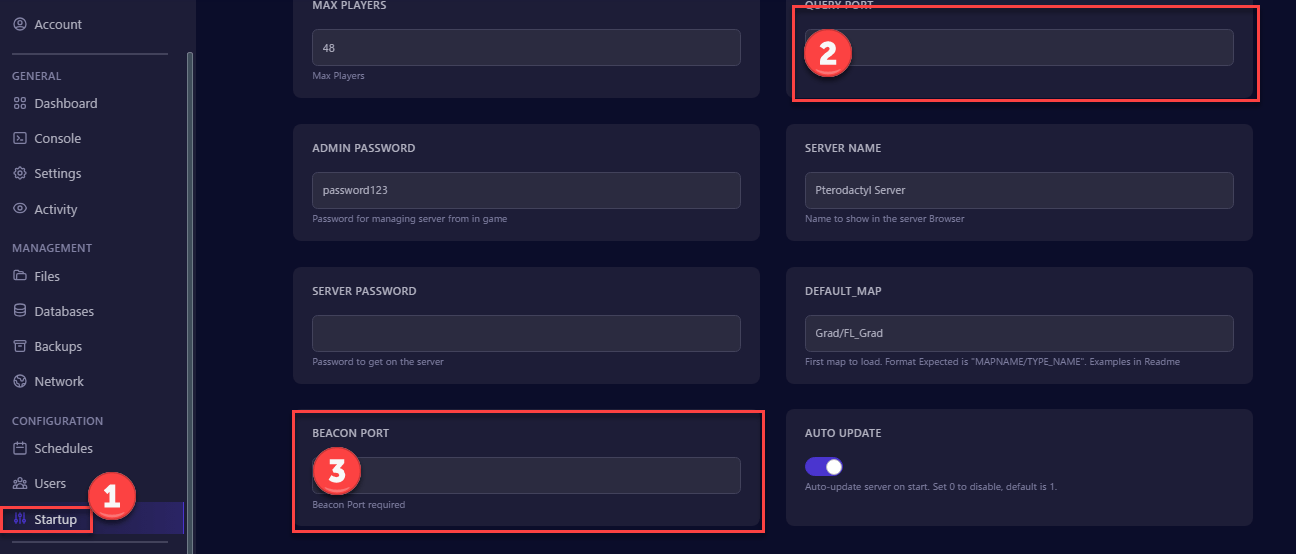
Click on the ‘Startup’ tab and assign the 2 port numbers that were added to ‘BECON PORT’ and ‘QUERY PORT’ respectively. Below is an example of the input.
STEP5. Restart Server
Finally, restart the server. If you do not restart the server, the parameters you entered will not be applied. Simply go to the ‘Console’ tab and click ‘Restart’.

If you have any other questions, please submit a ticket.


