
- DayZ Experimental How to Install MODs on Client and Server
- 1. Prerequisites
- 2. Revision History
- 3. Table of Contents
- 4. Obtaining Backups
- 5. How to Install MODs on DayZ Experimental Client
- 5.1 Download the MOD you wish to use
- 5.2 Open the folder containing MOD files
- 5.3 Copy MOD files to any folder
- 5.4 Import the copied MOD files
- 6. Upload MOD files to the server
- 6.1 Upload MOD files to the server
- 6.2 Configure MOD files to be loaded on the server
- 7. Server restart
DayZ Experimental How to Install MODs on Client and Server
1. Prerequisites
Please log in to the Game Panel.
For instructions on how to log in to the Game Panel, please refer to here
2. Revision History
- 1.0:
- Created: January 2024
- Update: Initial version
- Created by: BESTNET-GSERVER
3. Table of Contents
- 1. Prerequisites
- 2. Revision History
- 3. Table of Contents
- 4. Obtaining Backups
- 5. How to Install MODs on DayZ Experimental Client
- 5.1 Download the MOD you wish to use
- 5.2 Open the folder containing MOD files
- 5.3 Copy MOD files to any folder
- 5.4 Import the copied MOD files
- 6. Upload MOD files to the server
- 6.1 Upload MOD files to the server
- 6.2 Configure MOD files to be loaded on the server
- 7. Server restart
4. Obtaining Backups
Please obtain a backup before performing this operation.
Backups can be easily created from the Game Panel and can be restored with one click.
Please refer to the following:
Backup creation instructions are here
5. How to Install MODs on DayZ Experimental Client
DayZ Experimental supports most MODs from the standard version.
You can also install your preferred MODs on DayZ Experimental and play with them.
First, we will explain how to install MODs on the client.
5.1 Download the MOD you wish to use
Please download the MOD you wish to use for the standard version.
As with typical MOD installation, simply subscribe to the MOD you wish to use on the Steam Workshop.
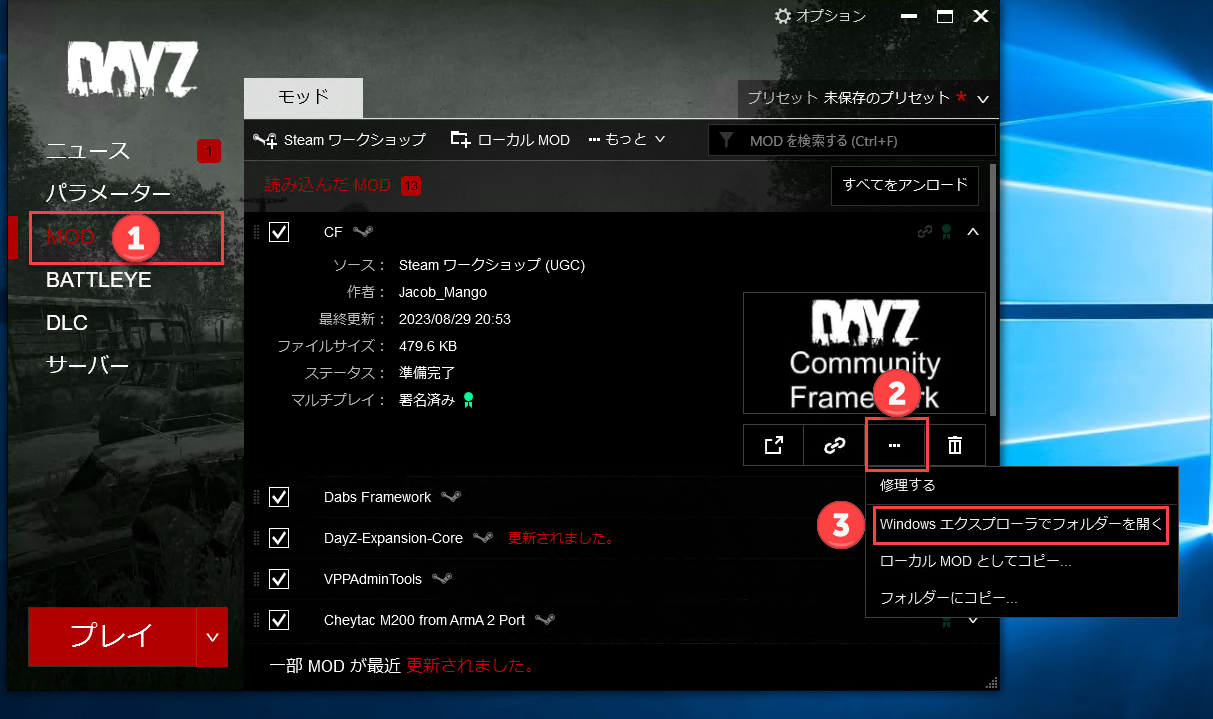
5.2 Open the folder containing MOD files
Launch DayZ (standard version) and open the folder containing the MOD files.
Please refer to the image below.
5.3 Copy MOD files to any folder
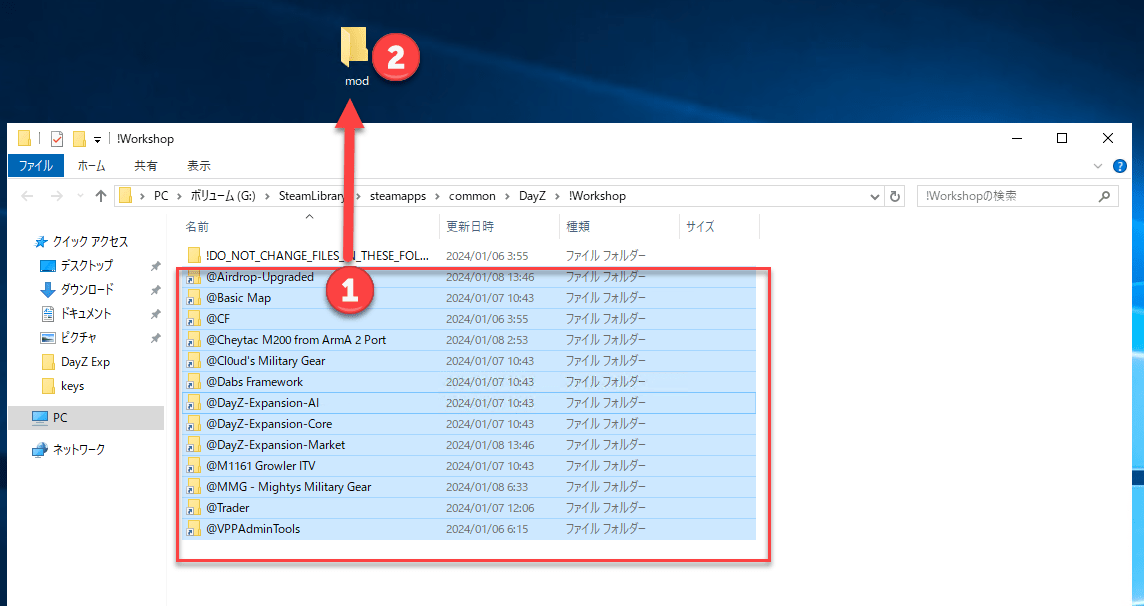
Once you have opened the MOD folder, copy the MOD files stored in it to any folder of your choice.
In the image below, we create a folder named ‘mod’ on the desktop and copy all files into it.
※Note: MOD files have an @ symbol at the beginning※
5.4 Import the copied MOD files
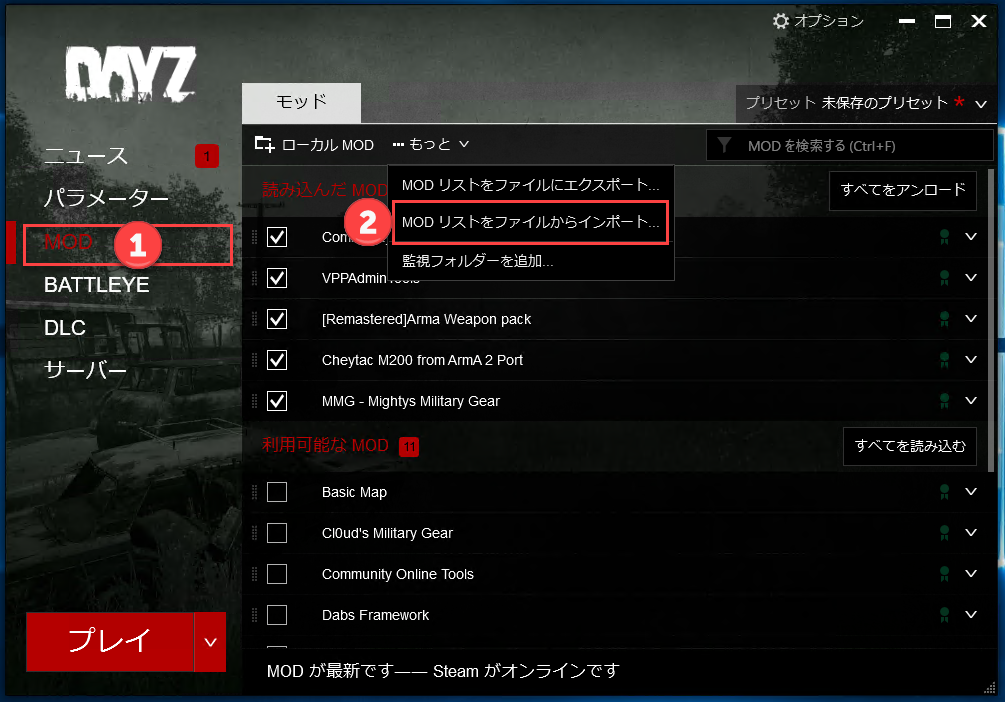
Launch the DayZ Experimental client and import the MOD files you copied earlier.
1: MOD
2: Import MOD list from file
6. Upload MOD files to the server
In order for MOD files to be loaded on the server, you need to upload the MOD files to the server.
When uploading, please use FTP connection.
For FTP connection instructions, please click here
6.1 Upload MOD files to the server
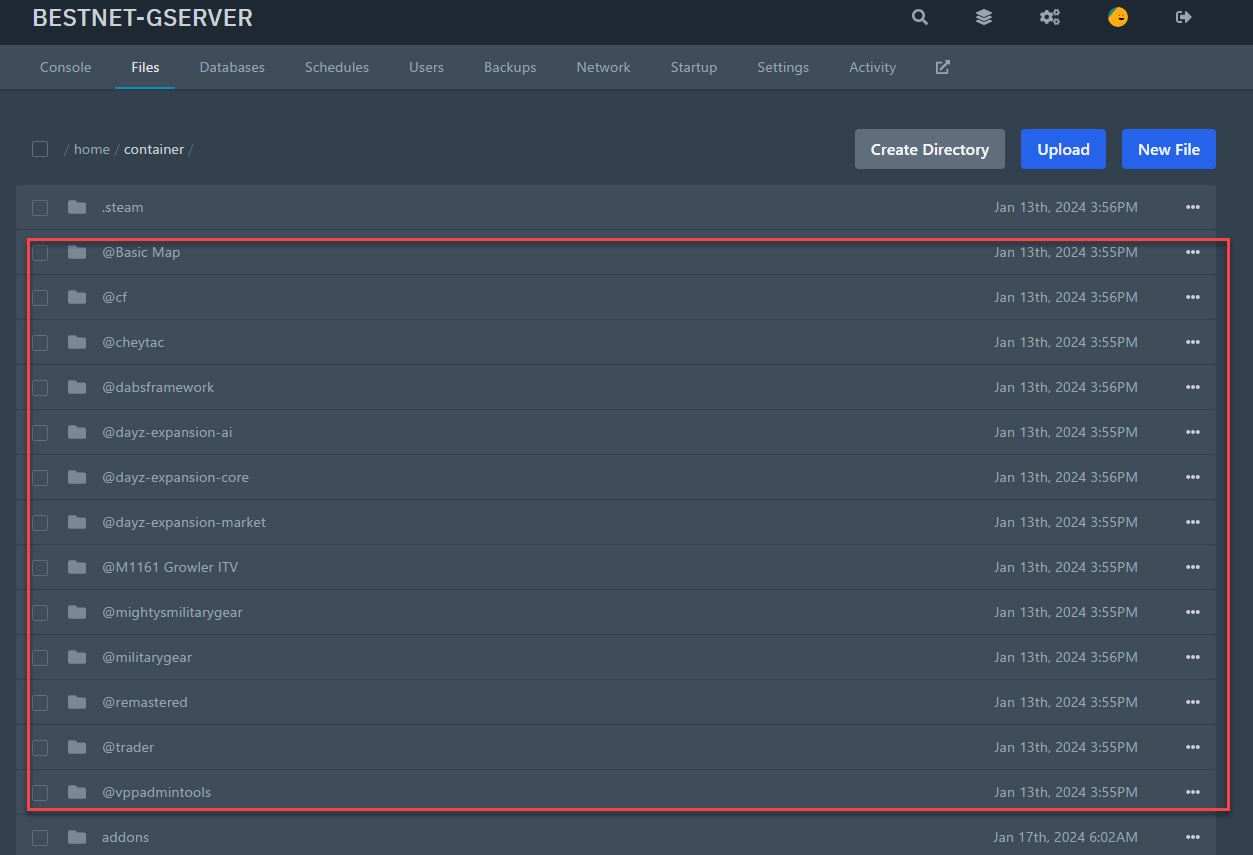
Please upload MOD files to the top level (root directory) of the server.
Below is a reference image.
6.2 Configure MOD files to be loaded on the server
You need to configure the server to load the uploaded MOD files.
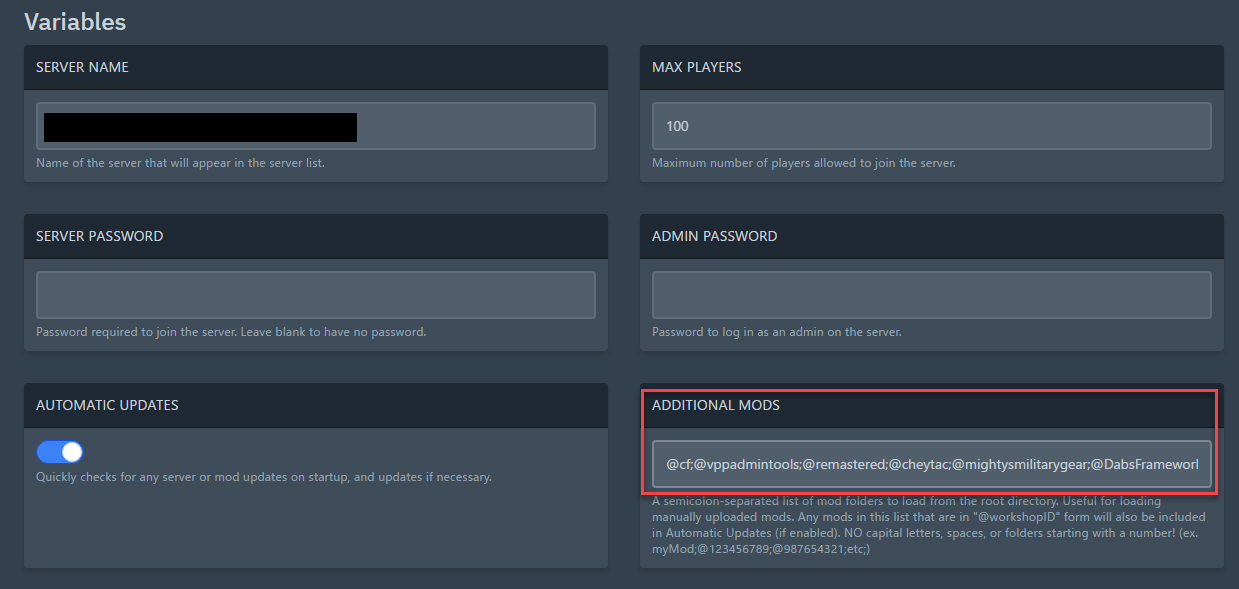
Navigate to the ‘Startup’ tab in the Game Panel and enter the MOD folder name in ‘ADDITIONAL MODS’.
If you are specifying multiple MODs, separate them with a semicolon (;).
※Important note: If there are symbols or spaces, please remove those parts, as they may cause errors during loading※
Below is a reference image.
7. Server restart
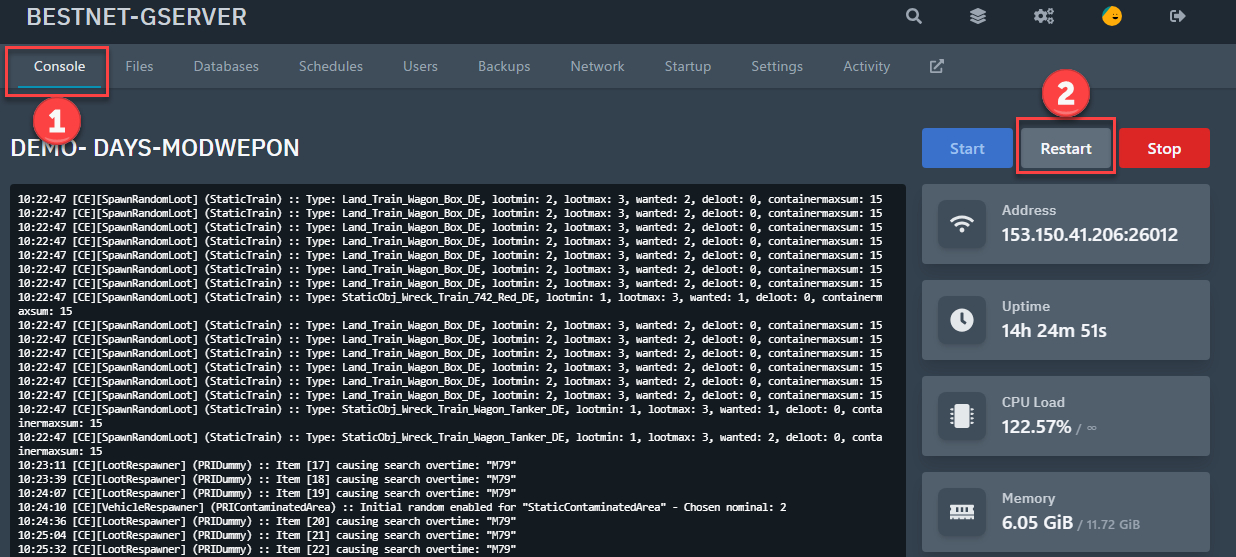
You need to restart the server for the changed settings to take effect.
Navigate to the ‘Console’ tab and click the ‘Restart’ button to begin the server restart.
If you have any other questions, please submit a ticket.


