
How to restore your world (save data) and settings from a backup you have created. The confirmation dialog contains one option that will stop your server from starting, so please read that part carefully. Restoring a server that runs mods is covered in the second half of this page.
How to restore
- Open “Backups” from the left menu of your server management screen.
- Click the “⋯” → “Restore” at the right end of the backup you want to restore.
- A confirmation dialog appears — run “Restore” as it is.
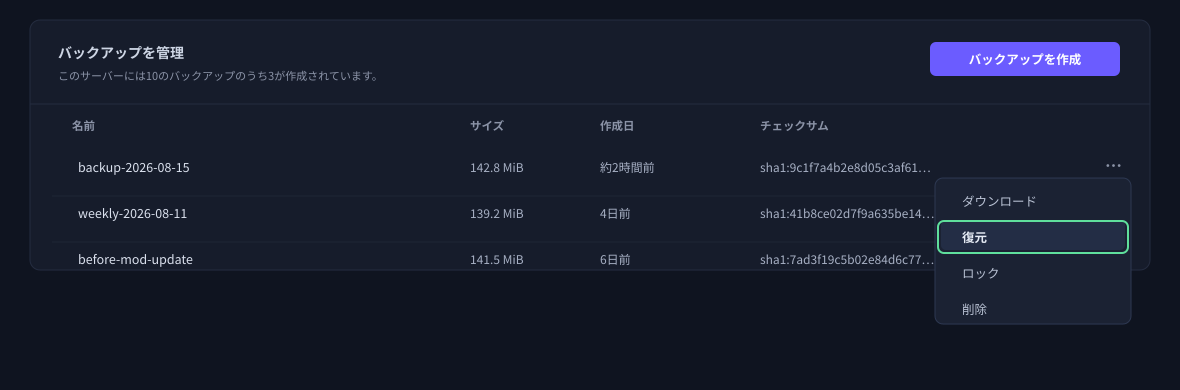
Please be careful with the checkbox in the dialog
The restore confirmation dialog has a checkbox labelled “Delete all files before restoring the backup.”
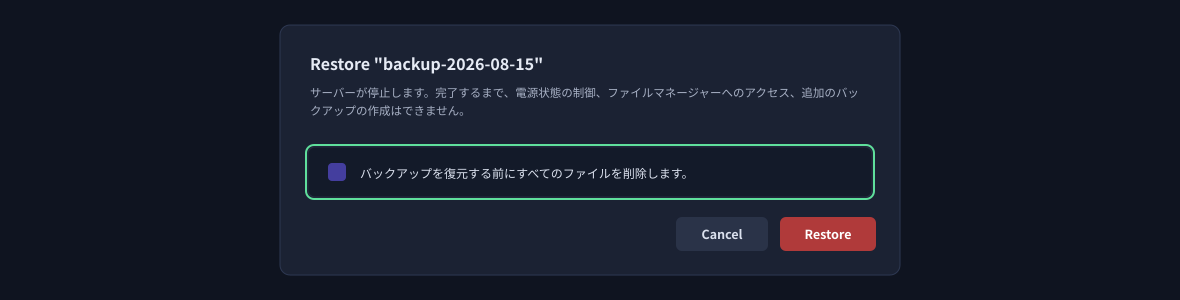
If you check it, every file is deleted, including the game program files. Restoring from that state does not bring the game itself back, so the server will no longer start.
If you did check it by mistake, you can still recover with the steps in “Restoring after a reinstall” below. Your world data is not lost.
What a backup does and does not contain
Arma Reforger backups come in two forms: the new format and the previous format.
Under 1 GB means the new format (the mod files are not included). Over 10 GB means the previous format (the mod files are included as well).
The new format applies to servers created on or after 23 September 2026 and to servers reinstalled after that date. Servers that have been running since before then continue on the previous format, exactly as before.
The table below describes the new format.
| Category | Contents |
|---|---|
| Included | World (save data) / server settings / your mod list (which mods the server uses) / logs |
| Not included | The game’s own program files / the mod files themselves (re-downloaded automatically from the Workshop) |
The game itself is several GB to around 10 GB, and it is identical for every customer. We can fetch it again automatically, so we deliberately leave it out of the backup.
Restoring after a reinstall
If you have reinstalled the server, or if something is wrong with the game files, the order matters.
Please run them in this order. The other way round, the reinstall wipes the world you just restored.
The reinstall puts the game itself back, and the restore that follows brings your world and settings back. For the reinstall steps, see Reinstallation procedure when the server fails to start.
Restoring a server that uses mods
Your mod configuration is included in the backup. Restoring brings back exactly which mods your server uses.
The mod files themselves are not included in the backup on servers created on or after 23 September 2026, because they can run to tens of gigabytes and make backups slow to create. Even so, the server re-downloads them automatically from the Workshop when it starts.
If you restore when the mod files are gone — for example after a reinstall — please wait for the automatic download to finish after you start the server. Depending on how many mods you use and how large they are, this can take tens of minutes. The server starts by itself once the download completes.
That said, there are two cases where a mod stops the server from starting, and they are handled differently. Check the console screen first.
1. The mod cannot be found
Addon <ID> - Addon was not found on workshop.Either the mod ID is mistyped, or that mod is no longer published on the Workshop.
The server still starts (only that one mod is not loaded). Check the ID in the mod list on the “Startup” tab.
2. The mod does not match the game version
Addon loading failed {<ID>}The mod has not caught up with the current game version. In this case the server may fail to start. Remove that ID from the mod list on the “Startup” tab for now. Once the mod is updated you can add it again.
If something does not go to plan
| Symptom | What to check |
|---|---|
| Restored, but this is not the world I expected | Check the creation date and time of the backup you restored. |
| The server will not start after restoring | Check the console screen. The cause and what to do are shown there. |
| My world disappeared after a reinstall | Restore after the reinstall. Your backups are still there. |
If that does not solve it, send us the message exactly as it appears and we will take a look.
How many generations you can keep
The number of backups you can keep is set by your plan. For Arma Reforger that is 10 generations on Lite, 15 on Standard, 20 on Large and 30 on XL.
When the limit is reached and a scheduled backup runs, the oldest one is replaced automatically.
For details, see Procedure for setting a regular schedule on a game server.


