
New here? A Minecraft server will not run until you have agreed to the EULA. If your server stops right after you start it, see Minecraft Java Edition – Initial Setup.
Basic Usage
The BESTNET Game Server Panel has a feature that allows you to easily select and install plugins for your Minecraft JAVA server.
STEP1. Open Your Server Page
Open the server page where you want to install plugins. The server can be running during plugin installation, but a server restart is required to apply the plugins.
STEP2. Click the Plugin Button
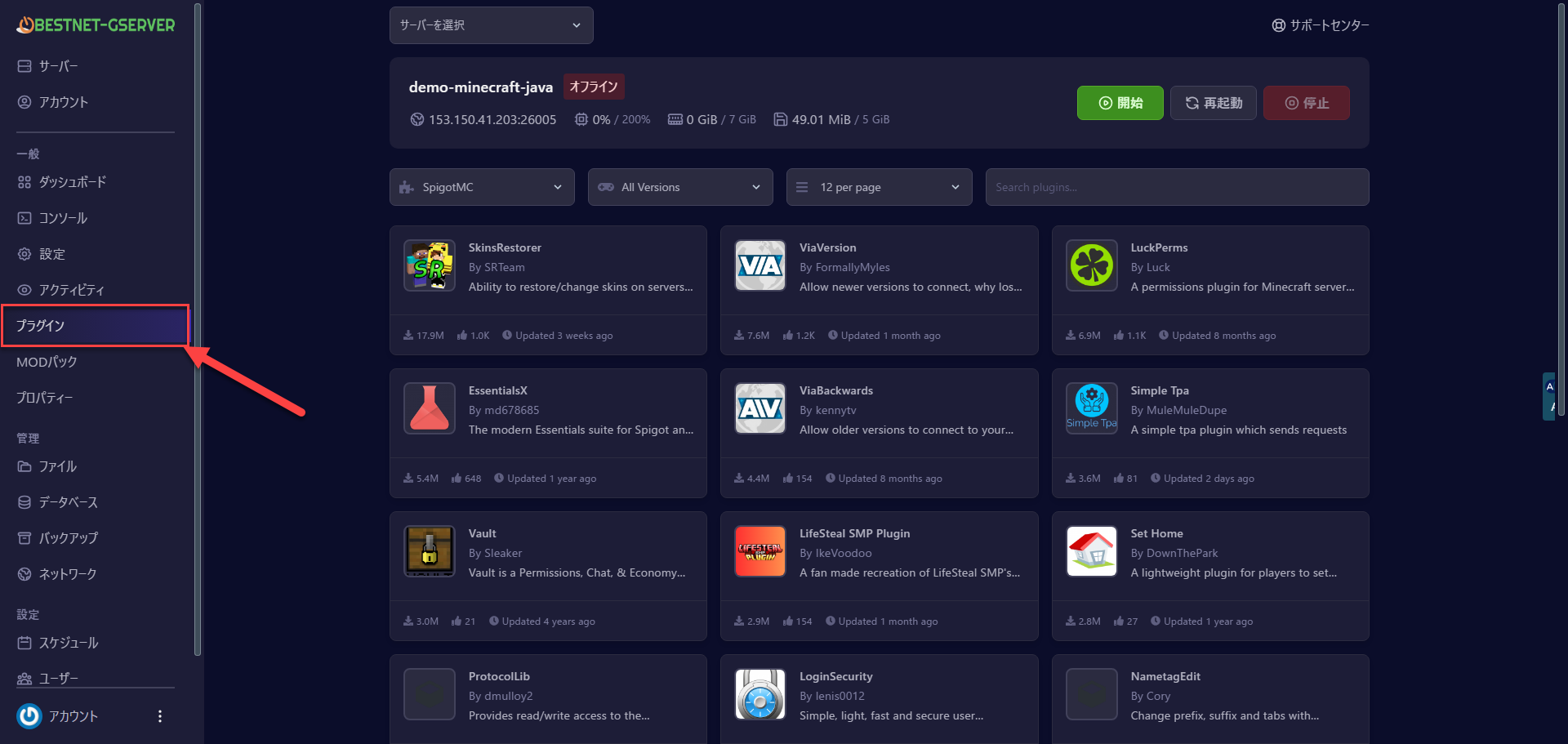
STEP3. Search for Plugins
Enter the name or keyword of the plugin you want to install in the search bar and execute the search. As an example, let’s search for “WorldGuard,” a popular protection plugin.
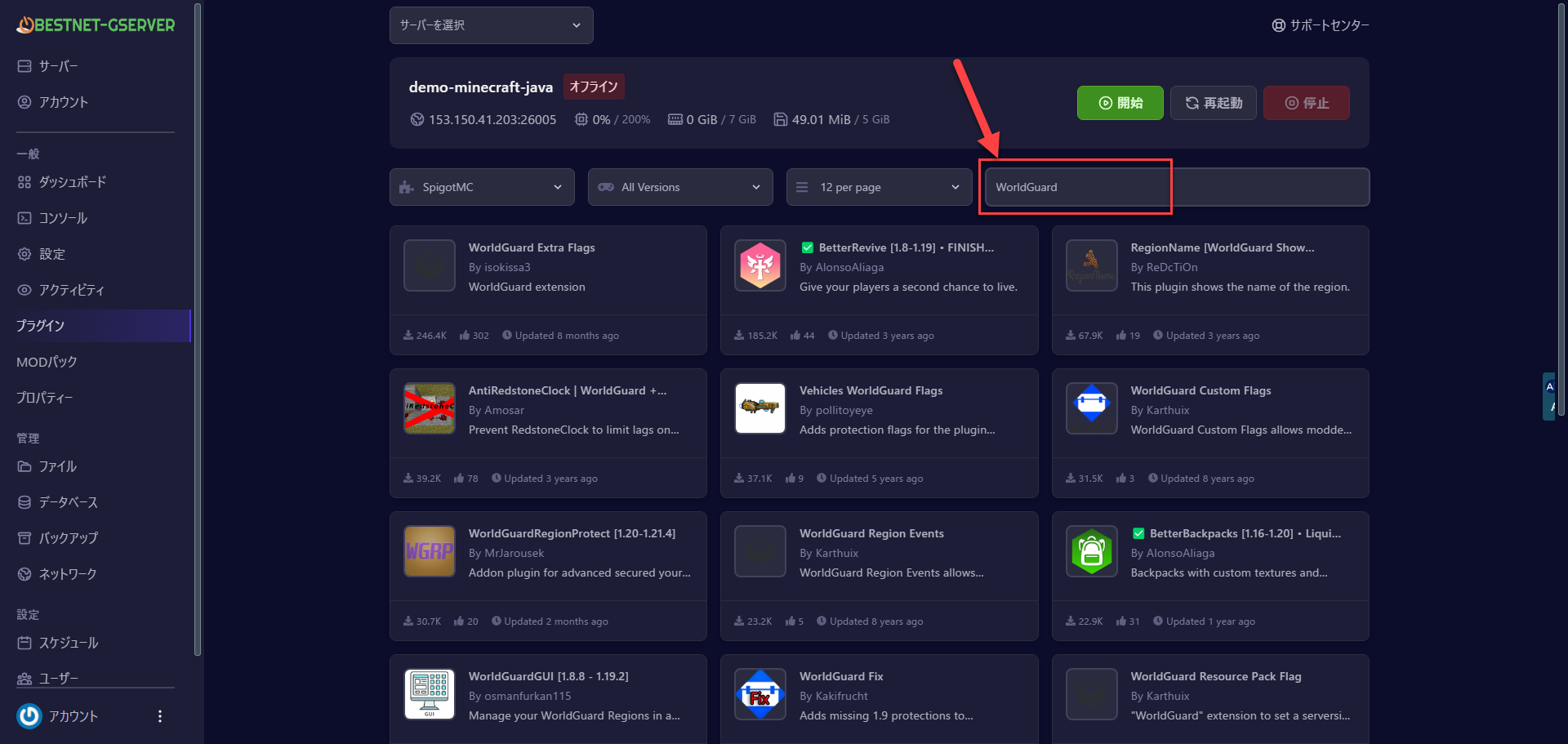
STEP4. Select a Plugin
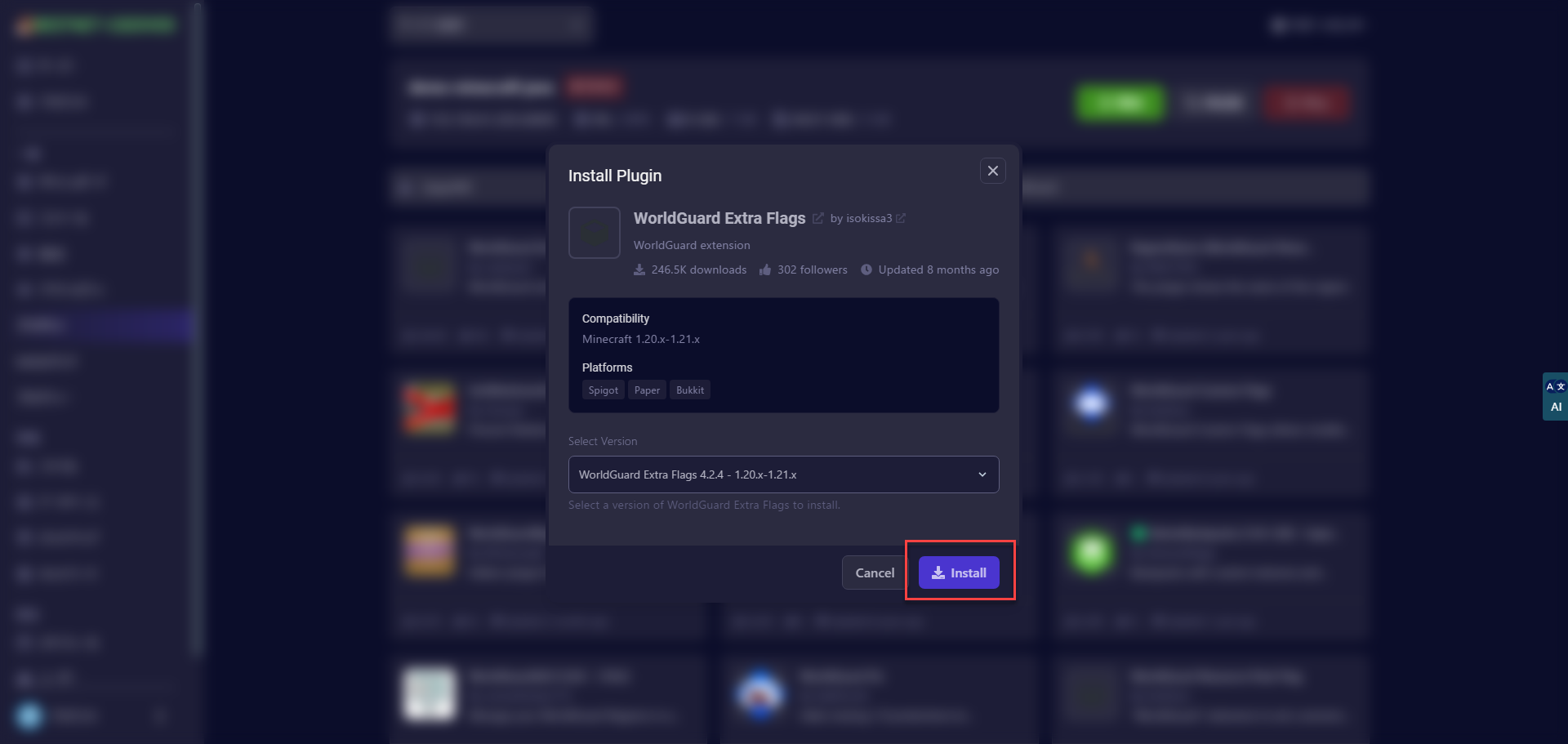
Once you find the plugin you want to install, select it. Clicking on the plugin will display detailed information and available version options. Your server’s Minecraft version is automatically cross-referenced with the plugin’s compatible versions, so only compatible versions can be selected.
Use filter and sort features as needed to narrow down your desired plugin.
STEP5. Execute Installation
After selecting the plugin and deciding on a version, click the “Install” button. If a confirmation message appears, please accept it. The add-on will then automatically download the corresponding plugin file from Modrinth or SpigotMC and place it in your server’s plugins folder.
The download source is from official sites, so it is safe. Progress will be displayed during processing, and upon completion, you will see a message such as “Installation successful.”
STEP6. Restart Your Server
Once plugin installation is complete, restart your Minecraft server. The restart will load the newly added plugins and make them available for use. Open the console in the panel, stop the server with the stop command, then restart with start, or use the restart button in the panel.


