
Your HumanitZ server is built automatically after you order. We have already taken care of the port allocation, so all you need to do is check the address and join. This page covers how to connect and what you can change from the game panel.
From ordering to a running server
- Once payment clears, the server starts building automatically.
- It is usually ready within a few minutes to a few tens of minutes, and we email you when it is done.
- Log in to the game panel from that email and press “Start”.
For the basics of the game panel, see Logging into the game panel and feature overview.
Find your address and join
The “Hostname” shown on the game panel “Dashboard” is your server address (IP address:port). Click the field to copy it.
The in-game steps are covered with screenshots in How to Join a HumanitZ Server.
Everything is set from the “Startup” tab
HumanitZ settings can be changed from the “Startup” tab of the game panel — you do not have to edit a config file. Restart the server to apply your changes.
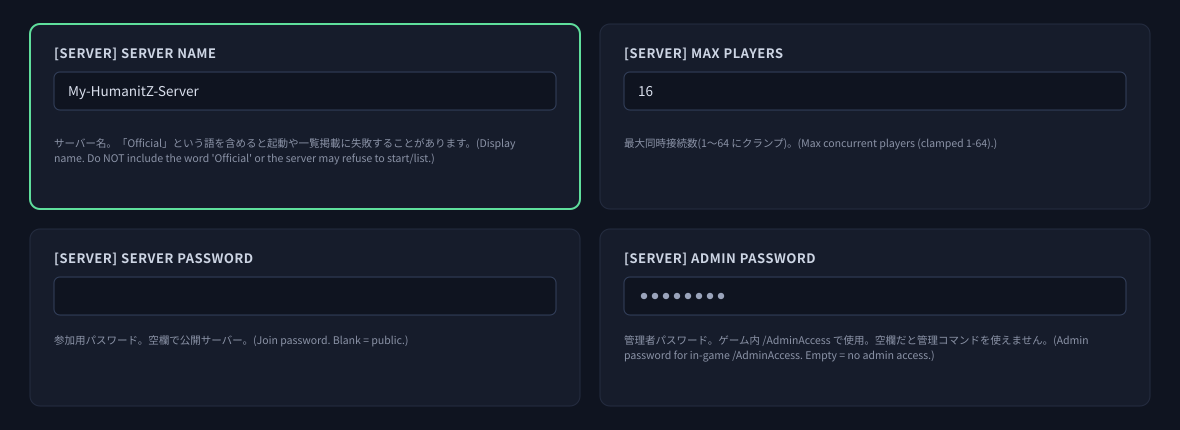
| Setting | What it does |
|---|---|
| [SERVER] Server Name | The name shown in the server list. |
| [SERVER] Server Password | Password required to join. Empty means a public server. |
| [SERVER] Admin Password | The admin password used with /AdminAccess in-game. If it is empty, admin commands are unavailable. |
| [SERVER] Max Players | Player limit (1–64). How many play comfortably depends on your world and on the performance of your plan. |
| [SERVER] Save Name | The name of the world save. |
| [SERVER] Allowlist Only | When enabled, only the Steam IDs on your allow list can join. |
| [SYSTEM] Auto Update on Boot | Checks for and applies game updates on every start (on by default). |
Changing the name and password are also covered individually in How to Change the Server Name of a HumanitZ Server and How to Add a Password to Your HumanitZ Server. For granting admin rights, see How to Grant Administrator Access on a HumanitZ Server.
Changing how the world plays
The same “Startup” tab also lets you tune the game itself. The entries are grouped by purpose.
| Group | What you can tune |
|---|---|
| [WORLD] | PvP on/off, air drops, what you lose on death, permanent character loss, weapon durability, whether time passes when everyone sleeps, loot respawns and their timers, world auto-save interval |
| [BUILD] | Health multiplier for player-built structures |
| [DIFF] | Zombie health, speed and damage (0–5 each), spawn multipliers for zombies, human bandits and zombie dogs, and each respawn timer |
![The three difficulty values: [DIFF] Zombie Health / Speed / Damage. 0 is the easiest and 5 is nightmare.](https://gss.bestnetllc.co.jp/wp-content/uploads/2026/08/kb-hz-difficulty.png)
Step-by-step guides for each setting
The settings people change most often each have their own guide with screenshots.
Checking that it started
After you press “Start” the status shows “Starting” and then changes to “Online” once it is ready. The first boot takes a little longer while the world is generated.
Because the server checks for game updates before it starts, the first boot after an update can take longer than usual. Please wait until the status reads “Online”.
If something does not go to plan
| Symptom | What to check |
|---|---|
| The server will not start, or is not in the list | Check whether the server name contains “Official”. That word alone can cause it to fail. |
| Admin commands do not work | Check that “[SERVER] Admin Password” is not empty. You cannot become an admin while it is. |
| My change had no effect | Changes on the “Startup” tab take effect on restart. |
| A friend cannot join | Check whether “[SERVER] Allowlist Only” is enabled, and that you shared the password. |
| I want more players | Change “[SERVER] Max Players” and restart. The more players you allow, the heavier the load on the server, so consider a larger plan if things start to feel slow. |
| I want my world back | See the related documents below for how to restore from a backup. |
If that does not solve it, send us the message shown in the console exactly as it appears and we will take a look.


