
This guide explains how to restore your world (save data) and server settings from a backup you have created. On RuneScape: Dragonwilds, the game's own program files are not included in backups, so the correct steps depend on your situation. Please check which case applies to you first.
First, check which case applies
| Your situation | What to do |
|---|---|
| You want your world back (the server is still running) | Just restore. Leave “Delete all files before restoring the backup.” unchecked. |
| The server no longer starts You deleted some files | Reinstall first, and restore afterwards. |
| You rebuilt the server | Same as above (reinstall, then restore) |
How to restore
- Open Backups from the left menu of your server management screen.
- Click the ⋯ menu at the right of the backup, then Restore.
- A confirmation dialog appears. Press Restore without changing anything.
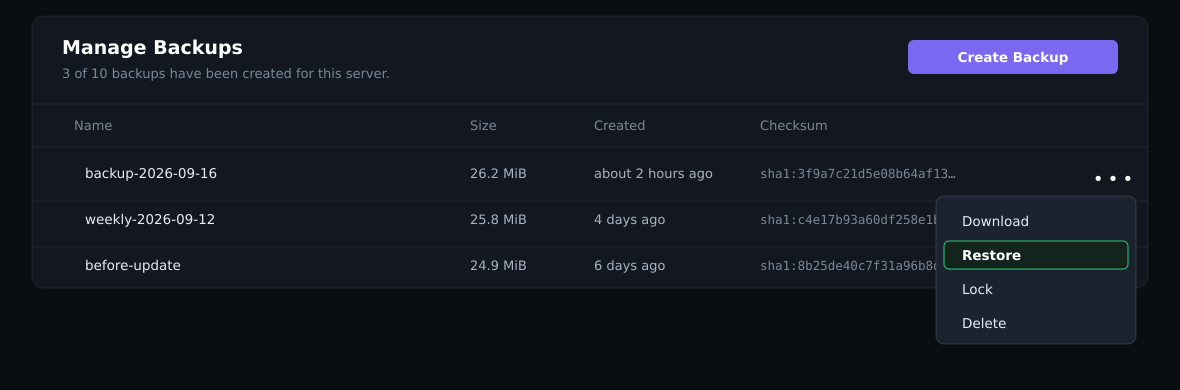
Please be careful with the checkbox on the confirmation dialog
The confirmation dialog has a checkbox labelled “Delete all files before restoring the backup.”

If you tick it, every file is deleted, including the game's program files. Because RuneScape: Dragonwilds backups do not contain the game itself, restoring from this state does not bring the game back and your server will no longer start.
If you did tick it by mistake, you can still recover by following “Restoring after a reinstall” below. Your world data is not lost.
What is and is not included in a backup
| Category | Contents |
|---|---|
| Included | World (save data) / World terrain data / Server settings / Configuration history |
| Not included | The game's program files / Steam runtime / SteamCMD / Server logs and crash reports |
The game itself is several gigabytes in size and is identical for every customer. We can fetch it again automatically, so we deliberately leave it out of your backups.
Restoring after a reinstall
If you have reinstalled the server, or something is wrong with the game files, the order matters.
Run them in this order. The reinstall puts the game back in place, and the restore then brings back your world and settings.
The mechanism that fetches the game is deleted as well, so you must run a reinstall.
For the reinstall steps, see Reinstallation procedure when the server fails to start.
If something goes wrong
| Symptom | What to check |
|---|---|
| The restored world is not the one you expected | Check the creation date of the backup you restored. A different generation takes you back to a different point in time. |
| After restoring, the server stays “Offline” and will not start | “Delete all files before restoring the backup.” may have been ticked. Try again in the order reinstall, then restore. |
| Your world disappeared after a reinstall | Restore after the reinstall. Your backups are still there. |
| You cannot create a new backup | Check whether you have reached the limit on stored generations. Deleting ones you no longer need lets you create a new one. |
If that does not solve it, send us the message shown on the console screen exactly as it appears and we will look into it.
About the number of stored generations
How many backups you can keep depends on your plan and on the game title. You can check your current limit on the Backups screen, where it says “N of M backups have been created for this server.”
When the limit is reached and a scheduled backup runs, the oldest one is replaced automatically. Creating one by hand at the limit returns an error, so delete backups you no longer need and try again.
Backups are created by you and are not taken by default. It is easy to forget if you do it by hand, so we recommend fixing a day and time using Procedure for setting a regular schedule on a game server. Once set, backups are taken automatically.


