
The game version you play on the 7 Days to Die server can be selected from the startup settings in the game panel. No reinstallation is necessary. This page explains the available versions, the procedure for switching between them, and what we ask of players joining the server.
Change log
- v1.0
- October 2026 — First edition
- v1.1
- November 2026 — Added how the server behaves while no experimental version (latest_experimental) is offered, and how to read the warning on the Console tab
Selectable Versions
Select from [SYSTEM] Game Version (Steam Branch) in the launch settings (Startup tab).
| Option | Description |
|---|---|
public | The latest official release. Recommended and default setting. |
latest_experimental | Experimental version. This is the version the developer publishes before the official release, and it works only while the developer offers an experimental build. While none is offered, the server updates and runs public (the official release) even if this option is selected, and an English warning appears on the Console tab. Once an experimental build is offered, the server moves to the experimental version on the first restart after that. |
v3.2.0 | Fixed to version 3.2.0. |
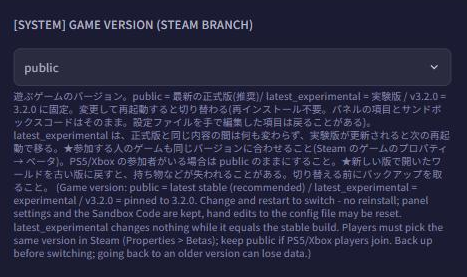
[SYSTEM] Game Version (Steam Branch) field in launch settings. The default setting is public.How to Switch
- Please back up your data before switching.You can obtain it from the
Backupstab. - Open the
Startuptab and select the version you want to play with[SYSTEM] Game Version (Steam Branch). - Restart the server from the
Consoletab. It will switch automatically.
- After switching, the items in the
Startuptab and codes entered in[GAME] Sandbox Codewill remain unchanged. - Server name, description, password, visibility settings, maximum players, world name, save data name, and other settings are written to the configuration file each time the server starts using values from the
Startuptab. Changes should be made in theStartuptab. If you were directly editing items in the configuration file that do not exist in theStartuptab, they may revert to their default values. - It is recommended to keep
[SYSTEM] Auto Update on Bootat 1 (default state).
Please set the game version to match the server version for joining players
If the server and joining player versions differ, joining will not be possible.
Please have joining players right-click 7 Days to Die in their Steam library, then select the same version as the server from Properties (English display: Properties) → Version selection screen (English display: Game Versions & Betas).
public as is.When Reverting to an Older Version or Restoring from Backup
We are unable to confirm whether inventory items and world progression are preserved when switching versions. In particular, if you revert a world that was played in a newer version to an older version, inventory items and other data may be lost.
To restore from a backup, follow these steps:
[SYSTEM] Game Version (Steam Branch)is reverted to the version that was active when the backup was created.- Restore from the backup.
- Start the server.
Frequently Asked Questions
Q. I switched versions but the version hasn't changed
A. First, please confirm that you have restarted the server. The startup immediately after switching takes approximately 2-3 minutes.
If you have selected latest_experimental and the following warning appears on the Console tab at startup, the developer is not offering an experimental version right now, so the server is running public (the official release).
WARNING: the game version chosen in the panel ('latest_experimental') is NOT available on Steam right now.
To clear the warning, set [SYSTEM] Game Version (Steam Branch) back to public and restart the server. If you keep latest_experimental, the server moves to the experimental version on the first restart after one is offered. The people who join need to select the same version as the server (public while no experimental version is offered).
Q. After switching, participants cannot join
A. Please confirm the version on the Steam side of the participants. You need to select the same version as the server.
Q. Is reinstallation necessary to switch versions?
A. No, it is not necessary. Simply change the field and restart to switch.


