
A step-by-step guide to your BESTNET-GSERVER Barotrauma dedicated server, from ordering to playing with friends and registering an administrator, written so that first-time users can follow it without getting lost.
- v1.0
- November 2026 — First edition.
About this guide
This guide covers everything from the moment your order is complete until you are playing with friends and have registered an administrator. Everything is done from the game panel.
STEP1 Wait for the installation to finish
Once payment is complete, the server is set up automatically. When the game (about 240MB) has been installed, the server starts automatically.
During setup, the game files are checked after the download, and if anything is missing the installation is stopped as failed. We never hand over a server in a half-finished state.
STEP2 Check the connection details
Open the Console (コンソール) in the game panel. Every time the server starts, lines beginning with [bestnet] show the connection address and a summary of the settings, as follows (these console messages are in Japanese; the values are an example).
[bestnet] ================ 接続情報(起動のたびに表示)================
[bestnet] 接続先          : 203.0.113.10:2XXXX(ゲームの「直接参加」で「サーバーIP/SteamID」に入れる番号)
[bestnet] 一覧用のポート  : 2XXXX(割り当て済みのポート)
[bestnet] サーバー名      : Barotrauma-1849(サーバー一覧に表示: しない)
[bestnet] 参加パスワード  : なし
[bestnet] 最大人数        : 16
[bestnet] 管理者          : 未設定(起動タブの [ADMIN] Owner SteamID64 に入れると、その Steam アカウントが管理者になります)
[bestnet] ゲームの版      : build <number> / 起動時の自動更新: する
[bestnet] セーブの場所    : .local/share/Daedalic Entertainment GmbH/Barotrauma/Multiplayer/(前哨基地に着いたときなど、ゲームが保存したときに書かれます)
[bestnet] MOD の置き場    : LocalMods/(有効にするのは config_player.xml)
[bestnet] (この内容は Files タブの「接続情報.txt」にも保存しています)
[bestnet] ===================================================================- 接続先 (connection address) … The IP and port to share with your friends. They enter it with Direct Join in the game (STEP3).
- 一覧用のポート (server list port) … The port used for server list (Steam) queries. It is not the port you connect to.
- サーバー名 / 参加パスワード / 最大人数 (server name / join password / max players) … The values from the Startup tab (Startup tab items). For the join password, only whether one is set (あり = set / なし = not set) is shown.
- 管理者 (administrator) … Whether an administrator is registered (STEP4).
- ゲームの版 (game version) … The installed game version and the setting for automatic updates on start.
- セーブの場所 (save location) … The folder where campaign saves are stored (Saves and backups).
The same content is also saved in 接続情報.txt (connection info) under Files (ファイル) in the game panel. The console scrolls as the game writes its output, so this file is handy when you want to check later.
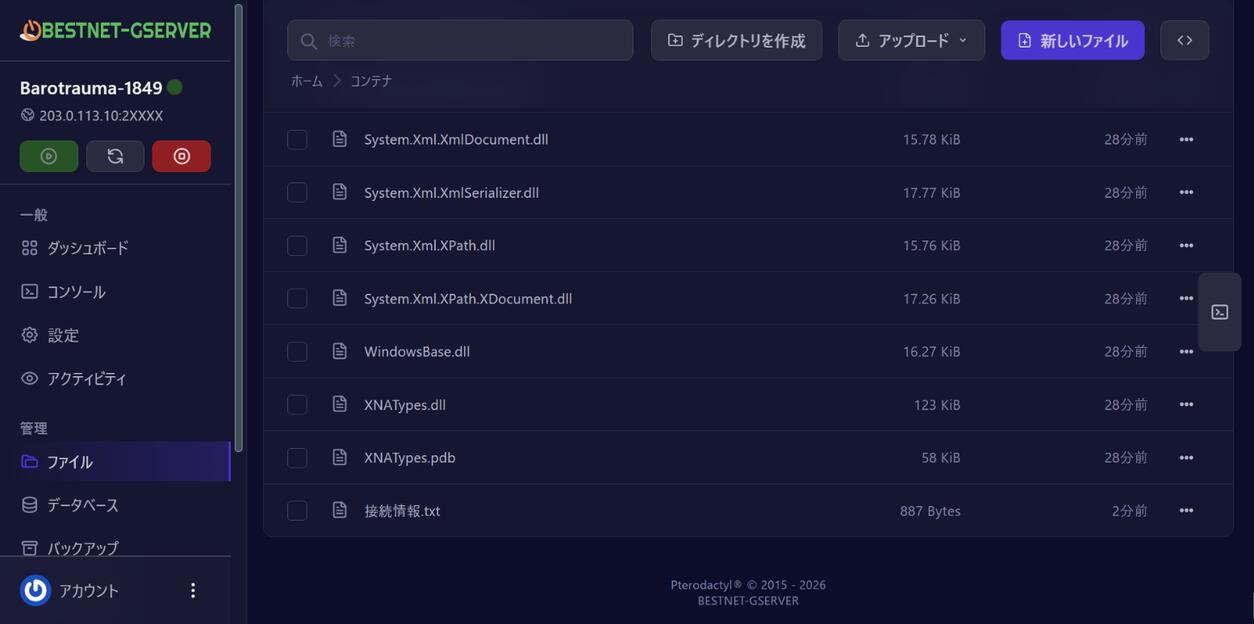
接続情報.txt is rewritten on every start. Any edits are reverted, so please change settings in the Startup tab. When sharing your screen, note that the console and 接続情報.txt show the connection address (IP and port).STEP3 Join with your friends
Each player starts the Steam version of Barotrauma and joins as follows. The server and the game must be on the same version (Updates and reinstalling).
When the server is not in the server list (default)
- In the game, open Server browser from Multiplayer.
- Click Direct Join, enter the connection address from STEP2 (IP:port) in the Server IP / SteamID field, and join.
- If you have set a join password, enter it when asked.
When the server is in the server list
- Under Startup (スタートアップ) in the game panel, turn on (True)
[SERVER] Show in Public Server List. - Restart the server. The STEP2 output shows 「サーバー一覧に表示: する」 (listed in the server list: yes).
- In the game's Server browser, find the server by its name and join.
STEP4 Register an administrator
Administrators are registered by their Steam account number (SteamID64). A SteamID64 is a 17-digit number starting with 7656119.
- Find the SteamID64 of the person you want as administrator. Steam's official steps are as follows (Steam Support: How can I find my SteamID?).
- Open your Steam Community profile and click Edit Profile.
- If you have never set a custom URL, the URL under the CUSTOM URL box shows a 17-digit number starting with
7656119. - If you have set a custom URL, delete the text in the CUSTOM URL box to see the 17-digit number in the URL below it (close the page without saving afterwards).
- Under Startup (スタートアップ) in the game panel, enter it in
[ADMIN] Owner SteamID64. - Restart the server. When the 管理者 (administrator) line in STEP2 shows
<SteamID64>(このたび登録しました)(registered this time), the registration is done. From the next start it shows(登録済み)(already registered).
Registration only adds. Other administrator settings are not removed, and nothing happens if the person is already registered. Please manage the server in the game, as the registered person (About the console).
Startup tab items
You can change the server settings under Startup (スタートアップ) in the game panel. After changing a value, restart the server.
| Item | Description | Default |
|---|---|---|
[SERVER] Server Name | The name shown in the game's server list (up to 60 characters). If it is empty, the server name in the game panel (Barotrauma- followed by your contract number) is used. | Empty |
[SERVER] Join Password | The password needed to join (up to 64 characters). If it is empty, anyone can join without a password. | Empty = none |
[SERVER] Show in Public Server List | When on (True), the server is set to appear in the game's public server list. When off, players join by entering the connection address with Direct Join. | Off (False) |
[SERVER] Max Players | The maximum number of players at the same time (1 to 16; the game's limit is 16). | 16 |
[ADMIN] Owner SteamID64 | Registers the Steam account entered here as a server administrator from the next start (STEP4). | Empty |
[SYSTEM] Auto Update on Boot | When on, the game is updated to the latest version on every start (recommended). If it is off when the game is updated, players' game versions will not match and they cannot join. | On (True) |
About the console
The Console (コンソール) of the game panel is for viewing the server output (the start-up and the [bestnet] lines). You cannot send game commands from the console input (what you type is only displayed and does not reach the game).
Please manage the server in the game, as the person registered as administrator. You can start, stop and restart the server with the buttons in the game panel.
Saves and backups
Saving the campaign
The campaign is saved only when it is saved in the game (for example when you arrive at an outpost). There is no periodic autosave. If you stop the server in the middle of a round, it resumes from the last save. The ban list and settings are saved when they are changed.
Saves are in the folder below. Each time it saves, the game keeps copies of the previous save (.<save name>.save.bk1 to .bk3).
.local/share/Daedalic Entertainment GmbH/Barotrauma/Multiplayer/If a save gets corrupted, you can go back to a copy. Stop the server, then replace the save with a copy renamed to the original save name (<save name>.save). You can see which copy is newer from the modified time in the file list. It is a good idea to keep the original file under another name.
Panel backups
You can back up the server files under Backups (バックアップ) in the game panel. The number of backups you can keep depends on the plan (Small 3, Medium 5, Large 10).
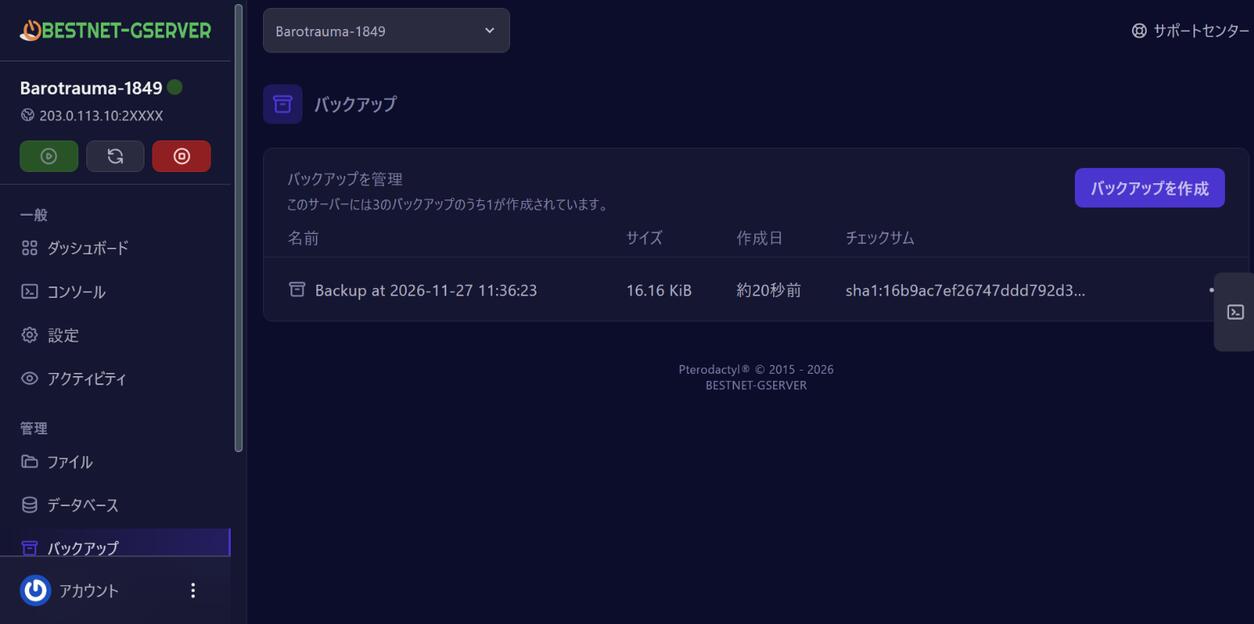
Backups do not include the game itself. They contain the server settings, administrators, ban list, campaign saves and their copies, connection info and so on, so they are small and quick to create.
Updates and reinstalling
Game updates
On every start, the server checks whether the game is up to date and installs any update before starting ([SYSTEM] Auto Update on Boot in the Startup tab).
Players cannot join unless their game and the server are on the same version (the game shows a message such as "Version mismatch"). When a game update comes out, please restart the server.
Reinstalling
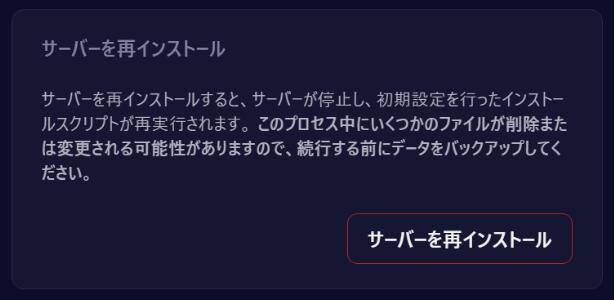
If something goes wrong, you can reinstall the game with Reinstall Server (サーバーを再インストール) under Settings (設定) in the game panel. The server settings, administrators, ban list and campaign saves are not touched.
File locations
You can open the following files under Files (ファイル) in the game panel (or over SFTP).
| Location | Contents |
|---|---|
接続情報.txt | The connection address and a summary of the settings (rewritten on every start). |
serversettings.xml | The server settings file. Settings changed in the game are saved here. The server name, join password, list visibility and max players are rewritten from the Startup tab on every start. |
Data/clientpermissions.xml | The list of administrators (permissions). |
Data/bannedplayers.xml | The list of banned players. |
.local/share/Daedalic Entertainment GmbH/Barotrauma/Multiplayer/ | Campaign saves and their copies. |
serversettings.xml contains the join password as plain text. If the password is changed in the game, the new value is also shown in the console (it reverts to the Startup tab value at the next start). Take care when sharing your screen.Troubleshooting
The server does not appear in the server list
Check that [SERVER] Show in Public Server List in the Startup tab is on (True) and that you restarted after changing it. If the STEP2 output shows 「サーバー一覧に表示: する」, the server has started with list visibility on. If you cannot find it in the list, enter the connection address with Direct Join.
Players cannot join because the versions do not match
If the game shows a message such as "Version mismatch", the server and the game are on different versions. Restart the server to update it (also check that [SYSTEM] Auto Update on Boot in the Startup tab is on). Players should also update their game on Steam.
The server name or password changed in the game reverts
The server name, join password, list visibility and max players revert to the Startup tab values on every start. Change them in the Startup tab and restart.
I want to remove an administrator
Clearing [ADMIN] Owner SteamID64 in the Startup tab alone does not remove the registration. Remove it in this order:
- Clear
[ADMIN] Owner SteamID64in the Startup tab (if the number is left in, the person is registered again at the next start). - Stop the server.
- Under Files (ファイル) in the game panel, open
Data/clientpermissions.xml, delete that person's whole block from<Clientto</Client>, and save. A person registered from the Startup tab is the block withname="Owner"(the number is written not as 17 digits but in a form starting withSTEAM_1:). - Start the server.
About mods
The server does not download mods from the Steam Workshop automatically. We have not tested how mods work, so please use mods at your own discretion.


