
🔒 How to Set a Password on Your Windrose Server
Steps to enable password protection from the Startup tab
Table of Contents
1
Prerequisites
This guide covers the password setup procedure for a dedicated Windrose server using the BESTNET-GSERVER game panel.
⚠️ Important: Settings Cannot Be Changed by Direct File Editing
On Windrose servers, directly editing R5/ServerDescription.json will result in settings being automatically overwritten with the values from the Startup tab when the server starts. All server settings, including passwords, must be configured from the Startup tab.2
Revision History
| Version | Created | Update Details | Author |
|---|---|---|---|
| 1.0 | April 2026 | Initial release | BESTNET-GSERVER |
3
Opening the Startup Tab
Click on “Startup” in the Settings section of the left menu in the game panel.Scroll down to find the “Variables” section, where you will see the settings for “PASSWORD PROTECTED” and “SERVER PASSWORD”.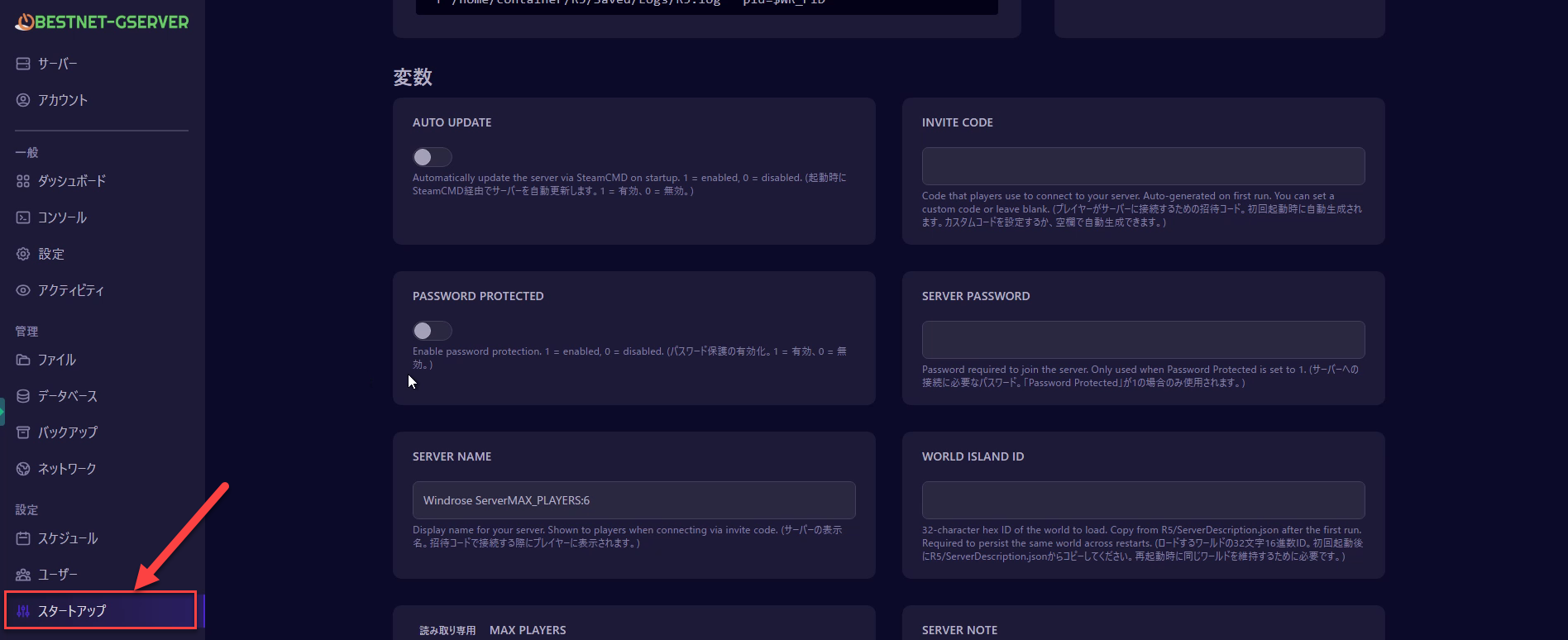
▲ PASSWORD PROTECTED (left) and SERVER PASSWORD (right) settings
4
Enabling Password Protection
Configure the following two settings: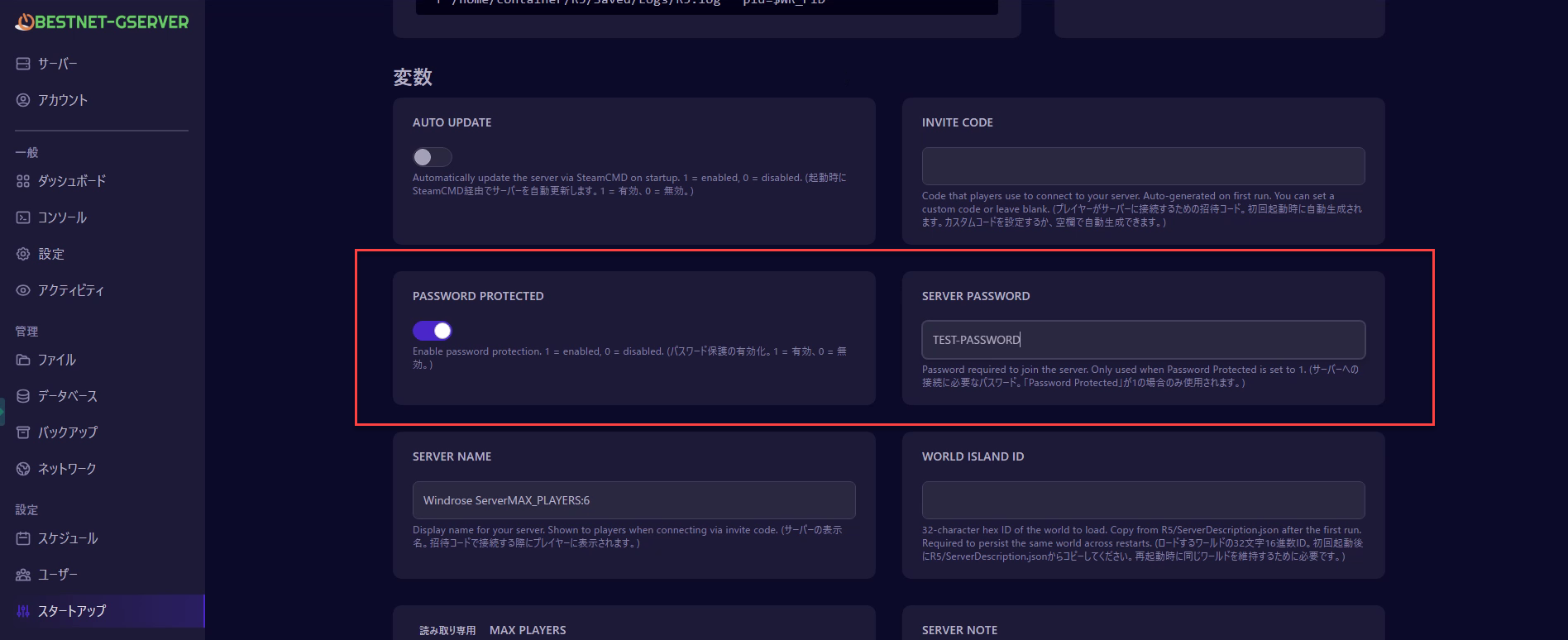
① Toggle the PASSWORD PROTECTED switch to ON
Click the toggle switch to enable it. When it turns blue, it is in the ON state.② Enter a password in the SERVER PASSWORD field
Enter your desired password using alphanumeric characters (maximum 20 characters).▲ PASSWORD PROTECTED is set to ON and a password is entered in SERVER PASSWORD
5
Restarting the Server
Restart the server to apply the settings. Return to the dashboard and click the “Restart” button.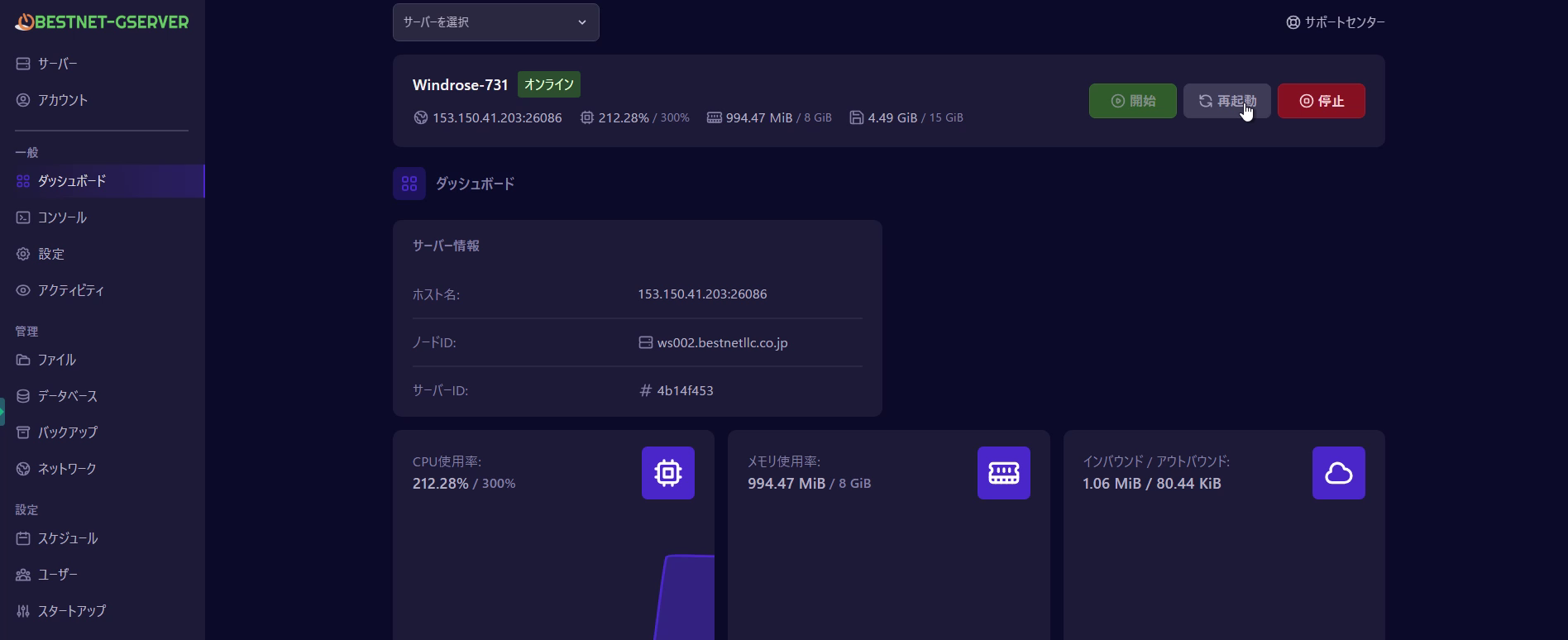
▲ Click the “Restart” button on the dashboard
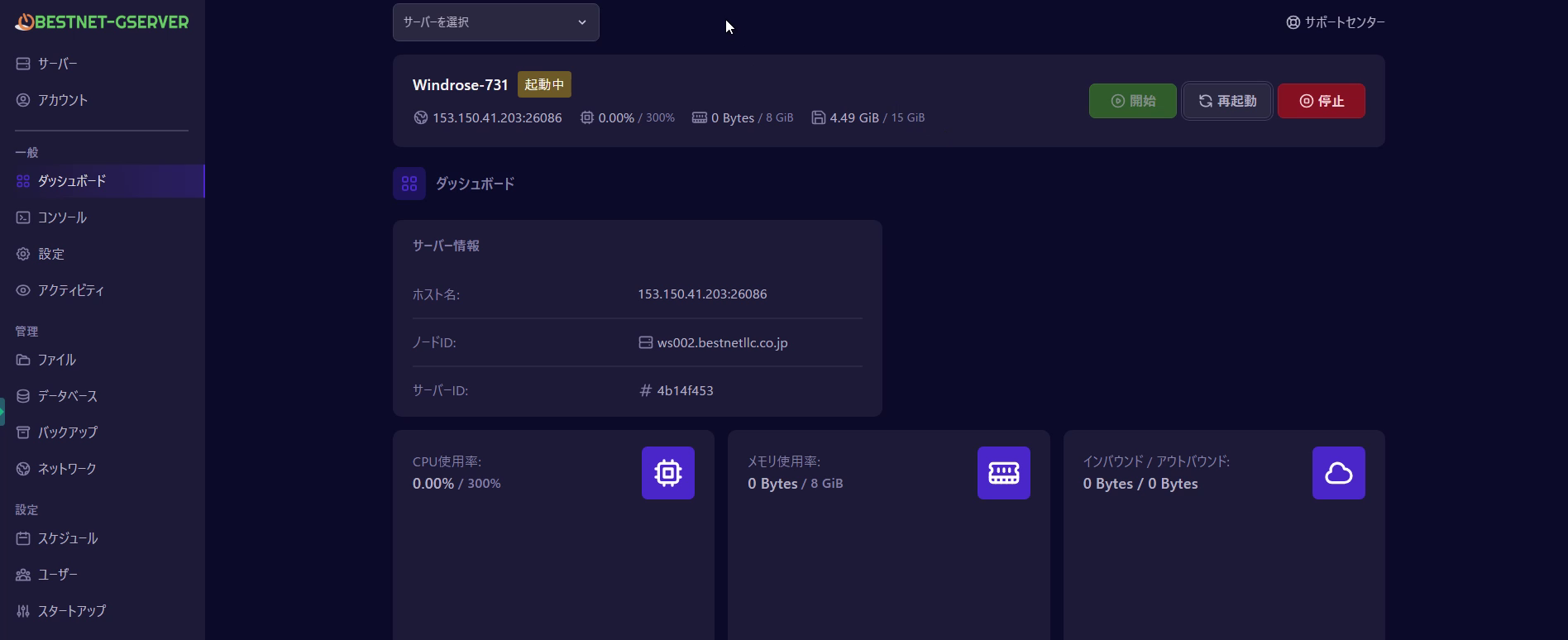
The server will be in the restarting state. Please wait until the status returns to Online.▲ Server restarting status. It will return to online in a few minutes.
✓
Verifying the Settings Are Applied
Verify that the settings have been properly applied. From the left menu, go to “Files” → “R5” folder → open “ServerDescription.json”.If you see 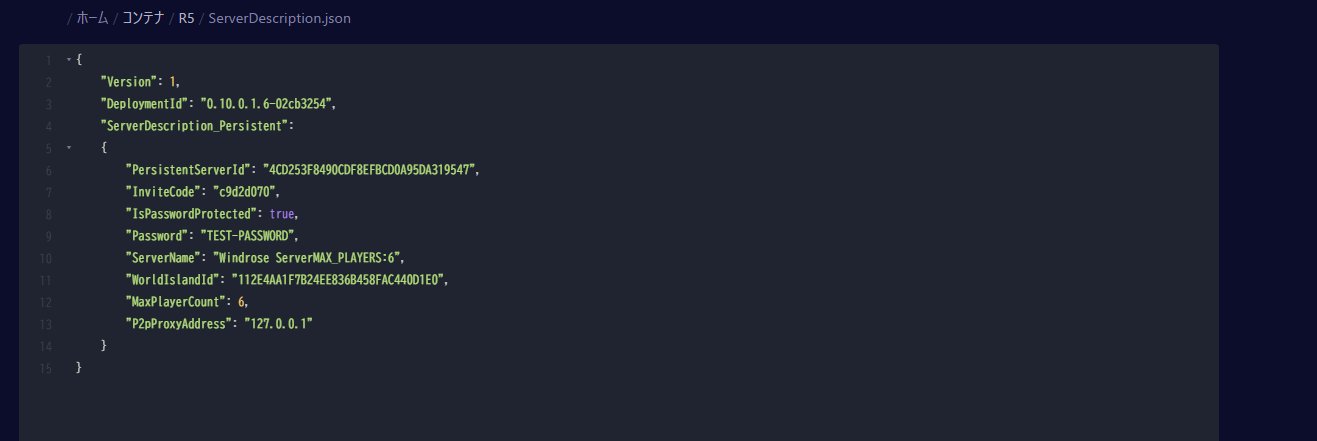
"IsPasswordProtected": true and the password you set is displayed in the "Password" field, the configuration was successful.▲ Password settings are correctly reflected in ServerDescription.json
💡 Connecting from the Game
After setting the password, when connecting via an invitation code, a password input screen will appear. Share both the password and the invitation code with your teammates.📝 To Remove the Password
To remove the password, toggle the “PASSWORD PROTECTED” switch to OFF in the Startup tab and restart the server.


