
- Prerequisites
Prerequisites
Please log in to the Game Panel. For instructions on how to log in, please see here.
Revision History
- 2.0:
- Update Date: 2026/10/06
- Update Details: STEP2 onward fully revised to match the server specification change of 2026-10-06. Added that adding ports is no longer required, how long the first start takes, and how to join the server
- Updated by: BESTNET-GSERVER
- 1.0:
- Creation Date: 2024/1
- Update Details: Initial version created
- Created by: BESTNET-GSERVER
STEP1. Wait for Installation to Complete
Once your application is complete and the service status becomes active, installation of the game server starts automatically.
During installation, the screen shows “Running Installer”, and most information, including the console, cannot be seen. It finishes in a few minutes (about 2 minutes on our test server).
When the installation is complete, a completion notice is sent from our Game Panel system to your email address.
STEP2. Check the Connection Address (IP and Game Port)
The connection address is shown at the top of the server screen in the form IP:GamePort. Click this area to copy it. This is the number to give to your friends.

STEP3. Adding Ports Is No Longer Required
| Important | As of October 6, 2026, adding ports is no longer required. Please do not perform the step in the previous procedure that said to press CREATE ALLOCATION three times on the Network tab. The required ports are assigned automatically when you place your order. |
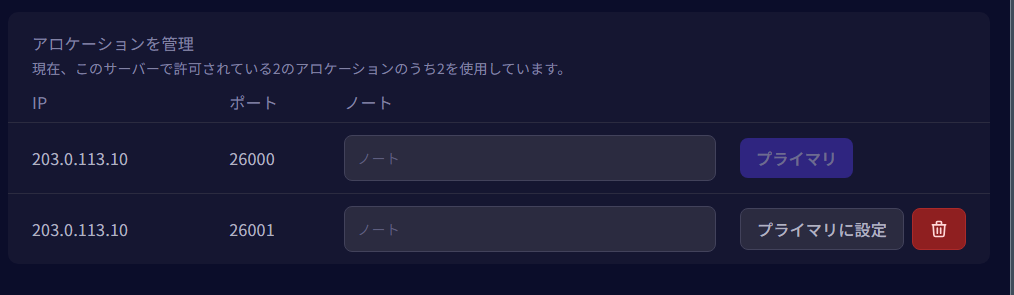
When you open the Network tab, two ports are already listed.
- Row 1 (primary) = the game port. This is the number to give to your friends.
- Row 2 = the query port. It is used so that your server appears in the in-game server list. The number assigned automatically is the game port + 1.
Neither of them requires any action on your part. Please do not add or delete ports.
Please check that the Network tab shows two rows. Very rarely, Row 2 is not there from the start. In that case your server will not appear in the in-game server list. If there is only one row, you can fix it yourself by following the steps in About RUST ports.
STEP4. About the Startup Tab (No Input Required)
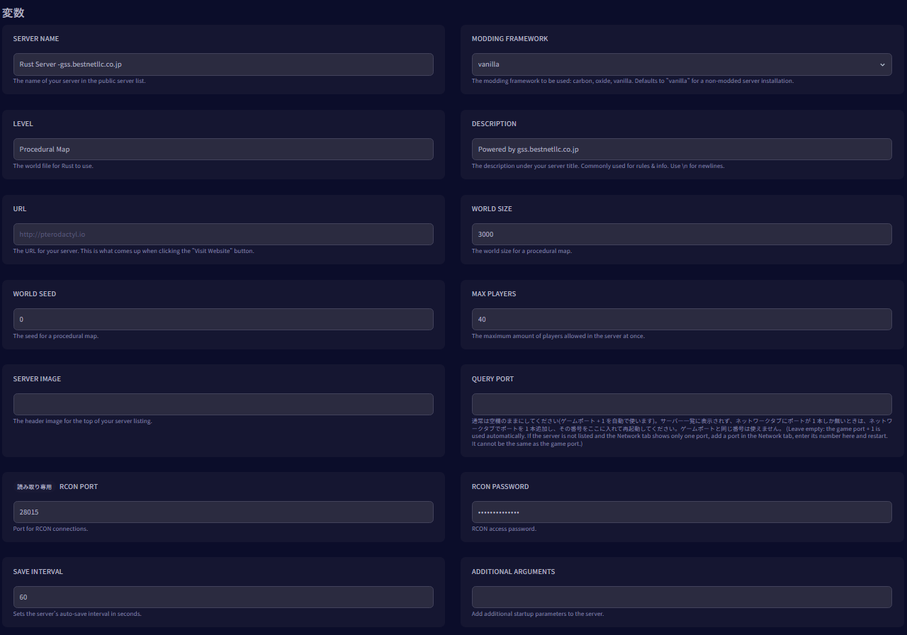
In the previous procedure, you were asked to enter port numbers by hand in “QUERY PORT”, “RCON PORT” and “APP PORT” on the Startup tab. This is no longer required.
The Startup tab is now as follows.
- Normally, please leave QUERY PORT blank. When it is blank, the game port + 1 is used automatically.
- There is no APP PORT field. This is because Rust+ uses the same number as the game port.
- RCON PORT is shown, but it is read-only and cannot be changed.
- No additional port is needed for Rust+ (the smartphone app). The app uses the same number as the game port.
| Note | RCON is not published externally, so you cannot connect to it from an external RCON tool. When you want to send a command, use “Console” in the left menu. The console works through RCON, so commands such as status can be used as they are. Commands only reach the server while it is running. |
STEP5. Start the Server (The First Start Takes Time)
Press the “Start” button.
| Important | The first start takes 6 to 11 minutes, because the map is generated. On our test server, the time from pressing the Start button until the server appeared in the in-game server list was 8 minutes 41 seconds. During that time the panel keeps showing “Starting”, but this is not a malfunction. Please simply wait. From the second start onward, the server only loads the saved world, so it starts in about 3 minutes. |

STEP6. Join the Server
There are two ways to join.
Method A. Search in the in-game server list
Start RUST, enter the server name in the search field of the server list, and search. You can check and change the server name in Server Name on the Startup tab.
Method B. Connect directly from the F1 console
In the game, press the F1 key to open the console, and enter the following.
client.connect IP:GamePort
The IP and the game port are the numbers you checked in STEP2. Use the game port, not the query port (the +1 number).
| Note | To stop the server, use “Stop”. It saves the world before shutting down (the console shows Saving complete → Config Saved). “Kill” force-quits the server without saving, so the progress up to that point is lost. Use it only as a last resort, when “Stop” does not finish even after waiting a few minutes. |
Related Documents
If you have any other questions, please submit a ticket.


