
- Introduction — Satisfactory settings are done in-game
- Start the server and confirm "Running"
- Check the connection address (Game port)
- Launch the game and add the server
- Register as the administrator (claim)
- Set a join password and invite friends (optional)
- Recommended operation — schedule regular restarts for long-running servers
- Frequently asked questions
This guide walks you step by step from ordering your Satisfactory server to starting to play with friends. It carefully explains easy-to-miss points, such as setting the server name and admin password inside the game.
v1.0 (created June 2026) BESTNET LLC About a 5-min readRevision history
- v1.0
- June 2026 — First edition
Introduction — Satisfactory settings are done in-game
On a Satisfactory server, the server name, admin password, join password, and various game settings are configured from the game client (Server Manager). There are no fields for these on the game panel. This is how Satisfactory itself works.
Our servers are delivered ready to connect right after provisioning. Follow the steps below through the first "admin registration (claim)".
For what the game-panel settings mean (auto-update, number of auto-save generations, etc.), see the Server Settings Guide as well.Start the server and confirm "Running"
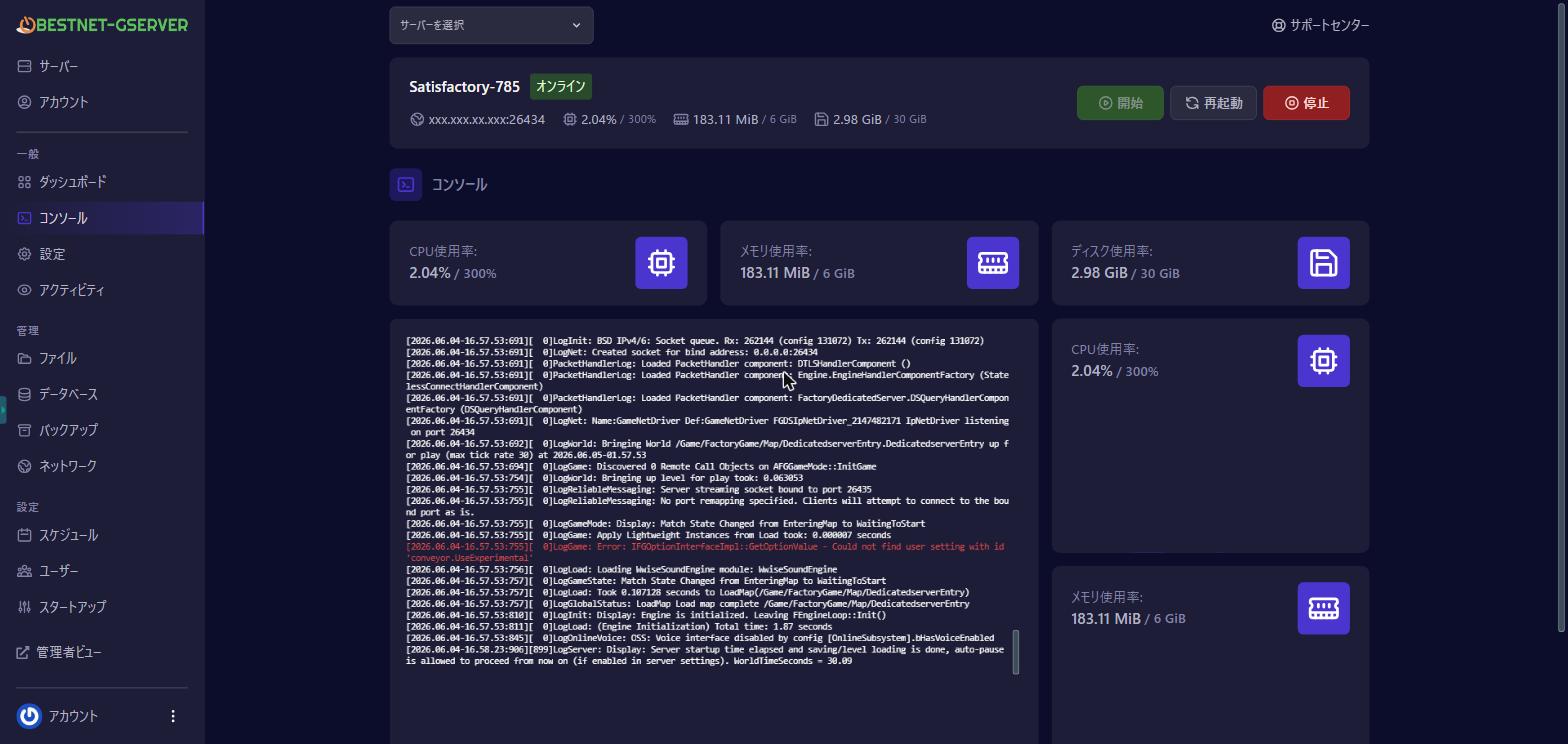
After you order, the server is built automatically. Log in to the game panel (Pterodactyl) and open the server in question.
On the console screen, click the "Start" button, and once the status becomes Running (green), startup is complete. Right after the first build, loading may take a few minutes.
Check the connection address (Game port)
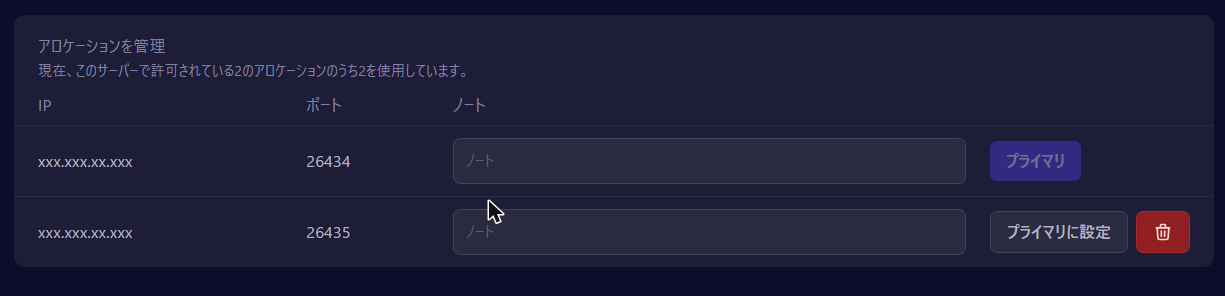
To connect from the game, check the server's address. Open the "Network" tab on the game panel to see the Game port (IP address and port number) used to connect. It looks like this.
153.150.41.203:26437
Launch the game and add the server
Launch Satisfactory and open "Server Session / Server" → "Add Server" from the main menu.
In the input field, enter the IP address:port number you checked in STEP 2 and add it. Once the server appears in the list, connect to it.
Register as the administrator (claim)
When you connect to the added server for the first time, you'll be asked to set the server name and create an admin password. What you set here is saved to the server, and you become that server's administrator.
- Server name: the name shown in the in-game server list.
- Admin password: the password that grants permission to manage the server. Choose a strong one that's hard for others to guess.
Set a join password and invite friends (optional)
After connecting as the administrator, you can change game settings such as the join password (if you want to restrict participation to friends only) and the auto-save interval from the in-game Server Manager.
To invite friends, share the connection address (IP:port) from STEP 2 and, if you set one, the join password. Friends can join by entering the same address from "Add Server".
Recommended operation — schedule regular restarts for long-running servers
As a Satisfactory factory grows large and the server keeps running for long periods, memory usage tends to creep up little by little (this comes from the game itself and is not specific to our servers). As a result, performance may slow down after long continuous operation.
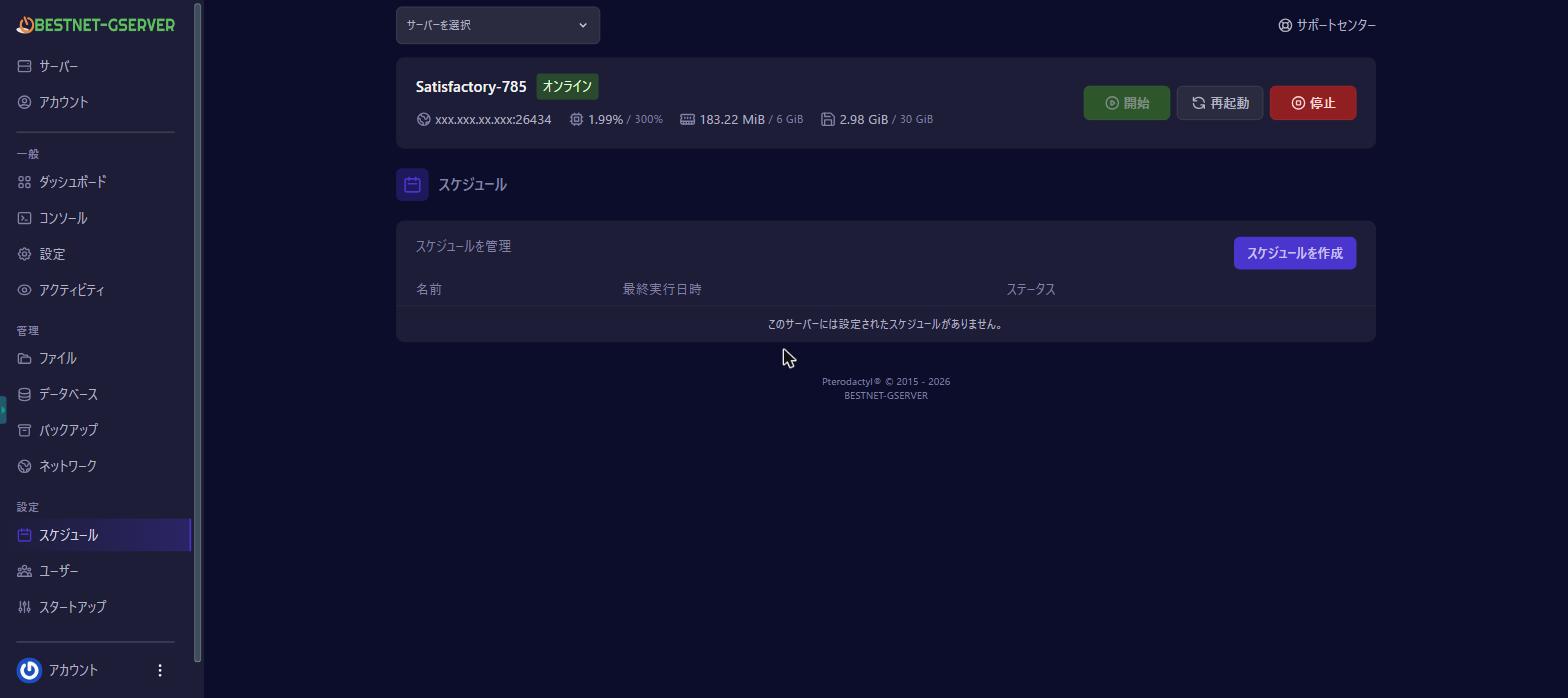
As a countermeasure, we recommend a regular restart about once a day. From the game panel's "Schedules" tab, you can set a schedule that restarts automatically at a fixed time.
Also, our servers keep backups according to your plan (up to 3 generations on Starter, and more on higher plans). If something goes wrong, you can restore from a past backup on the "Backups" tab. Taking a manual backup before big changes gives you extra peace of mind.
Frequently asked questions
I want to change the server name or password on the panel, but I can't find the option
In Satisfactory, the server name and password are set and changed in the in-game Server Manager (see STEP 4 on this page). There are no such input fields on the game panel.
How many people can play at once?
We set a recommended maximum per plan (4 on Starter, and more concurrent connections on higher plans). This is a guideline for recommended concurrency, and the number that can play comfortably varies with world size, factory scale, and so on. It is not a guaranteed figure, so please understand this in advance.
I forgot my admin password
You'll need to reset it in the in-game Server Manager. If you're stuck, please contact our support desk.
The server won't start properly
Very rarely, the initial build doesn't complete fully. In that case, try a reinstall (your save data is preserved) or contact our support desk. For details on each setting, see the Server Settings Guide.


