
This page explains how to restore your world (save data) and server settings from a backup you have created. It also covers what a backup does and does not contain, and how the game’s own save generations differ from our backups.
How to restore
- Open Backups from the left-hand menu of the server management screen.
- Click “…” → Restore at the right-hand end of the backup you want to restore.
- A confirmation dialog appears. Go ahead and click Restore.
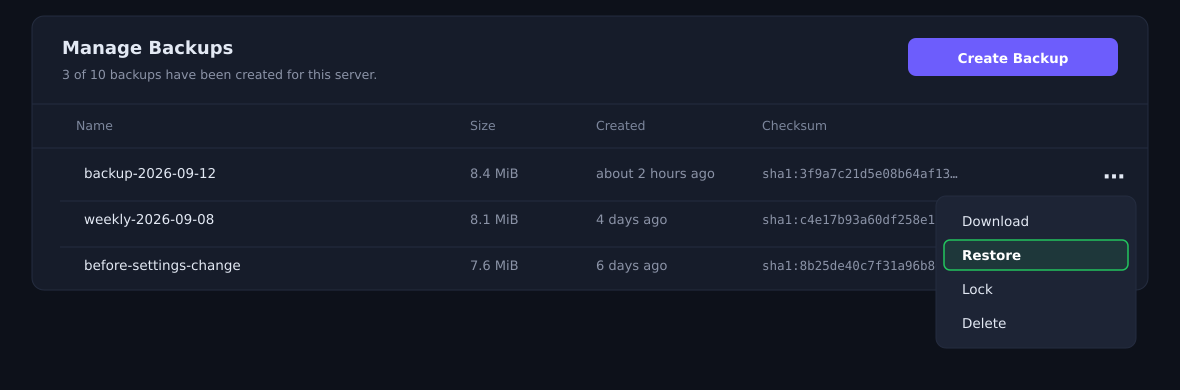
Please be careful with the checkbox in the dialog
The restore confirmation dialog has a checkbox that reads “Delete all files before restoring the backup.”

If you tick it, every file on the server is deleted, including the game program files. On a server whose backups do not contain the game program files, restoring from that state will not bring the game back, and the server will no longer start.
What a backup does and does not contain
Palworld backups come in two forms: the new format and the previous format.
A few MB means the new format (world and settings only). A few GB means the previous format (the game program files are included as well).
The new format applies to servers created on or after 12 September 2026 and to servers reinstalled after that date. Servers that have been running since before then continue on the previous format, exactly as before.
| Contents | New format | Previous format |
|---|---|---|
| World data (save data) | Included | Included |
Server settings (PalWorldSettings.ini and so on) | Included | Included |
| Files you have uploaded yourself | Included | Included |
| Game program files | Not included | Included |
| The game’s own save generations | Not included | Included |
| Logs and temporary files | Not included | Not included |
The game program files run to several GB, and they are identical for every customer. We can put them back at any time from our side, so the new format leaves them out of the backup.
The game’s own save generations are not the same thing as our backups
Separately from our backups, Palworld itself saves your world automatically and keeps several recent generations. These are useful when you want to step back a little way. For the procedure, see Palworld - Rolling back your save data (recovering a world or character).
Because of that, restoring one of our backups does not roll the in-game save generations back to how they were. Once you carry on playing the restored world, new generations build up again from there.
If something happens to the server itself, they are lost along with the world. Please do not treat the in-game generations as a reason to go without backups.
Restoring after a reinstall
If the game program files have been lost and the server no longer starts, or if you restored with the checkbox ticked, the order matters.
- Reinstall first. See Reinstallation procedure when the server fails to start. This puts the game program files back.
- Then restore from a backup. This brings your world and settings back.
If something does not go to plan
| Symptom | What to check |
|---|---|
| The restore worked, but this is not the world I expected | Check the date and time of the backup you restored. You may have chosen one from a different day. |
| The server will not start after a restore | You may have restored with the checkbox ticked. Try reinstall, then restore. |
| My world disappeared after a reinstall | Your backups are still there. Please restore after the reinstall. |
| I cannot create a new backup | Check whether you have reached the limit on stored generations. Deleting one you no longer need will let you create another. |
| The restore never finishes | Large worlds take a while. If nothing changes after waiting, please get in touch. |
If the problem persists, send us the message shown on screen exactly as it appears and we will look into it.
How many generations you can keep
The number of backups you can keep depends on your plan.
| Plan | Generations you can keep |
|---|---|
| Small | 3 |
| Medium | 5 |
| Large | 10 |
| Enterprise | 30 |
When a scheduled backup runs while you are at the limit, the oldest one is replaced automatically. Creating one by hand at the limit returns an error instead, so please delete a backup you no longer need and try again.


