
How to back up your world and settings, and bring them back when you need to. A backup on a modpack server holds your world and settings, but not the modpack itself. That is why the order you restore in matters — the most important point on this page.
Creating a backup
- Open Backups from the left-hand menu of the server management screen.
- Press Create Backup.
- Give it a name and create it (leave it empty and one is named from the date and time).
What a backup does and does not contain
| Category | Contents |
|---|---|
| Included | Your world / settings (config, defaultconfigs) / scripts / json files / server.properties |
| Not included | The modpack itself (mods) / the Forge libraries / distributed packs (global_packs) / server JARs (versions) / logs / caches |
The modpack and the Forge libraries can be fetched again from where you got them. Including them would make every backup enormous and put load on the server each time one is taken.
A normal restore (the server stays as it is)
Use this when you want to put your world back to how it was a little while ago. The mods are still on the server, so you can restore straight away.
- On the Console screen press Stop and wait until the status reads Offline.
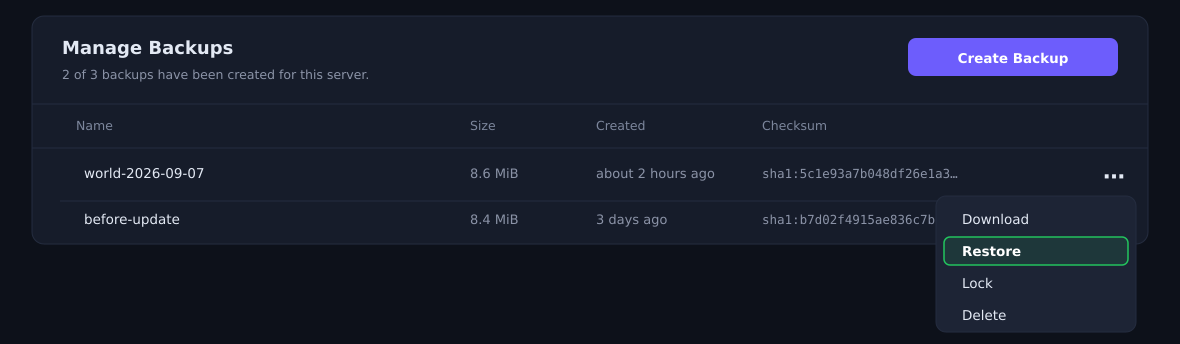
- On the Backups screen, choose Restore from the menu at the right-hand end of the backup you want.
- When the confirmation appears, go ahead and run Restore.
- Once it finishes, press Start.

Ticking it also removes the mods and the libraries. Since the backup does not contain them, restoring will not bring the server back up. If that happens, the steps below will recover it.
After rebuilding a server, the order matters
Please follow that order. Restoring first will not start, because the mods are not there.
- Reinstall from the Settings screen (set the Forge version and the Java runtime first).
- Pull the Server Pack in with upload-from-url in the file manager and decompress it.
- Now restore from the backup. Your world and settings come back.
- Press Start and check that the world is as you left it.
How many generations you can keep
You can keep 3 backups (the same on Medium, Large and Enterprise).
When a scheduled backup runs while you are at the limit, the oldest one is replaced automatically. Creating one by hand returns an error once you are at the limit, so delete one you no longer need and try again.
If something does not go to plan
| Symptom | What to check |
|---|---|
| The server will not start after a restore | Check that the mods are still there. If you restored with the checkbox ticked, or just after rebuilding, put the Server Pack back and restore again. |
| I restored, but this is not the world I expected | Check the creation date and time of the backup you restored. |
| I cannot create a new backup | Check whether you have reached the limit of 3. Deleting one you no longer need lets you create another. |
| The backup looks far too small | That is expected. With the modpack and the libraries left out, a backup is only as big as your world and settings. |
If that does not resolve it, send us the message from the console exactly as it appears and we will look into it.


