
Contents
| Note | The server description may be temporarily overwritten with numbers. This is caused by a bug on the Rust side, and it is fixed by restarting the server. |
STEP1. Log in to the Game Panel.
For how to log in, see here.
Revision History
- 2.0:
- Updated: 2026/10/06
- Changes: Corrected the notation for the line break code (n). Added the behavior of the Stop button and the time the server takes to start
- Updated by: BESTNET-GSERVER
- 1.0:
- Created: 2024/1
- Changes: Initial version
- Created by: BESTNET-GSERVER
STEP2. Stop the server with “Stop”.
Click “Stop” in the upper right of the server page, and wait until the server has stopped.
| Note | To stop the server, use “Stop”. It saves the world before shutting down (the console shows Saving complete → Config Saved). “Kill” force-quits the server without saving, so any recent progress is lost. Use it only as a last resort, when “Stop” does not finish after several minutes. |
STEP3. Select “Startup” from the left menu.
Once the server has stopped, open “Startup” in the left menu. You can change the server description here.
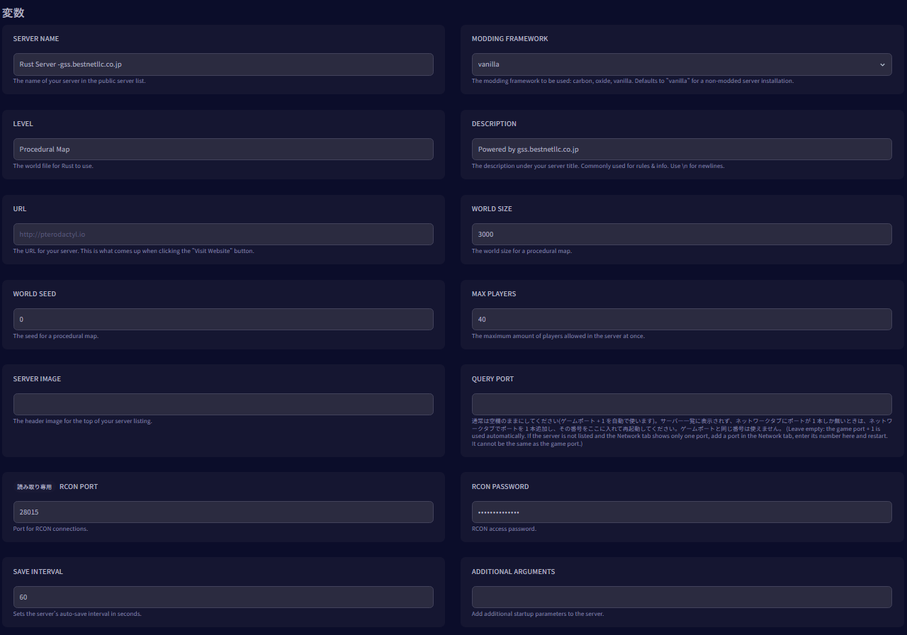
STEP4. Enter the description in [DESCRIPTION].
In the DESCRIPTION field, enter your server rules and the information you want to give players. It is shown in the server information in-game.
| Note | To start a new line in the description, enter n (two characters: a backslash and a lowercase n). The field in the panel also says “Use n for newlines.” |
STEP5. Start the server with “Start”.
After entering the description, return to the server page and click “Start”.
| Note | From the moment you click the start button until you can join the game, it takes about 3 minutes when a saved world is loaded. The panel keeps showing “Starting” during that time, but nothing is wrong. |
This completes the server description change for your Rust server.


