
- 7 Days to Die
- 1. Prerequisites
- 2. Revision History
- 3. When Importing Save Data
- 4. When Importing RWG Worlds
- 6. Installing Mods
- 7. How to Change Difficulty
- 8. How to Enable/Disable PvP/Friendly Fire on 7 Days to Die Server
- 9. How to Delete Player Data
- 10. How to Configure 7 Days to Die Server List Display Settings
- 11. How to Change Server Name
- 12. How to Enable Cheats in 7 Days to Die
- 13. Entering Cheat Mode
- 14. How to Delete Server World in 7 Days to Die
7 Days to Die
1. Prerequisites
Please log in to the Game Panel.
For login instructions to the Game Panel, please see here
2. Revision History
- 1.0:
- Creation Date: 2024/1
- Update Details: Initial version created
- Created by: BESTNET-GSERVER
- 1.2
- Last updated: October 8, 2026
- Content: Added instructions for difficulty settings (sandbox code) in V3.0 and later. Modified guidance for items to configure in the Startup tab.
- Author: BESTNET-GSERVER
3. When Importing Save Data
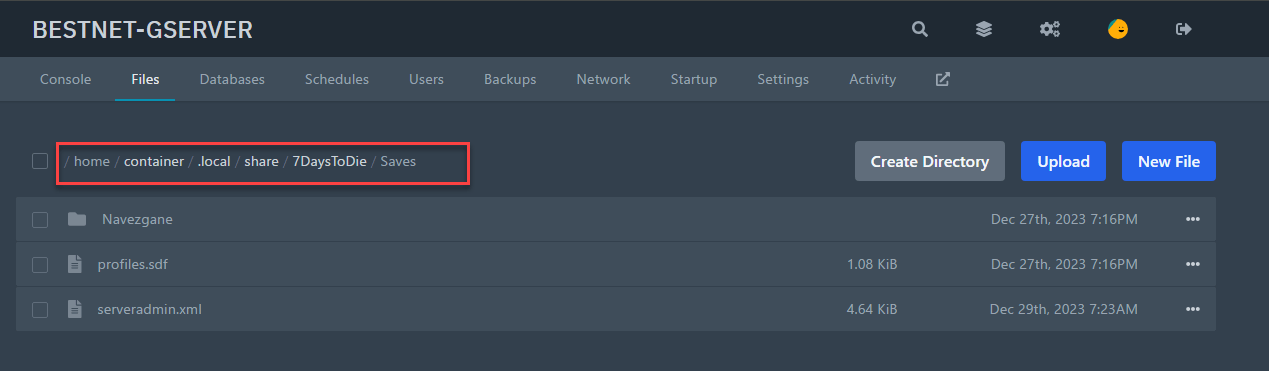
You can import save data from your PC/home server or from servers hosted by other game hosting providers.
Upload all files in the Saves folder using the Game Panel’s server file manager, or
upload them via FTP connection.
For FTP connection instructions, click here
Below are important notes:
1. The world name and save data name must match. If they do not match, enter [WORLD] Game World (world name) and [WORLD] Save / Game Name (save data name) in the Startup tab of the game panel to match the imported save data, then restart the server from the Console tab.
2. On Windows, save data is located at %AppData%\7DaysToDie\Saves.
4. When Importing RWG Worlds
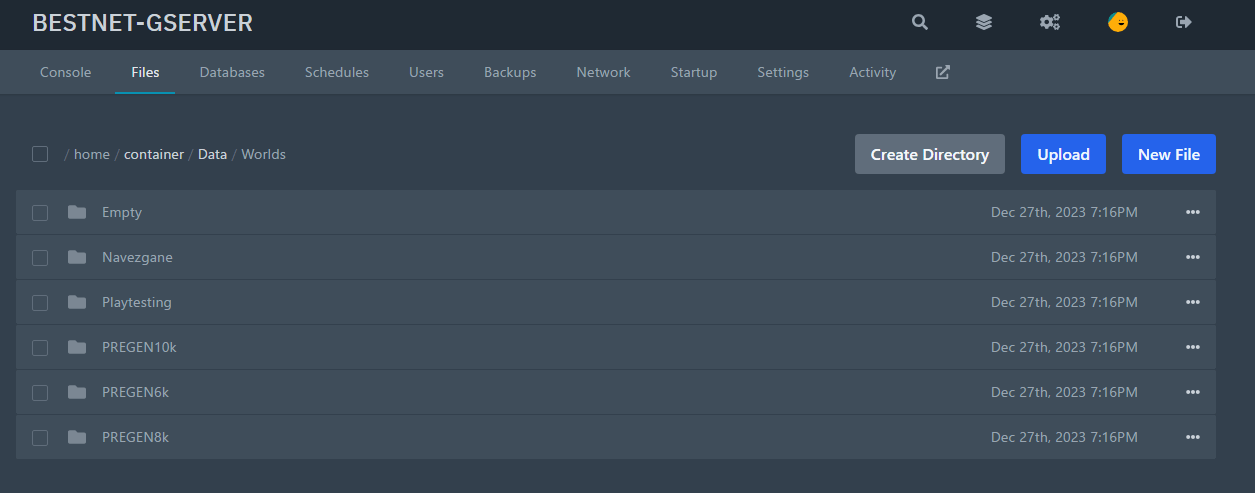
Upload to home/container/Data/Worlds using the Game Panel’s file manager or FTP connection.
※When uploading via file manager, compress the folder before uploading, and extract it in the file manager.※
5. Editing serverconfig.xml
Open the serverconfig.xml file in the root directory and change the game world name to your world name, then click Save.
If you are unsure where your world data is located on your PC, it is in %AppData%\7DaysToDie\GeneratedWorlds.
Below is a reference image:
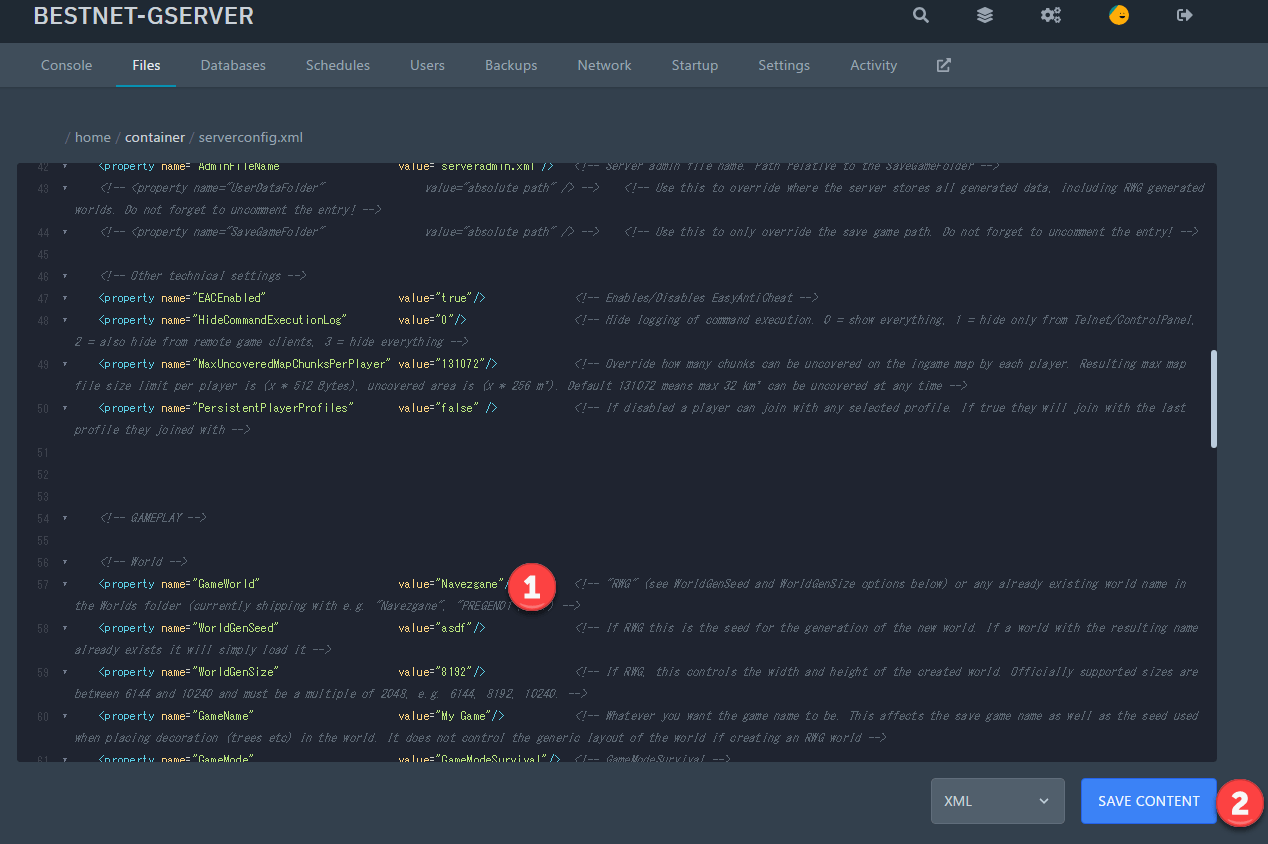
Items in the Startup tab of the game panel (such as server name, description, password, visibility settings, max players, world name, save data name, etc.) and code entered in [GAME] Sandbox Code are written to the configuration file when the server starts using the panel values. Therefore, changes made in serverconfig.xml will not be reflected. Please make changes in the Startup tab. If you edit items not present in the Startup tab using serverconfig.xml, they may be reset to default values during game updates or file verification.
6. Installing Mods
If you want to install MODs, upload the MOD files you want to install to the Mods folder using the file manager.
Each MOD is in its own folder and contains a ModInfo.xml file within it.
7. How to Change Difficulty
Since Game Version 3.0, difficulty settings have changed to be configured through sandbox codes. For instructions on how to set difficulty and other game rules, please refer to the game rules configuration page.
In-game sandbox settings allow you to choose from the following official presets:
Scavenger ― The easiest setting. Recommended for first-time players.
Adventurer ― Easy setting. This is the default.
Nomad ― Standard difficulty. Recommended for players with FPS experience.
Warrior ― More challenging than standard.
Survivalist ― Quite difficult setting.
Insane ― The hardest setting.
8. How to Enable/Disable PvP/Friendly Fire on 7 Days to Die Server
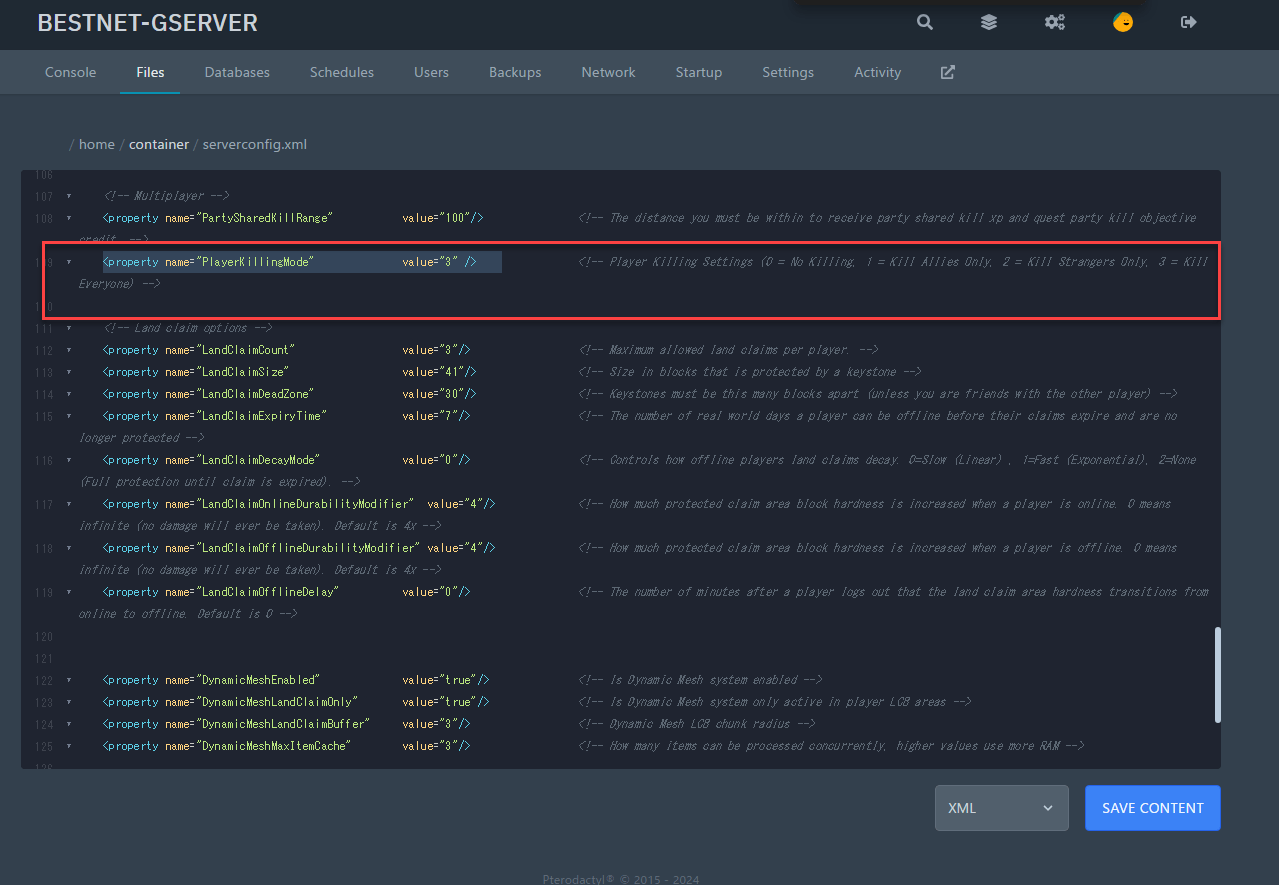
When running a 7 Days to Die server, if you want to change rules related to PvP and/or Friendly Fire, you can change the settings in serverconfig.xml.
Parameter Name: PlayerKillingMode
The meanings of each value are as follows:
0 = No PvP – Players cannot damage each other in any situation.
1 = PvP with allies only – Players can only damage each other if they add each other to their allies list using the in-game player menu and both agree.
2 = PvP with strangers only – Players can damage each other unless they are allies.
3 = PvP with anyone – Players can damage anyone regardless of ally status.
9. How to Delete Player Data
If player data becomes corrupted for any reason, that player will no longer be able to log in to the server.
In such cases, you need to delete the player data.
Player data is named by Steam64ID, so you need to identify the Steam64ID of the player you want to delete.
There are various ways to identify the ID. If you are unsure, there are many bloggers who explain the method, so please search the internet to confirm the identification method.
Player data is basically located in the following directory:
/Saves/Navezgane/world
If you are using a map other than the default, it will be in the world folder under the map name you are using.
10. How to Configure 7 Days to Die Server List Display Settings
7 Days to Die has 5 settings that allow you to change how your server appears in the server list.
11. How to Change Server Name
Server name, description, and password can be changed in the Startup tab of the game panel, and the server can be restarted from the Console tab.
[SERVER] Server Name ― The server name displayed in both the in-game browser and Steam’s server viewer.
[SERVER] Server Description ― A brief description displayed first when selecting a server in the server browser.
[SERVER] Server Password ― Set a password on the server to prevent unknown players from joining.
The following two are not available in the Startup tab. Open serverconfig.xml in the file browser, search for and modify items in Ctrl+F, and save with the SAVE CONTENT button.
ServerWebsiteURL ― You can add a clickable website link below the description.
ServerLoginConfirmationText ― Set a message to be displayed just before players load the world.
12. How to Enable Cheats in 7 Days to Die
To enter cheat mode, you must first add either your SteamID64/Entity ID/Username as an admin to the server.
Below is the command reference:
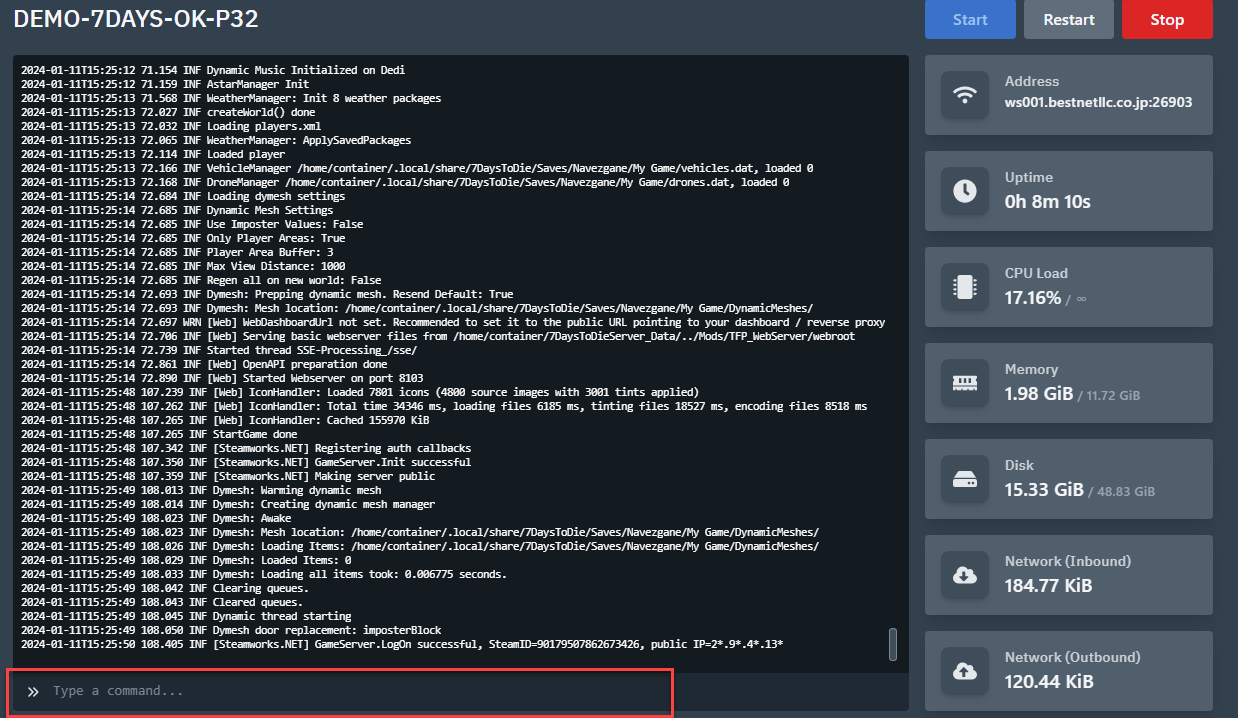
admin add name/entity id/steam id permission level
Example: admin add Steam_76561197965969909 0
The number at the end of the command determines the user’s permission level, with 0 being the highest permission level.
Commands can be entered from the console in the Game Panel.
13. Entering Cheat Mode
To enter cheat mode in-game, press the F1 key.
There are various commands available that allow you to fly, teleport, and more.
For the command list, please search the internet to confirm.
14. How to Delete Server World in 7 Days to Die
If you want to create a new world with the same name or want to delete a world you no longer plan to use, you can delete it by following the steps below:
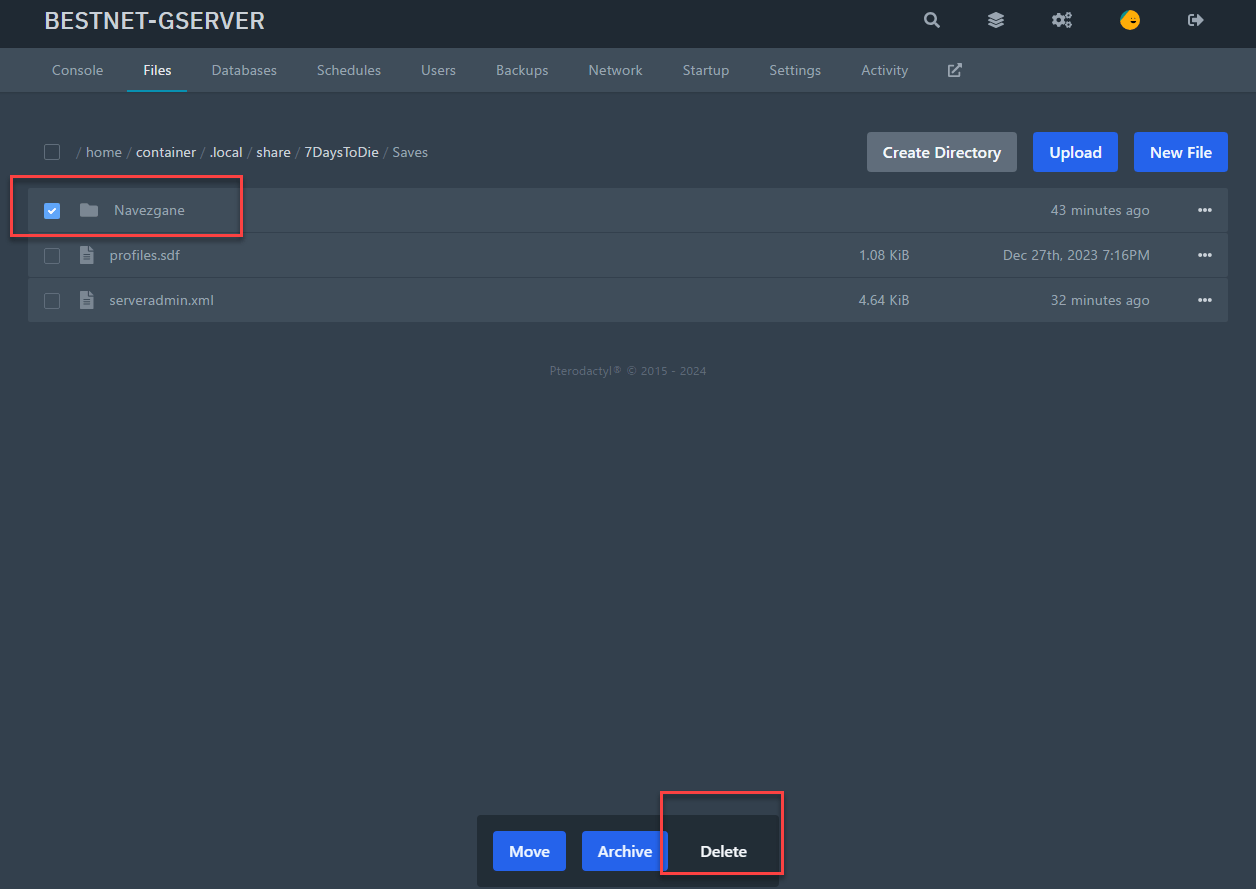
In the example in the image below, we are deleting “Navezgane,” which is the default map.
Check the map you want to delete and click the Delete button.
If you want to use it again, you do not need to delete it; you can simply rename it slightly so that the game engine does not load the unused map.
Example: Navezgane_old
If you have any other questions, please submit a ticket.


