
- About This Guide
- Wait for Installation to Complete
- Check Connection Information in the Console
- Join from the Game
- Becoming an Administrator
- Startup Tab Items
- What Can Be Changed and What Will Revert in the Configuration File
- Stopping the Server, Reinstalling, and Backups
- When You Cannot Connect Successfully
- Related Articles
This is a guide to getting started with your BESTNET-GSERVER Project Zomboid server, from ordering through connecting with friends and administrative operations. Servers are automatically built after payment, and port configuration is typically not required. The latest stable version (Build 42) is standard.
Revision History
- v2.0
- October 2026 — Complete revision. Changed manual port configuration to "typically not required," added methods to check connection information and the administrator in the console, and added Startup tab section
- v1.0
- Initial release
About This Guide
This guide explains the process up to connecting and basic setup for customers who have contracted a Project Zomboid multiplayer server with us.
The server is built automatically after payment. The two ports required for the game are also automatically assigned and automatically reflected in the game's configuration, so port configuration is normally not required.
Wait for Installation to Complete
Once payment is completed, server setup will begin automatically. The process, including game installation, will be completed in a few minutes, and a notification will be sent to your registered email address.
Subsequent startups take about 2 minutes. You cannot connect before startup is complete, so please confirm startup completion using the following steps.
Check Connection Information in the Console
Open your server in the game panel and display the Console tab. When you start the server, connection information starting with [bestnet] will be displayed (shown every time you start).
![The [bestnet] connection information shown in the console: address, second port, server name, join password, max players and administrator](https://gss.bestnetllc.co.jp/wp-content/uploads/2026/10/pz-console-bestnet.png)
| Field | Content |
|---|---|
接続先 (Address) | The connection address to share with your friends. Displayed in the format IP:ポート番号 (IP:port number) |
2 本目のポート (Second port) | The second port number used by the game. Usually no changes are needed |
サーバー名 (Server name) | The name displayed in the in-game server list and whether it is set to be listed |
参加パスワード (Join password) | あり (Yes) / なし (No) |
最大人数 (Max players) | The limit determined by your contracted plan |
管理者 (Admin) | Administrator username and password (used in the following steps) |
ゲームの版 (Game version) | public = Latest stable release (Build 42), legacy41 = Build 41. Also shows whether automatic updates on startup are enabled |
メモリ (Memory) / 設定ファイル (Config file) | Displayed for reference only. No changes needed |
The information in the console may scroll out of view as the game writes its log. In that case, open 接続情報.txt (connection info) in the Files tab to see the same information (you will find it in the list shown when you open the Files tab; it is rewritten every time the server starts, so any edits will be reverted). If the file is not there, restart the server and check the information in the console.
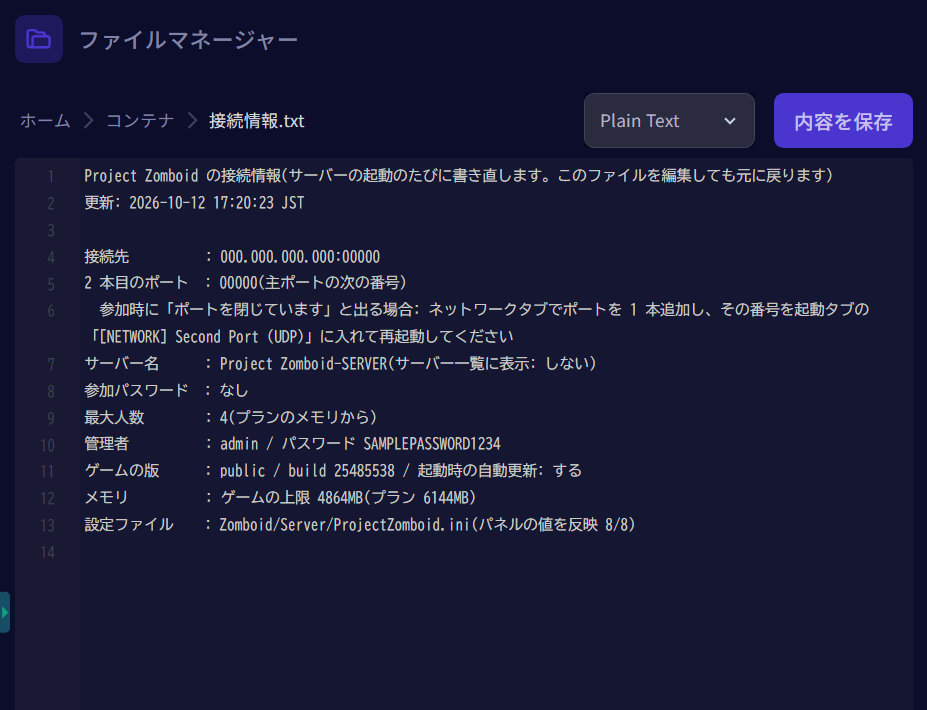
SERVER STARTED is displayed in the console. Connecting is not possible before it appears.2 本目のポート (Second port) field, or when the game loading screen shows "Warning: Server has port ... closed," add and configure one additional port (see "When You Cannot Connect Successfully" at the bottom of this page).接続情報.txt in the Files tab also contains the same information, including the administrator password.Join from the Game
- In the game's main menu, select "MULTIPLAYER".
- In "Add Server", enter the following and "SAVE":
- "Server name:" … Display name in the list. You can use any name you like
- "IP/Domain:" … From the
接続先(Address) in the console, the part before: - "Port:" … From the
接続先(Address) in the console, the part after: - "Server password:" … Only if you have set a join password
- Enter your "Username:" and "Password:" and "CONNECT".
Please share the connection address directly with those you want to play with.
Becoming an Administrator
If you enter the username and password displayed in the 管理者 (Admin) field of the console into "Username:" and "Password:" from the previous steps and join, you will be able to enter as an administrator. The administrator password is shown in the 管理者 (Admin) field in the console, and is also written in 接続情報.txt in the Files tab.
The administrator password is automatically generated for each server. If you want to set it to a value of your own choosing, enter it in [SERVER] Admin Password on the Startup tab and restart (it will take effect from the next startup).
ChangePassword, changepassword, CHANGEME, changeme, password, or admin, it will not be used and will remain the automatically generated value.Startup Tab Items
After changing values, please restart the server from the Console tab.
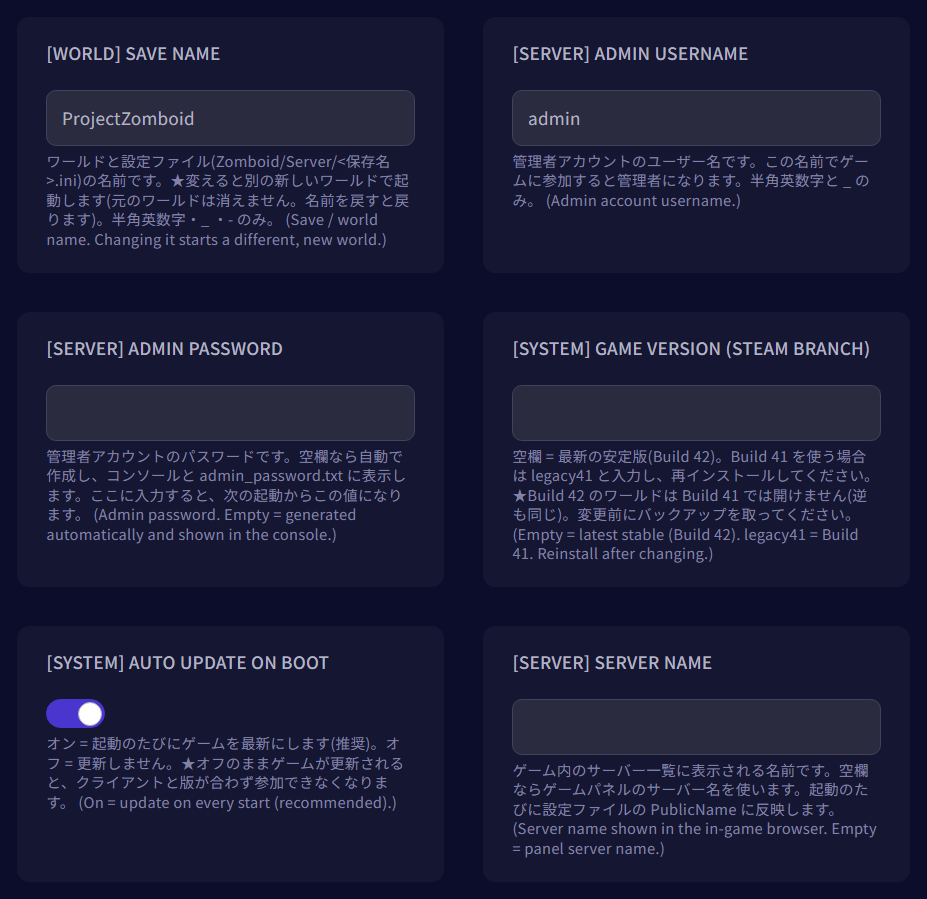
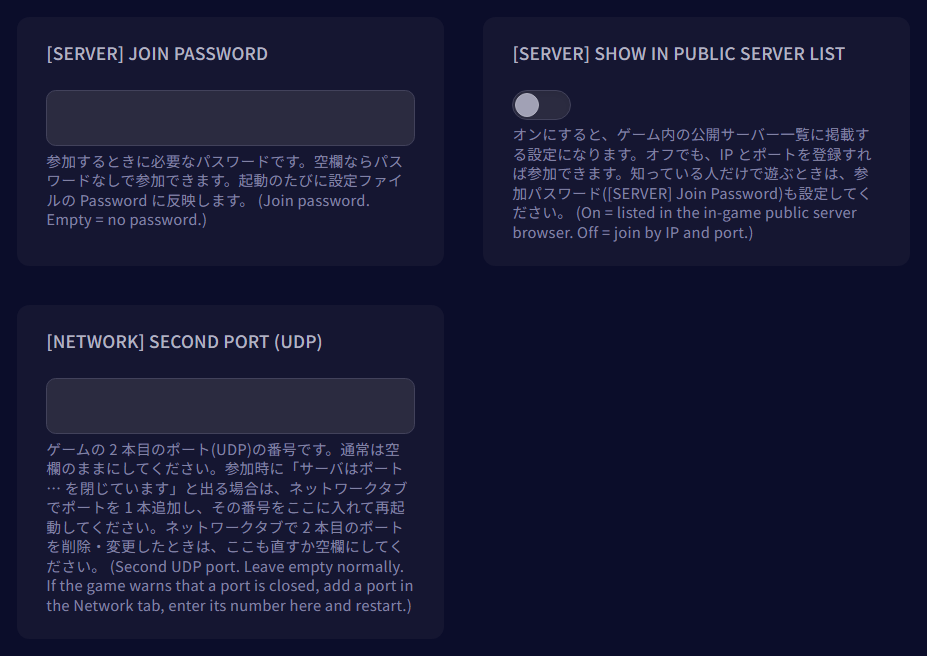
| Item | Description | Default |
|---|---|---|
[WORLD] Save Name | The name of the world and configuration files. Changing this will start a new world (the original world will not be deleted. Reverting the name will restore it). Only alphanumeric characters, _, and - are allowed | ProjectZomboid |
[SERVER] Admin Username | The administrator username. Joining with this name grants administrator privileges | admin |
[SERVER] Admin Password | The administrator password. If left blank, it will be automatically generated and displayed in the console | Blank |
[SYSTEM] Game Version (Steam Branch) | The game version to play. When using Build 41, enter legacy41 and reinstall | Blank (Build 42) |
[SYSTEM] Auto Update on Boot | Switch. Checks for updates to the latest version on each startup. Please keep this ON (if left off while the game updates, version mismatches will prevent joining) | On |
[SERVER] Server Name | The name displayed in the in-game server list | Blank (Game Panel server name) |
[SERVER] Join Password | The password required to join | Blank (none) |
[SERVER] Show in Public Server List | Switch. When turned on, the server will be listed in the in-game public server list | Off |
[NETWORK] Second Port (UDP) | The second port number. Normally, please leave this blank | Blank |
What Can Be Changed and What Will Revert in the Configuration File
The configuration file is Zomboid/Server/<保存名>.ini in the Files tab (Zomboid/Server/ProjectZomboid.ini by default). Please make edits after stopping the server.
Settings Changed in the Startup Tab
The following values will revert to the Startup tab values every time the server starts, even if you edit the configuration file directly.
PublicName…[SERVER] Server NamePassword…[SERVER] Join PasswordPublic…[SERVER] Show in Public Server ListUDPPort… when a number is entered in[NETWORK] Second Port (UDP)
Automatically Determined Settings
The following values have no fields in the Startup tab and will revert every time the server starts, even if you edit them.
MaxPlayers… determined by your subscribed planDefaultPort… port number of接続先(Address) in the consoleUPnP/server_browser_announced_ip
Other Settings
Lines other than the above (such as PvP settings) are not overwritten, so values changed in the configuration file will be used as-is.
Stopping the Server, Reinstalling, and Backups
When Stopping
Press the stop button on the Console tab and wait until the status shows as stopped. Project Zomboid saves the world when stopping or restarting.
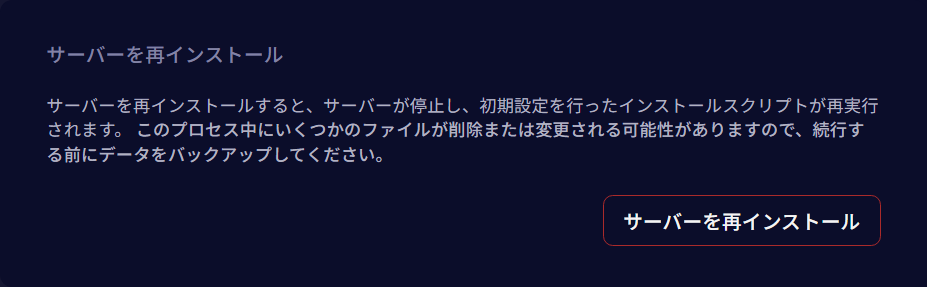
Before Reinstalling
Stop the server first before reinstalling. If you reinstall while it's running, it may be stopped before the save completes. Your world and settings will remain after reinstalling.
Backups
It's safest to take backups after stopping the server. Backups taken while the server is running will contain the state as of the last save. You can save up to 3 generations of backups, which can be restored from the game panel.
When You Cannot Connect Successfully
- Is
SERVER STARTEDdisplayed in the console? You cannot join while the server is starting up - Is the connection address correct? Please verify that the IP and port number match the
接続先(Address) shown in the console - Is the game version correct? The server checks for updates every time it starts. When a game update is released, please restart the server and ensure that the game for all participants is also updated to the latest version
- "Server password is incorrect" appears → Please verify the join password
- "Warning: Server has closed port ..." appears on the loading screen → Please verify that there are 2 ports on the Network tab. If there is only 1, please add 1 port and enter that number in
[NETWORK] Second Port (UDP), then restart - Cannot join Build 41 server → Please verify that participants have also selected Build 41 in Steam


