
A step-by-step guide to your BESTNET-GSERVER DayZ dedicated server, from ordering to playing with friends and logging in as an administrator, written so that first-time users can follow it without getting lost.
- v1.0
- November 2026 — First edition.
About this guide
This guide covers everything from the moment your order is complete until you are playing with friends and can log in as an administrator. Everything is done from the game panel.
STEP1 Wait for the installation to finish
Once payment is complete, the server is set up automatically. Because the game is installed, the first build takes a few minutes (6 to 7 minutes in our tests). When the installation finishes, the server starts automatically.
During the build, the files are checked and anything missing is downloaded again automatically. If the files still cannot be completed, the build is treated as failed, so you never receive a server left half-installed.
STEP2 Check the start-up in the Console
Open the Console in the game panel. Every time the server starts, lines beginning with [bestnet] are shown as follows (these console messages are in Japanese).
[bestnet] サーバー一覧の問い合わせポート: <number>
[bestnet] 管理者パスワード(ゲーム内で #login に使う): <admin password>
[bestnet] (パネルの起動タブの Admin Password に入力すると、次の起動からその値になります)- The first line is the port used for server list (Steam) queries. It is not the port you connect to.
- The second line is the admin password (STEP4). It appears only when
Admin Passwordon the Startup tab is empty. The third line says that a value entered there is used from the next start.
The game then starts. It takes a little while before you can connect (in our tests, the server answered server list queries about 30 to 40 seconds after starting).
STEP3 Share the address with your friends
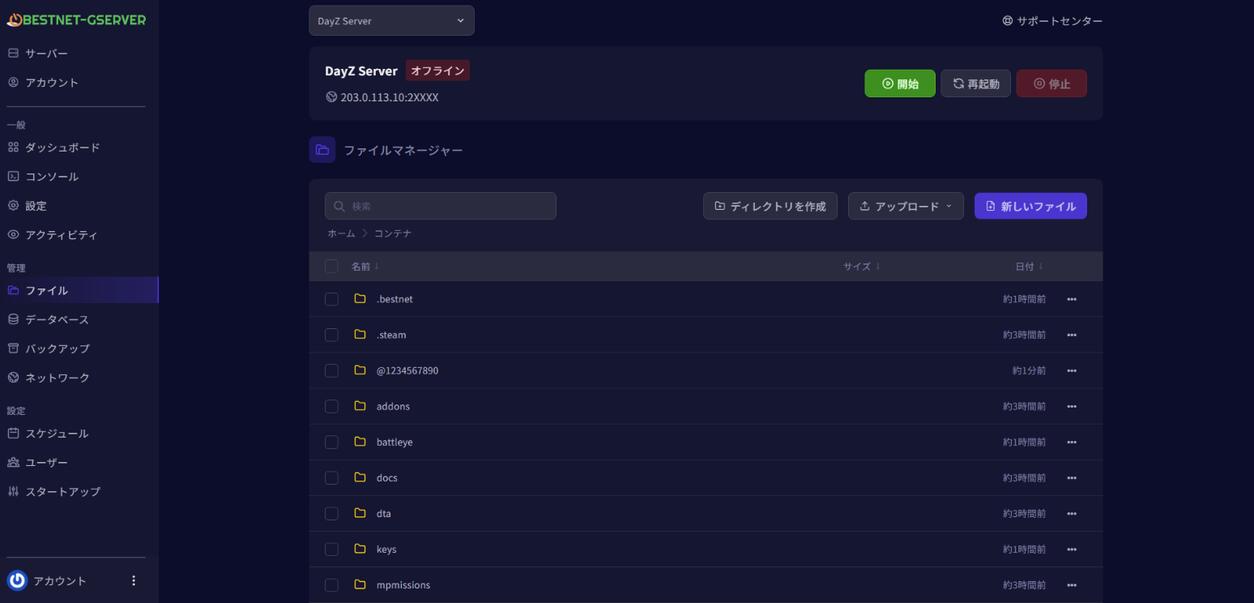
The address to connect to is the IP and port shown below the server name at the top of the game panel. Share this IP and port with the people you play with. If you have set a join password, share that too.
Players need the same version of DayZ as the server and the same mods as the server (except mods used only by the server).
STEP4 Log in as administrator
An admin password is created automatically for each server. You can check it on the console line in STEP2.
- Join the server from the game.
- Open the chat and type
#loginfollowed by the admin password (for example#login <admin password>).
Admin Password on the Startup tab and restart. That value is used from the next start, and the admin password line no longer appears in the console. If you clear the field and restart, the automatically created password is used again.Startup tab items
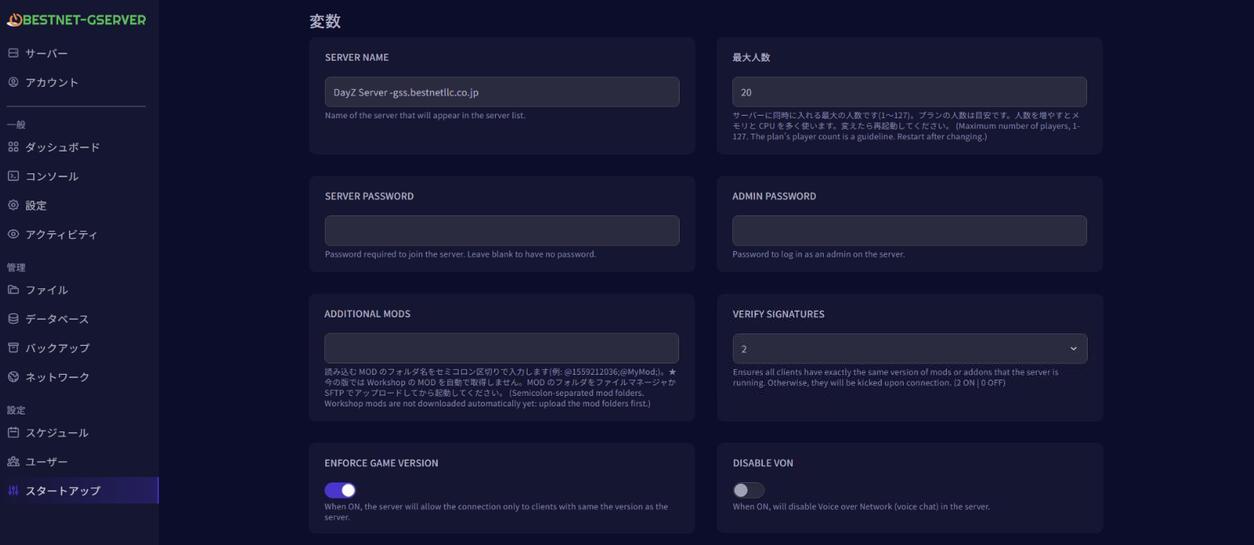
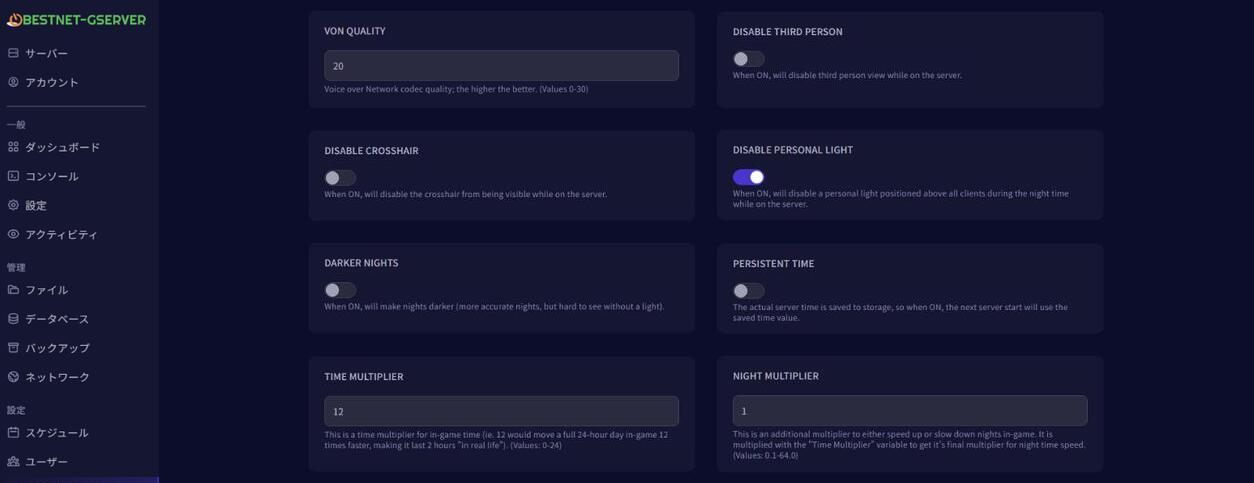
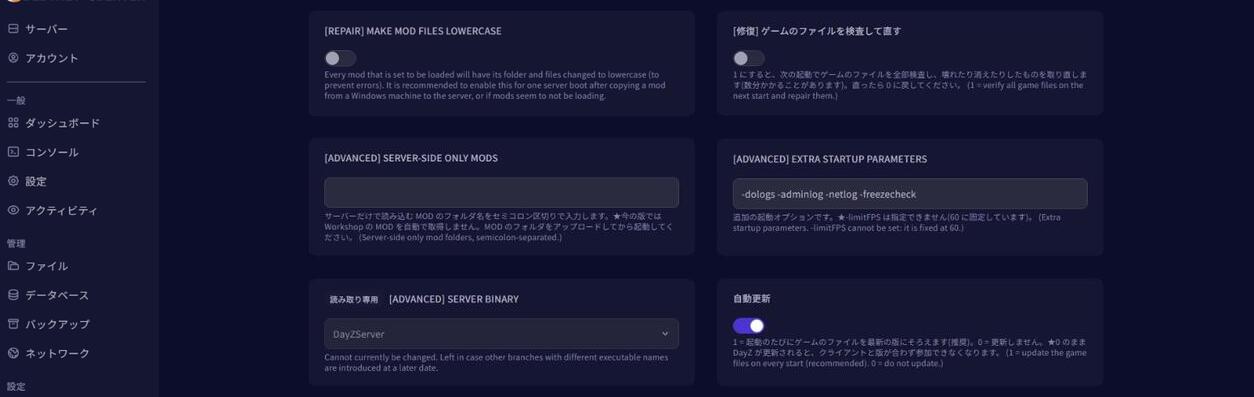
You can change the server settings under Startup in the game panel. After changing a value, restart the server from the Console.
| Item | Description | Default |
|---|---|---|
Server Name | The name shown in the game's server list. | DayZ Server -gss.bestnetllc.co.jp |
最大人数 (max players) | The maximum number of players at the same time (1 to 127). More players use more memory and CPU. | Guideline of your plan (Small 20, Medium 40, Large 60, XL 60) |
Server Password | The password needed to join. If it is empty, there is no password (anyone can join). | Empty = none |
Admin Password | The password you type after #login in the in-game chat. If it is empty, a password is created automatically for each server and shown in the console. | Empty = automatic |
Additional Mods | The folder names of the mods to load, separated by ; (see the mods article). | Empty |
Verify Signatures | Checks that players' mods and addons are the same versions as the server's (2 = on, 0 = off). | 2 |
Enforce Game Version | When on, only players with the same game version as the server can connect. | On |
Disable VoN | When on, voice chat (VoN) cannot be used. | Off |
VoN Quality | Voice chat quality (0 to 30; higher is better). | 20 |
Disable Third Person | When on, third-person view cannot be used. | Off |
Disable Crosshair | When on, the crosshair is not shown. | Off |
Disable Personal Light | When on, the light above each player at night is turned off. | On |
Darker Nights | When on, nights are darker (hard to see without a light). | Off |
Persistent Time | When on, the in-game time is saved and the next start continues from that time. | Off |
Time Multiplier | How fast in-game time passes (0 to 24; with 12, a full day passes in 2 hours). | 12 |
Night Multiplier | An extra multiplier for how fast night time passes (0.1 to 64). | 1 |
[Repair] Make Mod Files Lowercase | When on, the folder and file names of the mods to load are changed to lowercase. If you use folders whose names are not numbers, write their names in lowercase in Additional Mods as well. | Off |
[修復] ゲームのファイルを検査して直す (repair game files) | When on (1), all game files are checked at the next start, and broken or missing files are downloaded again (this can take a few minutes). Turn it off (0) again once the problem is fixed. | Off |
[Advanced] Server-Side Only Mods | The folder names of mods that only the server loads (separated by ;). | Empty |
[Advanced] Extra Startup Parameters | Additional start-up options. -limitFPS cannot be set (it is fixed at 60). | -dologs -adminlog -netlog -freezecheck |
[Advanced] Server Binary | The file that is started (shown only; it cannot be changed). | DayZServer |
自動更新 (automatic update) | When on (1), the game files are brought up to the latest version every time the server starts (recommended). If it is off (0) when DayZ is updated, the versions no longer match and players cannot join. | On |
serverDZ.cfg that are set on the Startup tab (server name, passwords, max players, signature and version checks, voice chat, view, crosshair, light, darker nights and time) are rewritten with the Startup tab values every time the server starts. Editing serverDZ.cfg directly is undone, so change them on the Startup tab. The server list query port (steamQueryPort) is also rewritten automatically at every start. Other items can be changed in serverDZ.cfg.Where the files are
Under Files in the game panel (or over SFTP), you will find the following in the top-level folder.
| Location | Contents |
|---|---|
serverDZ.cfg | The server configuration file. |
mpmissions | The mission folders. The save data (such as storage_1) is inside the mission folder here. |
profiles | The folder for logs and similar files. |
keys | The folder for mod keys (.bikey). |
Folders starting with @ | Mods you have uploaded. |
Using mods
You can load mods that you upload. Put folders named @ followed by the Steam Workshop number (for example @1559212036) in the top-level folder using Files or SFTP, enter their names in Additional Mods on the Startup tab, and restart. Mods are not downloaded automatically from the Steam Workshop, and we do not guarantee that any particular mod will work.
For the steps, see How to Add Mods to Your DayZ Server.
Stopping, reinstalling and backups
Stopping and saving
When you use Stop or Restart in the game panel, the game saves its progress before it stops. Stopping can take several tens of seconds. Once it has stopped, the console shows the following line (it means "stopped, game exit code <number>").
[bestnet] 停止しました(ゲームの終了コード <number>)If the game crashes (exits abnormally), the server is started again automatically.
Reinstalling
Reinstalling checks the game files and downloads again only those that are broken or missing. Your save data, serverDZ.cfg, mission files you have edited, keys and uploaded mods are kept. You will find it under Settings.
Backups and restoring
You can create and restore backups under Backups in the game panel. Depending on your plan, up to 3 / 5 / 10 / 10 generations are kept. Backups do not include the game itself; they save your save data, settings, missions, keys and uploaded mods. Because uploaded mods are included, large mods make backups larger too.
For the steps, see Restoring from a backup and Reinstallation Procedure When the Server Fails to Start.
Troubleshooting
You cannot join yet
It takes a little while after the server starts before you can connect. The first start after a game update takes longer, because the update is installed first.
Check that the game versions match
If 自動更新 (automatic update) on the Startup tab is on, the server is brought up to the latest version every time it starts. When your own copy of the game is updated, restart the server. Right after an update, it may take a little while before the update reaches the server; in that case, wait a little and restart again.
The server stops because a mod is missing
[bestnet] 次の MOD がサーバーにありません: @<number>This line means "the following mod is not on the server". If a mod folder you specified is missing, the server stops starting in order to protect your save data. Upload the folder, then restart (see the mods article).
The game files seem broken
Turn on [修復] ゲームのファイルを検査して直す (repair game files) on the Startup tab and restart. All game files are checked and repaired (this can take a few minutes). Turn it off again afterwards. Reinstalling also fixes this (your save data, settings and mods are kept).
If the problem continues
Wait a while and restart the server. If it still does not work, please contact support.


