
Mumble Password and Administrator Settings
The entry password, welcome message, and administrator password are configured on the “Startup” screen in the game panel. There is no need to edit any files.
Revision History
- 1.0:
- Created: 2026/10/08
- Update: Initial version
- Author: BESTNET-GSERVER
| Important | Changes will not take effect just by saving.After saving the settings, you must restart the server. |
1. Open the Startup Screen
Open your server in the game panel and select “Startup” from the left menu. There are four items available.
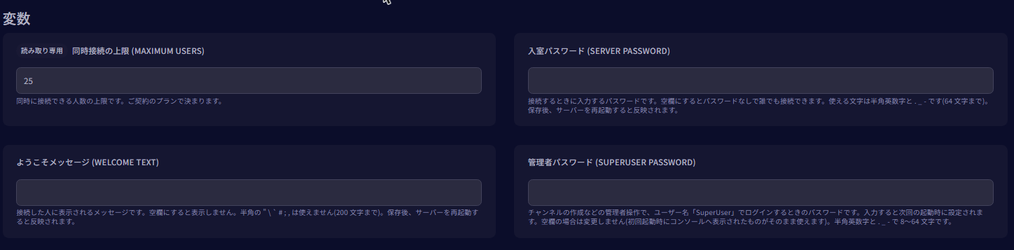
2. Maximum Concurrent Connections (Cannot be changed)
This is the item labeled “Read-only”. It is determined by your subscription plan and cannot be modified by you. The current plan available is 25 users.
3. Entry Password
This is the password users enter when connecting. If left blank, anyone can connect without a password.
- Allowed characters: Half-width alphanumeric characters and
._- - Length: Up to 64 characters
4. Welcome Message
This message is displayed to users when they connect. If left blank, no message will be shown.
- Length: Up to 200 characters
- Japanese characters can be used.Full-width punctuation marks like “、” and “。” are also supported.
- Unsupported characters: Half-width
"\`#;,
5. Administrator Password
This password is used for administrator operations such as creating channels.
- Allowed characters: Half-width alphanumeric characters and
._- - Length: 8 to 64 characters
| Note | If you leave this field blank, an automatically generated password will be displayed in the console only once on the first startup.If you did not record it, set a new password yourself on this screen. |
6. Log in as Administrator
In the Mumble application, connect with the username set to “SuperUser” and enter the password you set in step 5. Once logged in, you can create channels and configure permissions yourself.
7. Settings Persist After Reinstallation
Even if you reinstall the server, the settings you configured here will remain unchanged.


