
This guide walks you through a BESTNET-GSERVER Minecraft Bedrock Edition server, from ordering to starting up and joining. Three things trip people up first on Bedrock: the allow list, the port number in the connection address, and whether your device can join at all.
- v1.0
- September 2026 — First edition.
This guide is for Bedrock Edition
If you play on PC by choosing “Java Edition” in Minecraft Launcher, you are on Java Edition, which is a different product with a different procedure. Java Edition and Bedrock Edition servers cannot connect to each other either. See Minecraft Java Edition - Initial Setup.
Bedrock Edition is the version you play on phones, tablets, the Windows app from the Microsoft Store, Nintendo Switch, PlayStation and Xbox.
Nintendo Switch, PlayStation and Xbox have no screen in the game for entering a server address, so those devices cannot join our servers directly. See Join the server for details.
From order to a working server
Once your payment goes through, the server is built automatically. There is nothing for you to do.
- Your order and payment complete.
- The server is built automatically. This normally finishes within a few minutes.
- When the build finishes, a confirmation is sent to your registered email address.
Log in to the game panel
Everything you do with the server happens in the game panel, which runs in your browser.
- Use the details in your order confirmation email to log in to the game panel.
- After logging in, select your Minecraft server.
- The left-hand menu takes you to Console, Files, Backups, Network, Schedules and Startup. Bedrock servers also have an MCBE entry for switching versions.
Start the server
Press Start on the Console screen of the game panel.
On the first start the console prints CREATING VANILLA WORLD and generates the world. After a short wait, Server started. means start-up is finished.
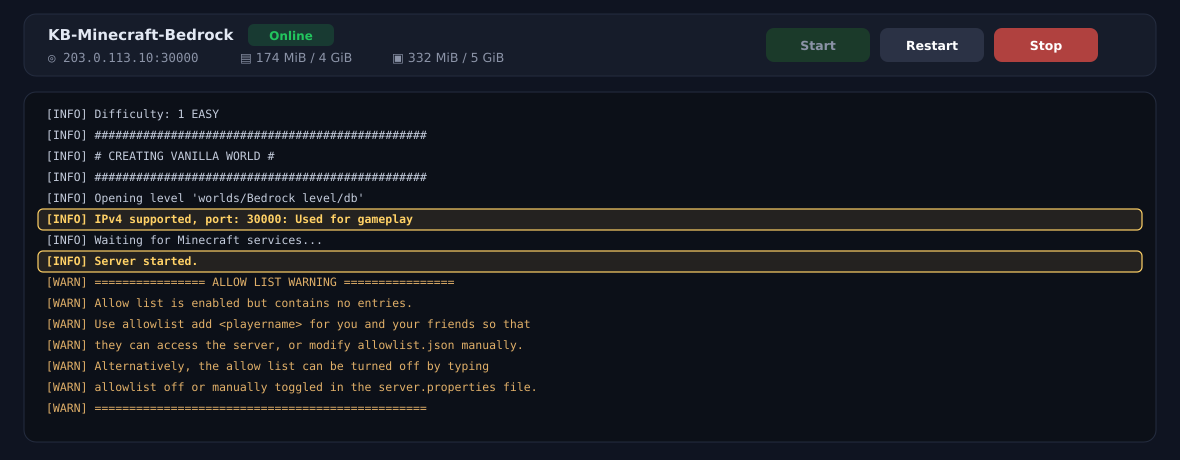
Just above that you will see IPv4 supported, port: ...: Used for gameplay. That number is the port number you will need when joining.
Profiler config ('bootstrap.json') load result: success=1, errorMessage=(null) is a normal line. The panel counts it as an error only because the word “error” appears in the text.Let players in (the allow list)
The list is empty, so nobody can join in this state. This is not a fault — it is the default setting. The console prints this warning at start-up.
The warning, as it appears:
Allow list is enabled but contains no entries.Use allowlist add <playername> for you and your friends so that they can access the server, or modify allowlist.json manually.Alternatively, the allow list can be turned off by typing allowlist off or manually toggled in the server.properties file.
Choose one of the two approaches below. Type the command into the input box underneath the console and press Enter.
Option 1: add each player (recommended)
Best when you are playing with friends. Add each player’s gamertag (their Microsoft account display name), one at a time.
- Type
allowlist add <gamertag>into the console input box. - Do the same for everyone you are playing with.
allowlist listshows who is currently on the list.
allowlist add "Player Name". To remove someone, use allowlist remove <gamertag>.Option 2: turn the allow list off
Use this if you want the server open to anyone. Type allowlist off into the console input box.
allowlist on puts it back at any time.allowlist.json in the home directory, or set allow-list to false in server.properties. The console commands are more reliable, though.Join the server
The connection address is shown at the top of the game panel, in the form IP address:port number (for example 203.0.113.10:30000).

Bedrock’s default port is 19132, but we assign each server its own port number. If you enter the address on its own, the game tries to reach port 19132 and you will not get in.
Which devices can join
| Your device | Joining our servers |
|---|---|
| Windows app / iOS / Android / Fire tablet | Yes. See the steps below. |
| Nintendo Switch / PlayStation / Xbox | Not directly. The game provides no screen for entering a server address on these devices. |
Community workarounds do exist (changing the console’s DNS settings, for example), but they are not provided by Microsoft, and we cannot guarantee or support them. Please open a support ticket if you would like to talk it through.
How to join (Windows app, phone, tablet)
- Start Minecraft (Bedrock Edition) and open Play → Servers.
- Choose Add Server at the bottom of the list.
- Fill in Server Name (anything you like), Server Address (the IP address) and Port (the port number).
- Save it, then pick the server from the list and join.
Change the main settings
Bedrock server settings live in two places. Change one in the wrong place and it will quietly revert.
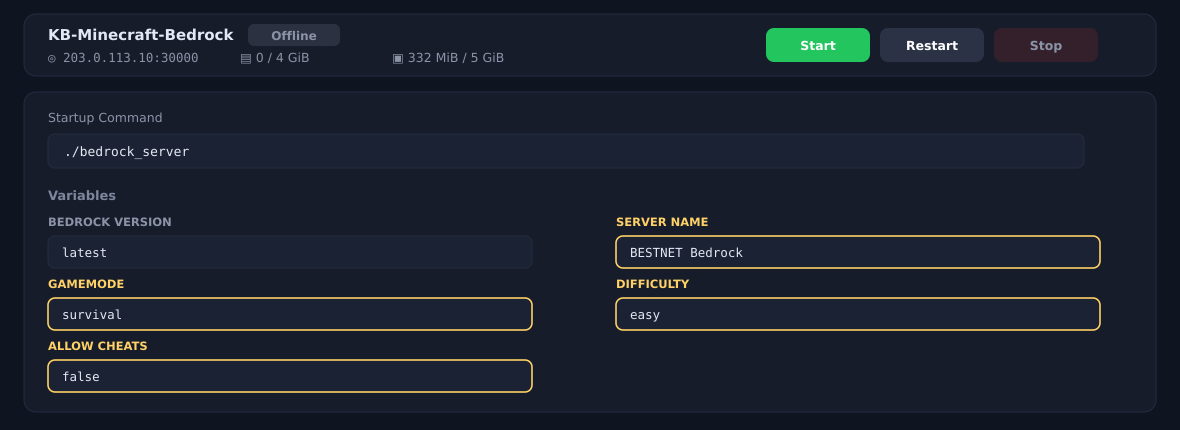
Settings you change on the Startup screen
SERVER NAME / GAMEMODE / DIFFICULTY / ALLOW CHEATSThey are written into
server.properties every time the server starts. Editing them in the file will be undone at the next start.BEDROCK VERSION selects which Bedrock server version to run. Leave it at the default unless you have a reason to change it (see Change the version).
Settings you change in server.properties
Everything else is in server.properties, in the home directory on the Files screen.
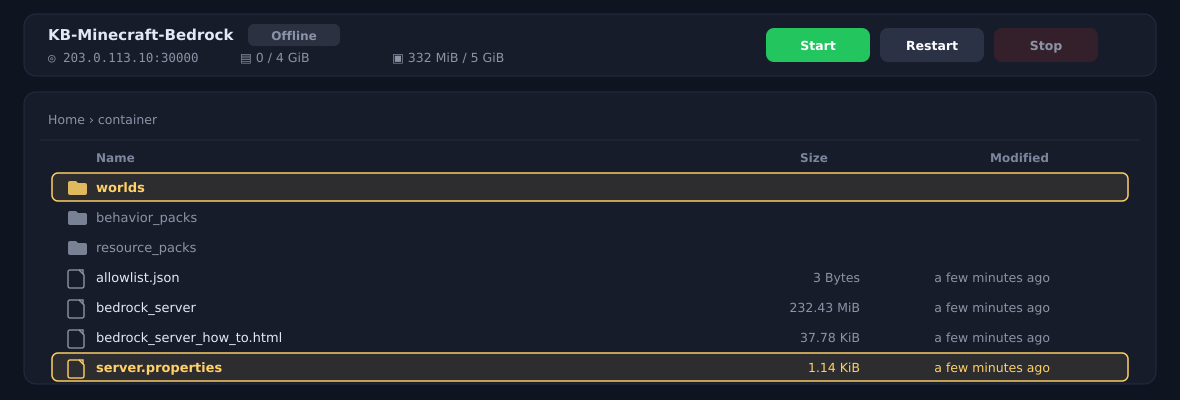
| Setting | What it does | Default |
|---|---|---|
max-players | How many people can play at once | 10 |
allow-list | The allow list (see Let players in) | true |
level-name | World name (the folder inside worlds) | Bedrock level |
level-seed | World seed (random when left empty) | (empty) |
view-distance | Render distance (higher is heavier on the server) | 32 |
tick-distance | How far the world keeps simulating | 4 |
player-idle-timeout | Minutes before an idle player is disconnected | 30 |
default-player-permission-level | Permission level given to players who join | member |
texturepack-required | Whether the resource pack is compulsory | false |
server-port. The port number we assigned is written in automatically at every start, so your change will not take effect.Note that the first start strips the explanatory comments out of
server.properties. If you are looking for the descriptions, open bedrock_server_how_to.html in the same home directory — it is the official documentation.Change the version
Bedrock servers can be switched to any offered version from MCBE in the left-hand menu.
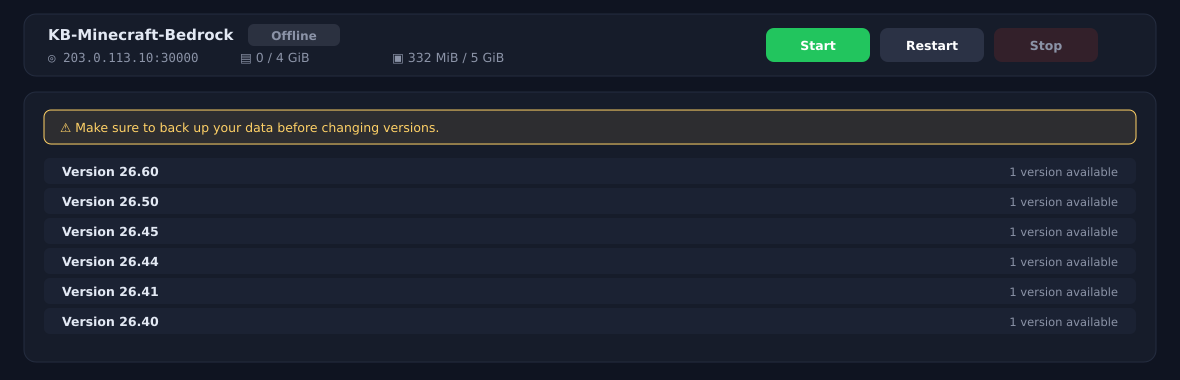
For the full procedure, see How to Switch Versions of Minecraft (Bedrock Edition).
Backups
Your world data lives in the worlds folder on the Files screen (worlds/Bedrock level by default).
Backups are something you create yourself, and none are taken by default. If your world matters to you, it is worth setting this up early.
- Procedure for setting a regular schedule on a game server — fix a day and time and backups are taken automatically
- Restoring from a backup — how to put one back, and what to watch for
If something does not go to plan
| Symptom | What to check |
|---|---|
| The server is running but nobody can join | The allow list is probably on with nothing in it. See Let players in (the allow list). |
| I cannot join / the server is not found | Check that you entered the port number too. See Join the server. |
| I cannot get in from Switch, PlayStation or Xbox | Those devices cannot join directly — it is how the game works. See Which devices can join. |
| My setting change keeps reverting | Server name, game mode, difficulty and cheats are changed on the Startup screen. File edits are overwritten at start-up (Change the main settings). |
| The console shows one Error | Profiler config ... errorMessage=(null) is a normal line. The panel is counting the word “error” in the text. |
| A version mismatch message | Match the server to the version of the game you are running (Change the version). |
| Start-up is taking a long time | The first start generates the world. CREATING VANILLA WORLD is normal progress. |
| I cannot join from Java Edition | Java Edition and Bedrock Edition cannot connect to each other. Check which edition you have (This guide is for Bedrock Edition). |
| It will not start whatever I do | See Reinstallation procedure when the server fails to start. Take a backup before reinstalling. |
Next steps
- How to Switch Versions of Minecraft (Bedrock Edition)
- Logging into the Game Panel and Feature Overview — how the panel works
- Procedure for setting a regular schedule on a game server — automatic restarts and backups
- Restoring from a backup
- Minecraft Java Edition - Initial Setup — if you are on Java Edition
- Minecraft dedicated servers — plans and pricing


