
If the Client Portal (https://gsp.bestnetllc.co.jp/) shows a message saying that your IP address is banned or blocked and you cannot log in, or if you still cannot log in after resetting your password, this page explains what to do.
Revision history
- v1.0
- November 2026 — First edition
Who this page is for
- When you try to log in, a message says that your IP address is banned or blocked, and you cannot log in
- The password reset page will not open either
- You reset your password but still cannot log in
Why logins are restricted
To protect your account, if login attempts keep failing, access from that IP address is temporarily restricted. The restriction is lifted automatically after some time.
While the restriction is in place, you may not be able to open the password reset page either, not just the login page.
Steps
STEP 1: Delete any old saved password
If your browser or smartphone has saved a password for the Client Portal, the old password may be filled in automatically and the login may fail. First, delete the saved password (you can delete it in your browser's password settings or in your smartphone's password manager).
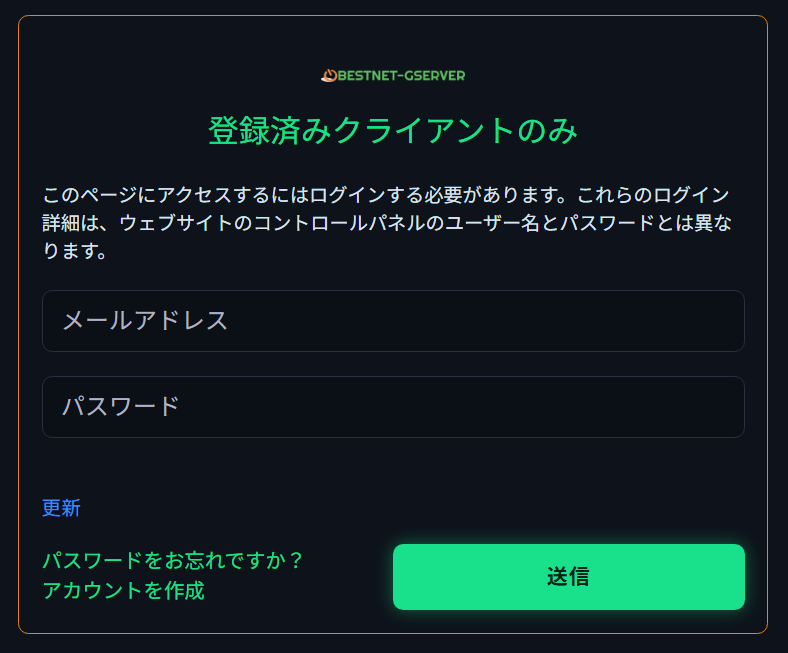
STEP 2: Click "Forgot your password?" without trying to log in
Once the restriction has been lifted, open the login page and, without trying to log in, click "Forgot your password?" (「パスワードをお忘れですか?」).
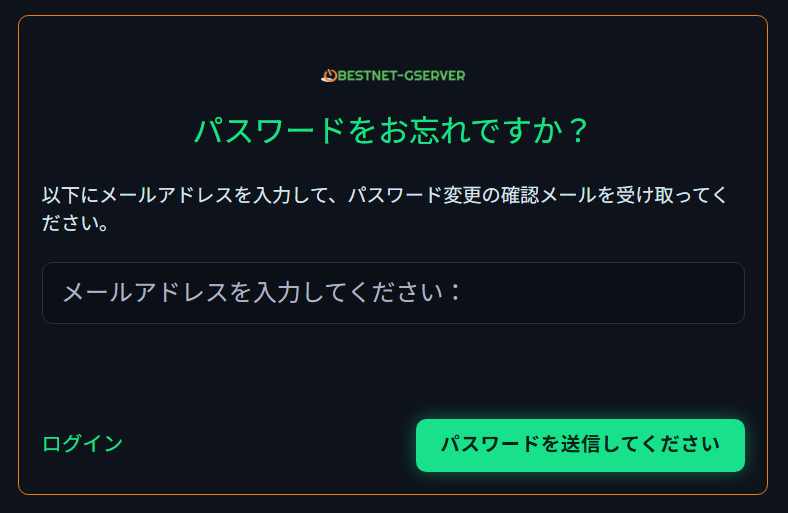
On the next page, enter your registered email address and click "Send password" (「パスワードを送信してください」).
STEP 3: Click "Reset password" in the email
You will receive the email "Password reset instructions" (「パスワード再設定のご案内」). Click the "Reset password" (「パスワードをリセット」) button in the email. Depending on the language setting of your account, the emails may arrive in a language other than Japanese.
STEP 4: Paste the new password you received and log in
Next, you will receive the email "A new password has been generated" (「新しいパスワードが生成されました」), which contains your new password. Copy and paste this password to log in.
- Make sure no spaces are added before or after it.
- If you type it by hand, watch out for similar-looking characters (such as "l" and "1", or "O" and "0").
- Do not use your browser's autofill.
STEP 5: Once you are logged in, change your password
After logging in, go to the "Change Password" (「パスワードを変更」) tab under "Account Details" (「アカウントの詳細」) in the left menu and change the password to one that is easy for you to manage. If you save it in your browser, save the new password again.
If you still cannot log in
Please do not keep trying to log in. Contact us through the contact form, and include your registered email address and your name.


